
PopPop AI Text to Speech Official Guide
Learn how to convert text to speech online with PopPop AI. Choose a voice, adjust pitch, speed, and style when available, then download an MP3.
Overview
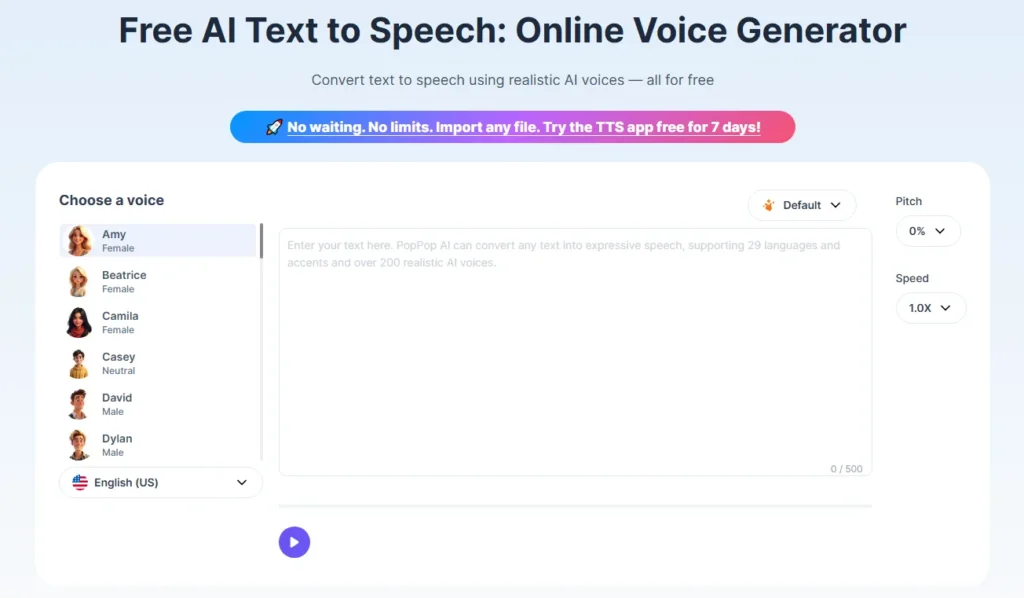
PopPop AI Text to Speech is a free online tool that turns written text into spoken audio. You use it in a browser. There is nothing to install, and you do not need an account.
Open the tool here: PopPop AI Text to Speech. It works in Chrome, Firefox, Safari, and Edge, on Windows, macOS, Android, and iOS.
The free version allows 15 conversions a day, with 500 characters in each conversion. The finished audio downloads as an MP3.
For long documents, or if you do not want a daily limit, use the desktop app TTSFree AI. This online page does not import PDF or EPUB files, convert files iin bulk, or work offline.
What You Can Set
Before you generate the audio, you can set:
- Voice: choose a voice for the language you need
- Pitch: make the voice higher or lower
- Speed: make the speech slower or faster
- Style: choose a delivery such as Cheerful, Hopeful, Excited, Friendly, or Whispering
These controls are not available on every voice. Some voices use a fixed default delivery, so pitch, speed, and style do not change them. If a control has no effect, choose another voice.
You can generate the same text again with a different voice or style. Each result is a separate MP3.
Supported Languages and Accents
PopPop AI Text to Speech includes:
- English: US, UK, Australia, Canada, Ireland, and India
- Chinese: Simplified, Traditional, and Cantonese
- French, German, Spanish, Italian, and Portuguese (Brazil and Portugal)
- Japanese, Korean, Thai, Russian, Polish, Turkish, and Ukrainian
- Hindi, Bengali (India), Bangla (Bangladesh), Tamil, and Urdu
- Arabic and Persian
Choose the language first, then pick a voice in that language. Some languages have more than one voice.
How to Convert Text to Speech
- Open PopPop AI Text to Speech.
- Choose a language and a voice.
- Paste or type your text. Stay within the 500-character counter in the box.
- If that voice allows it, set the pitch, speed, and style.
- Click the play icon to start the conversion and wait for the audio to finish.
- Play the result. If it sounds right, click the download icon to download the MP3.
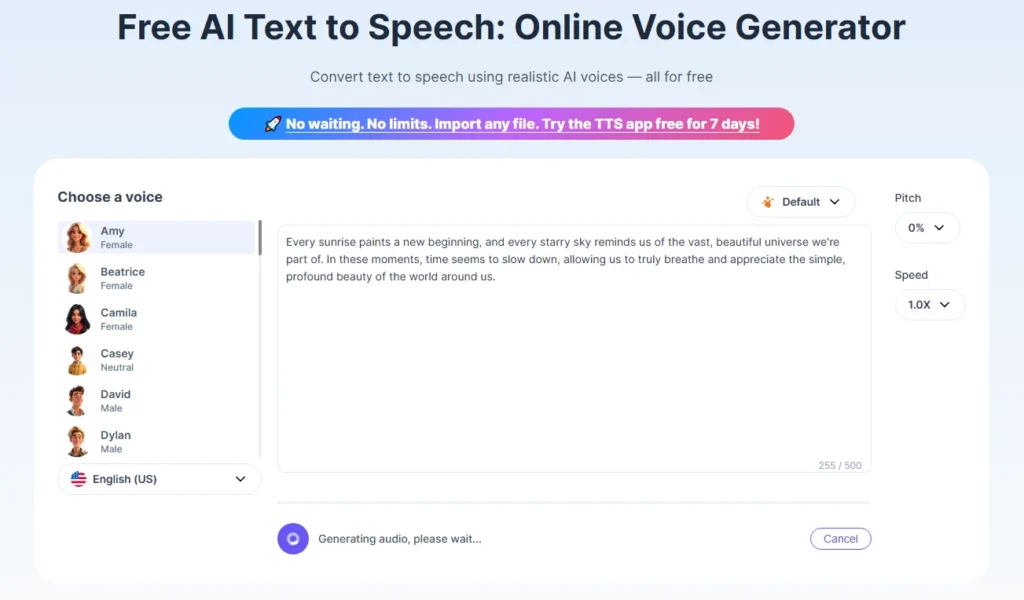
The file goes to your browser’s download folder. You can use the MP3 in a video, podcast, or slideshow.
If the text is longer than 500 characters, split it into parts and convert each part separately. On the free plan, you can do this up to 15 times a day.
How to Change the Voice, Pitch, Speed, and Style
- Leave your text in the box.
- Choose another voice, or change the pitch, speed, or style when that voice supports it.
- Run the conversion again. This counts as another conversion.
- Listen to the new MP3 and keep the one you want.
Pitch changes how high the voice sounds. Speed changes how fast it reads. Style changes the delivery, for example, Cheerful, Friendly, or Whispering. These settings do not change the words. A voice marked as default keeps its original delivery.
Download and Use the MP3
The tool saves the audio as MP3. You can download it straight to your device.
You may use the generated audio for commercial projects if you follow the PopPop AI terms of use. The tool does not give you a separate license file with the download.
If You Need Higher Limits
The free tool stops at 15 conversions a day and 500 characters each. Two paid options raise that limit.
PopPop AI Audio Tools includes this online text-to-speech tool, with 1,000 conversions a month and 1,200 characters each.
TTSFree AI for Windows and Mac does not limit the number of characters or conversions. Use it when you need to convert long text or many files.
What This Online Tool Does Not Do
- It does not accept more than 500 characters in one free conversion, or more than 1,200 characters in one Audio Tools conversion.
- It does not open PDF, DOCX, EPUB, or other documents.
- It does not assign different voices to different characters in one pass.
- It does not clone your voice.
- It does not run offline. The page has to load in a browser.
- It does not let you change pitch, speed, or style on every voice.
Document import, multi-voice scripts, and unlimited conversions are part of TTSFree AI.
Tips
- Short sentences sound clearer than one long block of text.
- If a name is pronounced wrong, try a different spelling, then generate again.
- Match the voice language to the text language. An English voice reading Chinese text will not sound right.
- Preview before you download. Each new pitch, speed, or style uses one conversion.
- If you hit 15 conversions, wait until the next day, or switch to PopPop AI Audio Tools or TTSFree AI.
- For help, email support@poppop.ai.
FAQ
Yes. The free version allows 15 conversions a day, with up to 500 characters each. You use it in a browser and do not install software.
Yes. Open the page in Chrome, Firefox, Safari, or Edge on Android or iOS.
One conversion accepts 500 characters on the free plan. Split longer text into more than one conversion.
The free plan allows 15 conversions a day. Wait until the next day, or use PopPop AI Audio Tools (1,000 conversions a month, 1,200 characters each) or TTSFree AI (no character or conversion limit).
Not every voice supports those controls. Some voices stay on the default delivery. Choose a different voice and try again.