
PopPop AI Sound Effect Generator Official Guide
Learn how to generate sound effects from text with PopPop AI. Describe a sound, turn on Smart Mode if you want a richer prompt, and then download the generated WAV file. Free and online, with no account required.
Overview
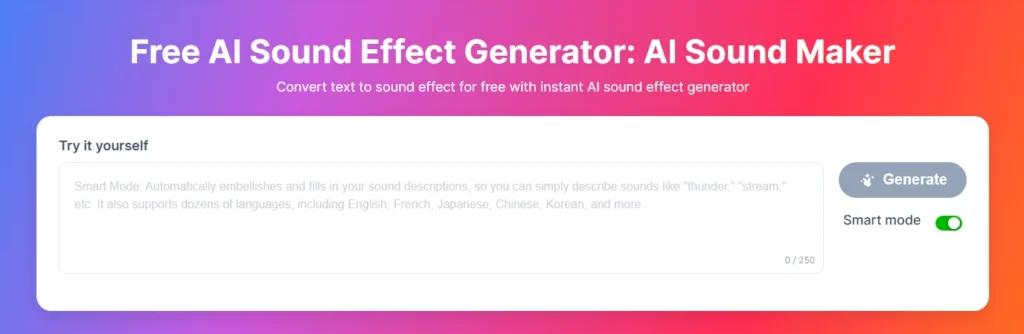
PopPop AI Sound Effect Generator is a free online tool that turns a text description into a sound effect. You use it in a browser. There is nothing to install, and you do not need an account.
Open the tool here: PopPop AI Sound Effect Generator. It works in Chrome, Firefox, Safari, and Edge, on Windows, macOS, Android, and iOS.
Each sound effect is between 10 and 60 seconds long. The file downloads as WAV.
What You Set Before Generating
- Description: the text that tells the tool what the sound should be
- Smart Mode: an optional switch that rewrites your description into a richer prompt before generation starts
Turn Smart Mode on or off before you click Generate. It does not change sound effects that have already been created.
How to Generate a Sound Effect from Text
- Open PopPop AI Sound Effect Generator.
- Type a description of the sound you want, such as rain on a window, footsteps on gravel, or a short crowd cheer.
- Turn Smart Mode on if you want the tool to expand that description.
- Click Generate and wait for the sound effect to finish.
- Preview the two options. If it fits, download the WAV file.
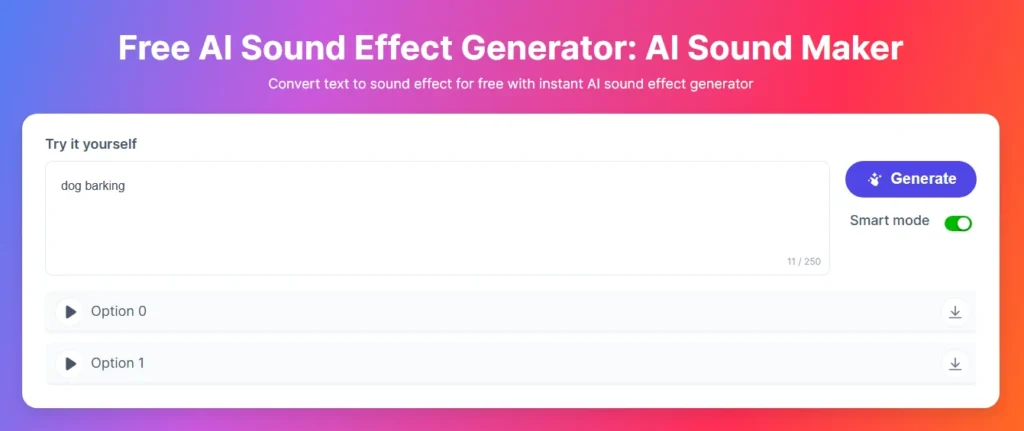
The file goes to your browser’s download folder. WAV keeps the audio lossless, so the file is larger than an MP3 and can take longer to download.
To try a different result, change the description or the Smart Mode setting, then click Generate again. That creates a new file. It does not replace the one you already downloaded.
Use Smart Mode to Improve the Prompt
Smart Mode polishes and expands the text you typed, then uses that richer prompt to generate the sound. Leave it on when your description is short, and you want more detail. Turn it off when you want the tool to follow your wording more closely.
- Write the description first.
- Turn Smart Mode on.
- Click Generate.
You do not edit the rewritten prompt yourself. Smart Mode applies it automatically for that run. If the result adds sounds you did not ask for, turn Smart Mode off and generate again with a more specific description.
How to Write a Clear Description
Name the sound, where it happens, and how it should feel. A specific line works better than one vague word.
- Weaker:
door - Clearer:
a heavy wooden door closing slowly in an empty hall - With Smart Mode off, add the detail yourself:
soft rain on a tent, no thunder, steady and quiet
Use Smart Mode when you only have a short idea. Write the detail yourself when the wording has to stay exact.
Limits
| Item | Detail |
|---|---|
| Length | 10 to 60 seconds |
| Output | WAV |
| Account | Not required |
| Where it runs | In a browser |
A sound effect cannot be shorter than 10 seconds or longer than 60 seconds. Generate more than one file if a project needs a longer bed, then trim the WAV in an audio editor.
What This Tool Does Not Do
- It does not upload an existing song or video and turn it into a new sound.
- It does not remove vocals or separate a finished track.
- It does not export MP3 from this page. The download is WAV.
- It does not make a sound effect shorter than 10 seconds or longer than 60 seconds.
- It does not run offline.
Tips
- Preview before you download. Generation can vary even when the description stays the same.
- For a loop or a background bed, ask for a steady sound rather than a one-time hit. You can still trim the WAV afterward.
- Keep thunder, voices, or music out of the description if you do not want them in the file.
- For help, email support@poppop.ai.
FAQ
Yes. You can use it in a browser without an account.
Yes. Open the page in Chrome, Firefox, Safari, or Edge on Android or iOS.
WAV. The file is larger than an MP3 because it is lossless.
Turn it on before you click Generate. The tool rewrites your description into a more detailed prompt, then generates the sound from that prompt.
No. Change the description or Smart Mode, then generate a new file.