

We all have PDFs piling up — research papers, ebooks, reports, contracts — but who has time to sit and read them all? Converting PDF to audio is a fantastic solution. You can listen while commuting, working out, or doing chores, and it makes consuming information so much easier.
If you’re looking for a free way to turn your PDFs into speech, TTSFree AI from PopPop AI is one of the best options out there right now.
Benefits of Converting PDF to Audio
Turning PDFs into audio files helps with accessibility, multitasking, and learning. Students can review notes on the go, professionals can catch up on reports during a walk, and anyone with reading difficulties or visual impairments gets a much better experience. Plus, it’s just more convenient — natural voices make long documents feel less overwhelming.
Free PDF to Audio Reader: TTSFree AI
While there are several tools that claim to convert PDF to audio, TTSFree AI stands out because it actually delivers a smooth, unrestricted experience. Here’s why it works so well:
- No credit system, no character limits, and no caps on the number of files — you can do unlimited batch conversions.
- Over 200 natural AI voices to choose from, so you’re not stuck with robotic ones.
- Built-in voice design and cloning features let you create custom AI voices tailored to your needs.
- It runs locally on your computer, which means better privacy and security (your documents never leave your device) and no waiting in queues.
- Exports to popular formats like MP3, WAV, and even M4A/M4B for audiobooks. All generated files are automatically saved to a folder on your computer.
It’s one of the most practical free PDF to audio solutions I’ve come across, especially if you work with lots of documents.
How to Convert PDF to Audio in MP3 or Other Formats
Getting started is straightforward. Here’s exactly how to do it:
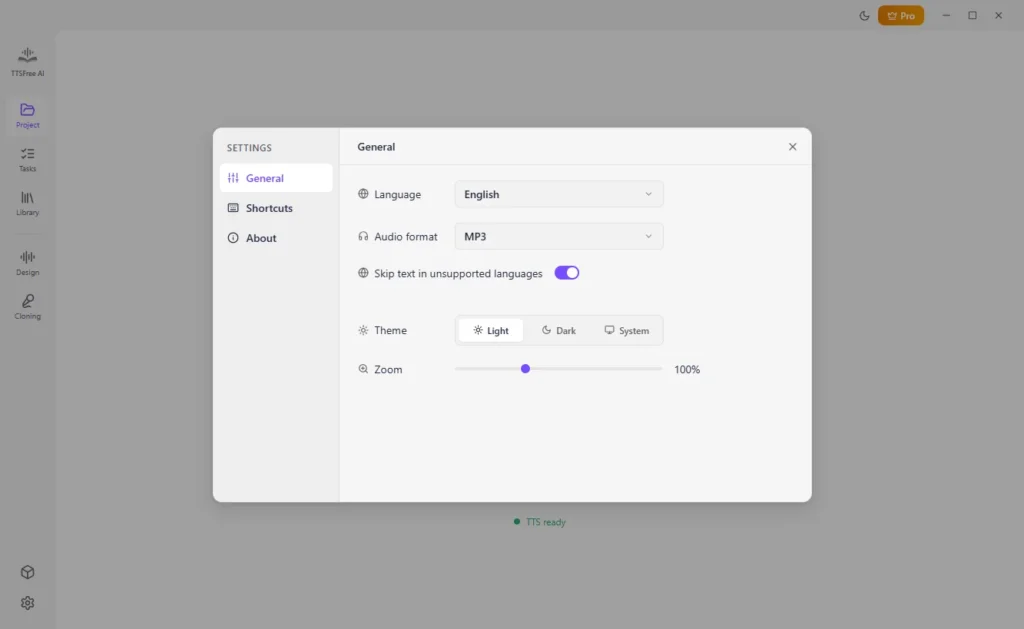
Step 1: Set your preferred audio format
Open TTSFree AI and click on Settings. In the General panel, choose your default output format — MP3 for everyday use, WAV for higher quality editing, or M4A/M4B if you’re making audiobooks.
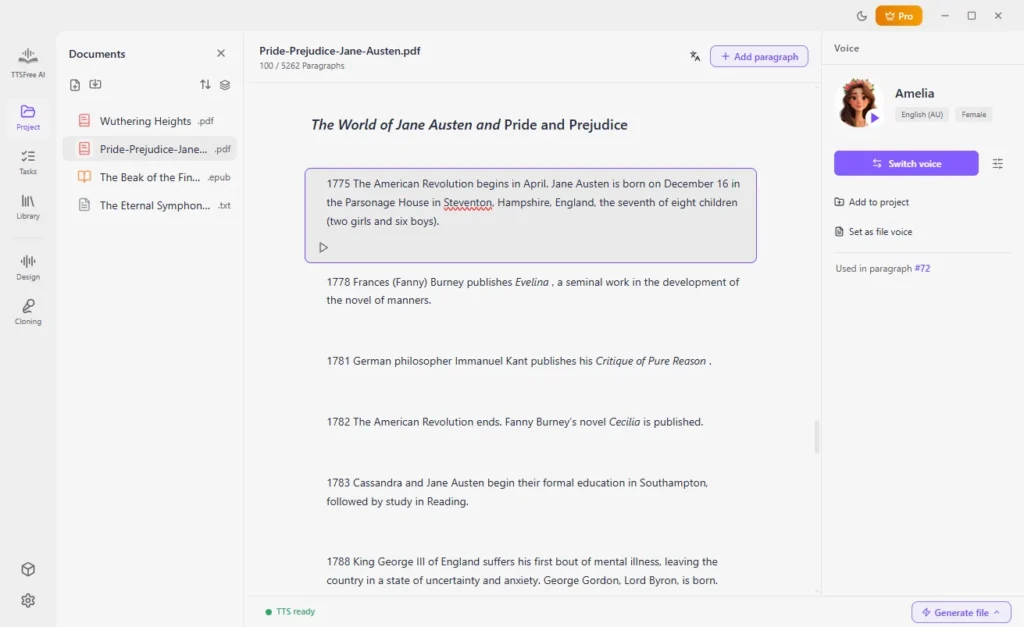
Step 2: Import your PDF and choose a voice
Start a new project, import your PDF document, and select (or design) the voice you want. You can assign different voices to different sections if needed.
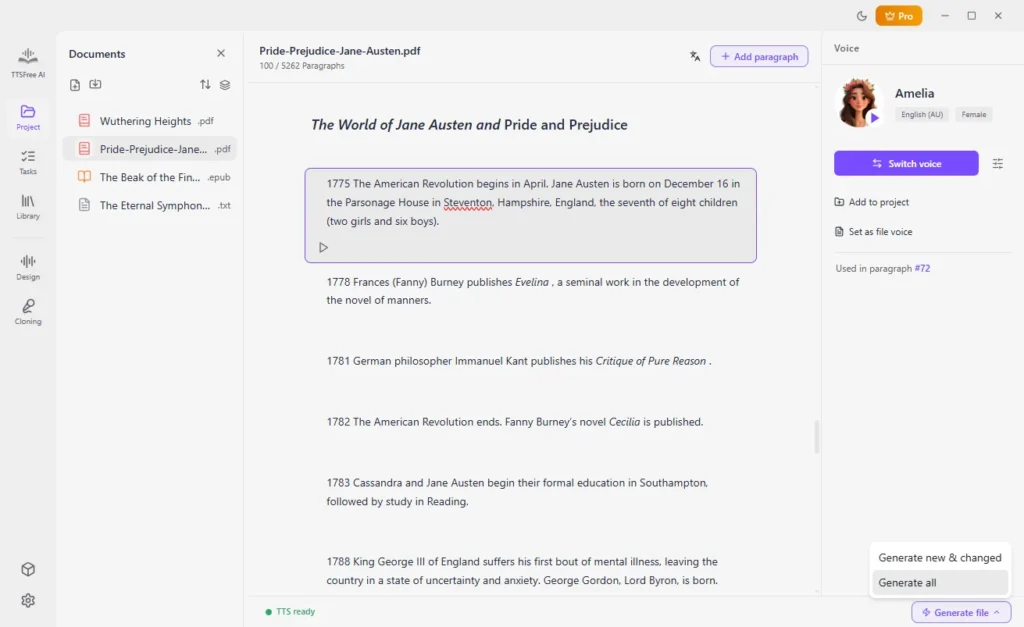
Step 3: Generate the full audio
Click “Generate file” > “Generate all” to convert the entire PDF at once. The process runs locally on your machine.
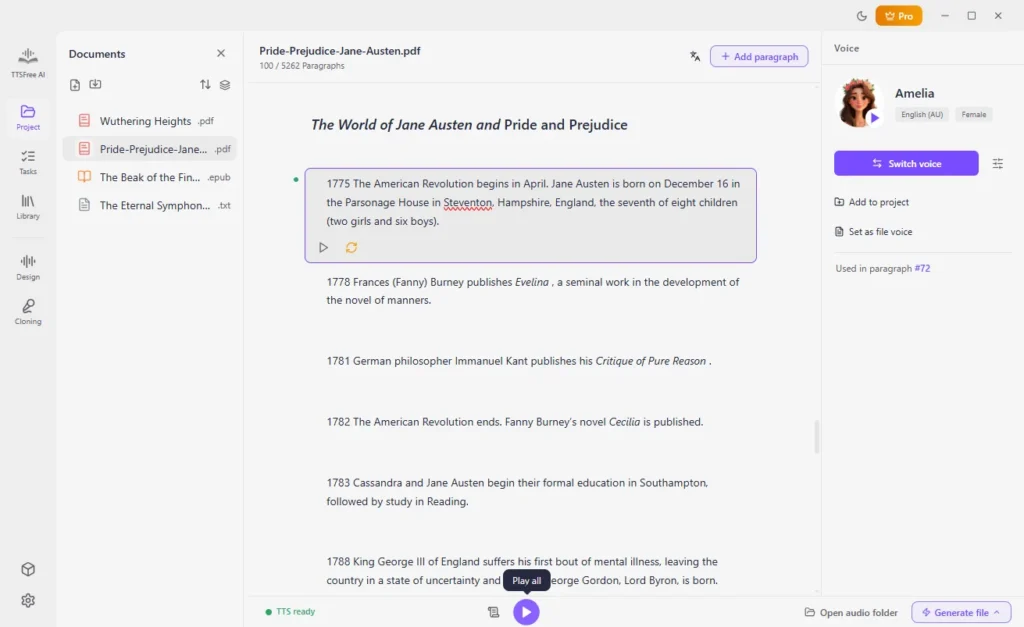
Step 4: Preview and access your files
Once it’s done, you can play the audio directly in the app to check it. Or click “Open audio folder” to find all your generated files saved neatly on your computer.
Note: If your PDF is scanned (image-based), there might be an extra OCR step to extract the text first, but the app handles this pretty smoothly.
Wrapping Up
Converting PDF to audio for free doesn’t have to mean dealing with low-quality voices or frustrating limits. TTSFree AI by PopPop AI gives you natural-sounding results, plenty of voices, custom options, and true flexibility without the usual headaches.
Whether you’re a student, researcher, content creator, or just someone who prefers listening over reading, this is a tool worth trying. Download TTSFree AI, import your first PDF, and hear the difference for yourself.
It might just become your new favorite way to handle documents. Give it a shot and enjoy turning all those PDFs into convenient audio files.