
How to Clone Your Voice with TTSFree AI
Clone your voice with TTSFree AI on Windows or Mac. Read the on-screen sentence, pass verification, and save a voice clone for text to speech with QWen3-TTS or OmniVoice.
Overview
TTSFree AI can clone your voice on your own computer. You read one random sentence and a verification code, and the app builds a voice that follows your pace and emotion. The clone is saved in the Voice library. After that, you can select it whenever you convert text to speech.
This is the voice cloning tool inside the TTSFree AI desktop app, for Windows 10 or later and macOS 13 or later. It is not the online voice cloner in PopPop AI Audio Tools. The rest of the desktop app is covered in the TTSFree AI Official Guide.
Cloning needs QWen3-TTS, OmniVoice, or both. Download and enable the model you want in Model manager before you start. Choosing both creates two clones, one for each model.
What You Read
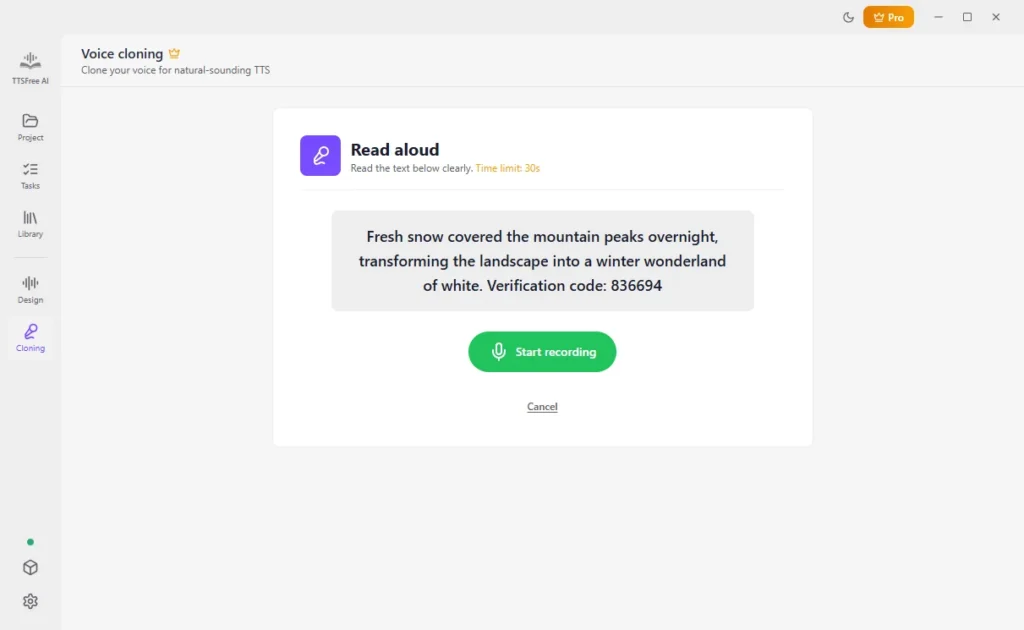
The box shows one random sentence and a verification code. You read that sentence and that code. Nothing else. TTSFree AI checks the recording before it builds the clone.
Use a quiet room and a clear microphone. Background music, other voices, and a muffled mic end up in the clone. The person being cloned has to read the sentence and the code themselves. You cannot clone someone from an old recording on this screen.
Clone Your Voice
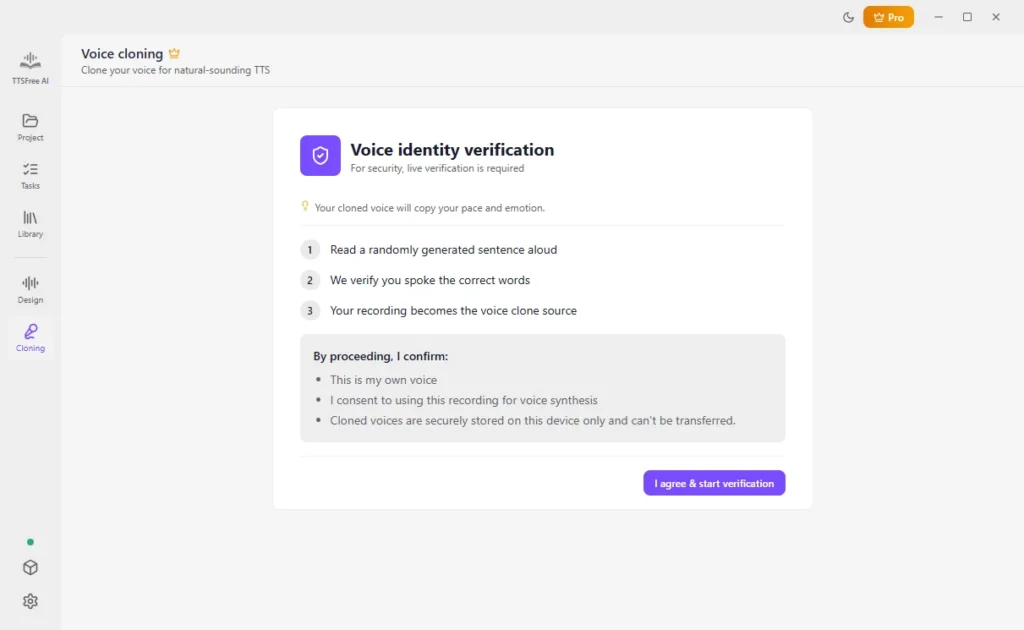
1. Open the Cloning panel, read the notice, and click I agree & start verification.
2. Click Start recording. Read the sentence and the verification code in the box, then click Stop recording.
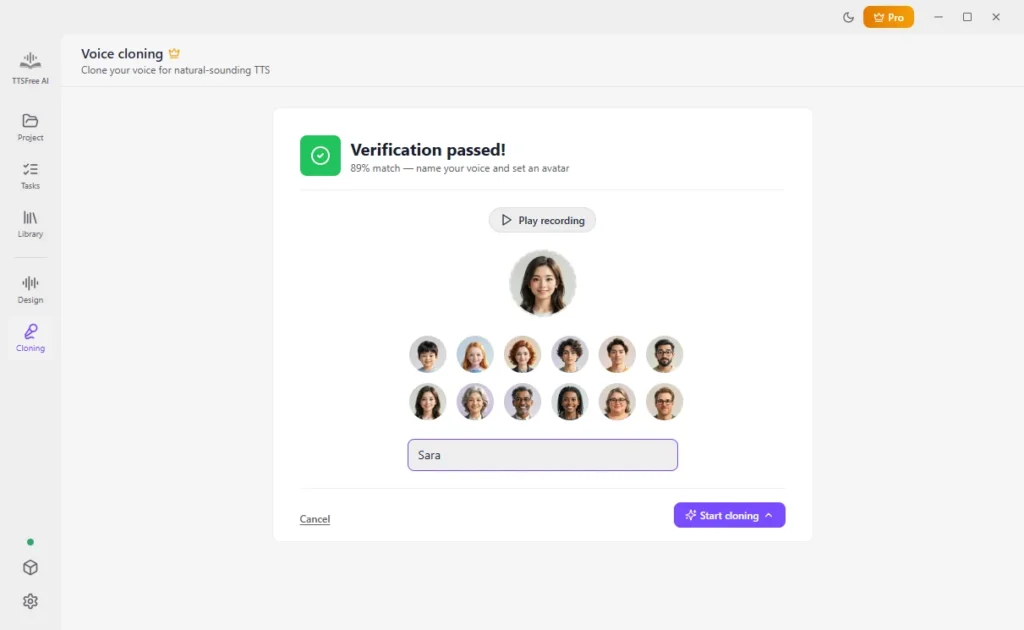
3. When verification passes, choose an avatar and name the voice.
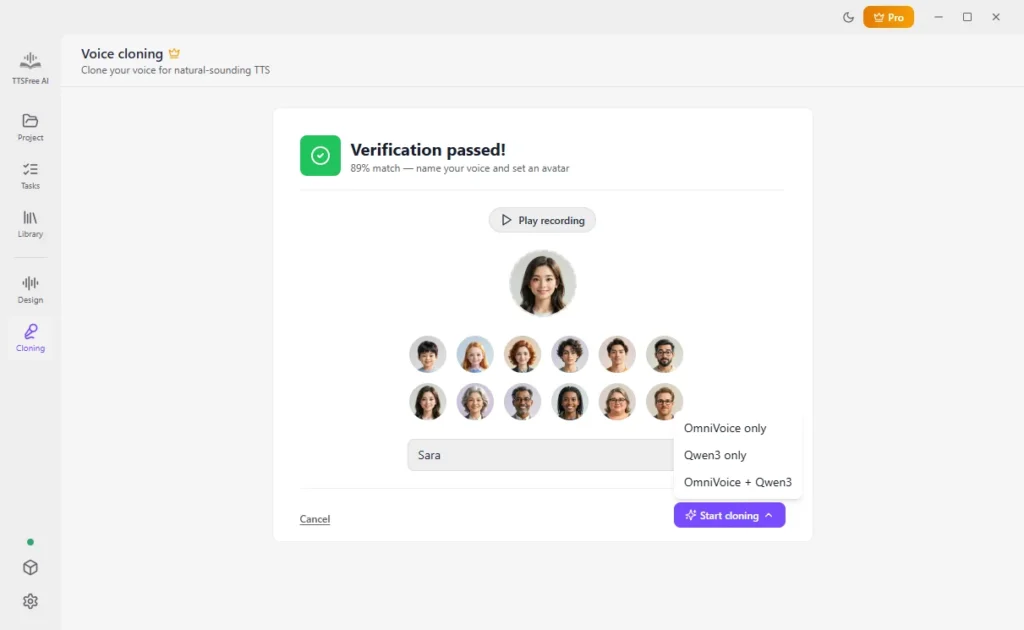
4. Click Start cloning. Choose OmniVoice, QWen3-TTS, or OmniVoice + QWen3-TTS.
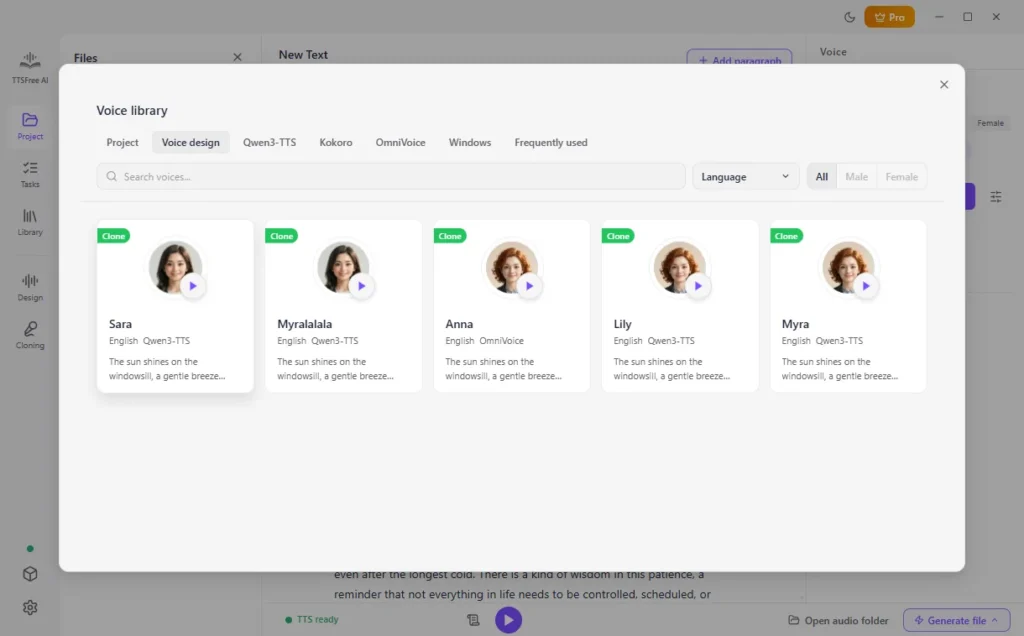
5. Wait for cloning to finish. TTSFree AI saves the voice in the Voice library, under Voice design.
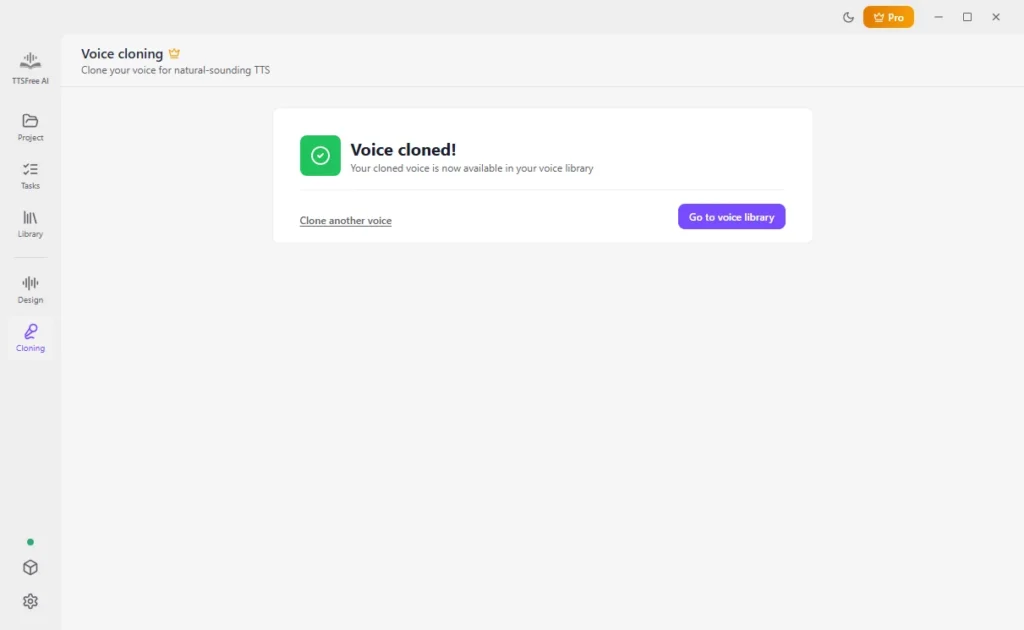
OmniVoice + QWen3-TTS saves two voices. Use the one that matches the model you have enabled for that project.
Use the Clone for Text to Speech
When you convert text to MP3, PDF to audio, or EPUB to audiobook, the clone is selected like any other voice.
1. Open a project and choose the text or file.
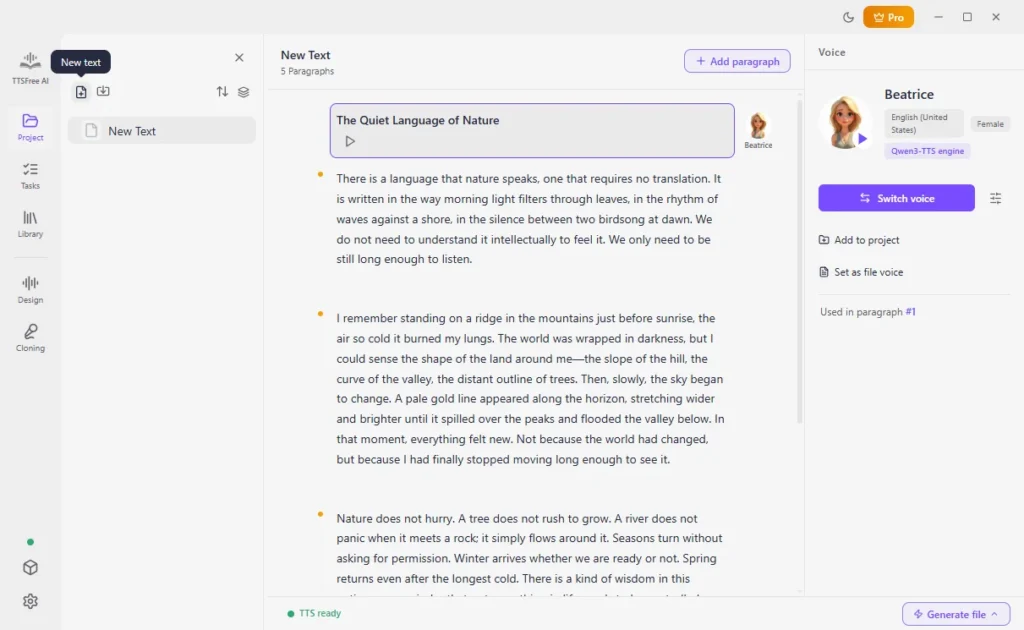
2. Click Switch voice and select your clone. Preview it with the play icon. Click Set as file voice if it should read the whole file.
3. Click Generate and play, or Generate file and then Generate all.
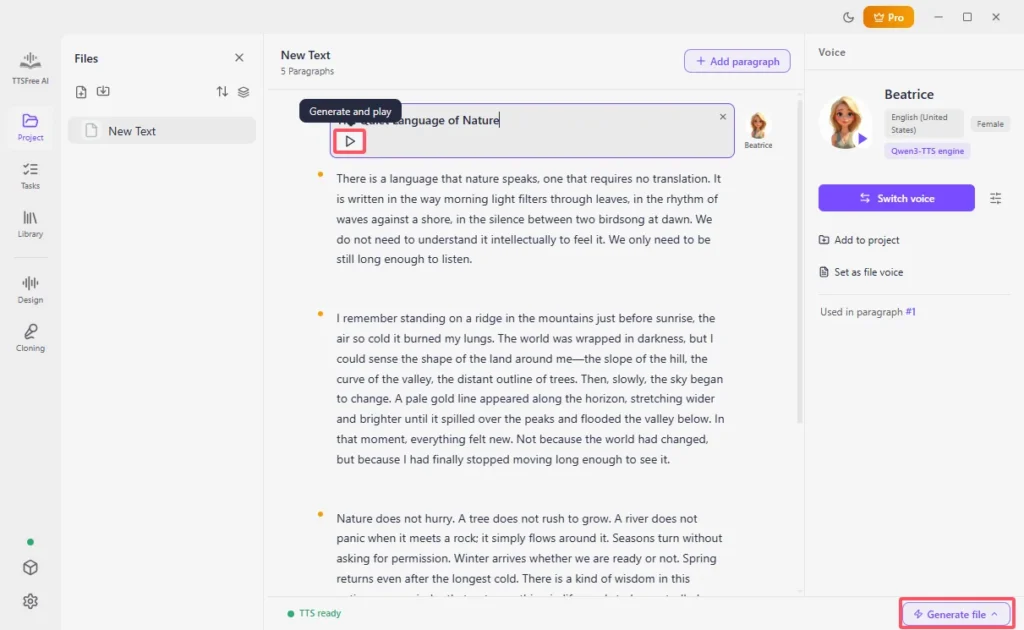
The audio is saved in the project folder. A clone can also speak the other languages that its model supports. QWen3-TTS and OmniVoice do not support the same language list, so a clone only speaks the languages of the model you chose in Start cloning.
Speed, pitch, and volume are on that voice’s profile, under Voice options.
Clone, Design, or a Built-in Voice
- Clone when you want the reading to follow your own pace and emotion. You only record one sentence and a verification code.
- Use Voice Design when you want a new voice from a description, or a fine-tune of one of the nine included voices. That is a different panel, and it does not use this recording.
- A built-in voice when you do not need it to sound like you.
Tips
- Use the microphone you want the clone to sound like. Changing mics later does not change a clone you already saved.
- Read the sentence and the code clearly. If you stumble, record again before you click Start cloning.
- Name the clone so you can tell the QWen3 version from the OmniVoice version.
- Preview the clone on one paragraph before you generate a long file.
- To use the clone on every file in a batch, set it as the file voice on each file before you open Tasks.
FAQ
Yes. In the Cloning panel, read the random sentence and the verification code on screen. After the check passes, click Start cloning. The voice is saved in the Voice library.
One sentence and one verification code. Both are shown in the box. You do not read a paragraph or a script.
QWen3-TTS, OmniVoice, or both. Enable the model first. OmniVoice + QWen3-TTS creates one clone for each.
No. You record in the app and read the sentence and code it shows.
Only if that person reads the sentence and the verification code themselves and passes verification. The app does not clone a voice from a file you already have.
It can read the languages supported by the model you cloned with. A QWen3-TTS clone stays with QWen3-TTS. An OmniVoice clone stays with OmniVoice.