
TTSFree AI Official Guide
Learn how to use TTSFree AI on Windows and Mac. Convert documents to MP3, WAV, M4A, or M4B, read scripts with more than one voice, batch-convert files, and design or clone a voice. No character limit.
Overview
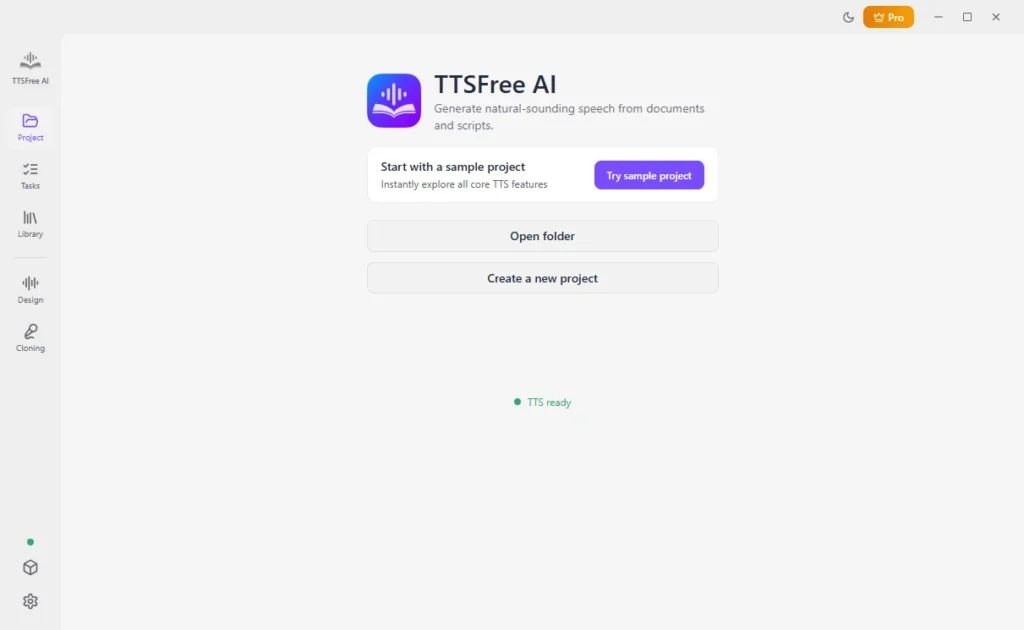
TTSFree AI is a desktop app that turns text and documents into speech on your own computer. It is made for long files and batches, and it does not limit how many characters or files you can convert.
The app runs on Windows 10 or later and macOS 13 or later, including Intel and Apple Silicon. You can convert text to MP3, WAV, M4A, or M4B.
Detailed click-by-click help stays in the TTSFree AI user guide. This page is an overview of the full workflow.
What You Can Convert
Import TXT, MD, PDF, DOC, DOCX, EPUB, PPTX, XLSX, HTML, or subtitles (SRT, VTT, LRC, ASS). You can also paste text into a blank file.
The app does not change the original document. Generated audio is saved separately. You can play it in TTSFree AI or open the audio folder and play the files in any media player.
Choose a TTS Model First
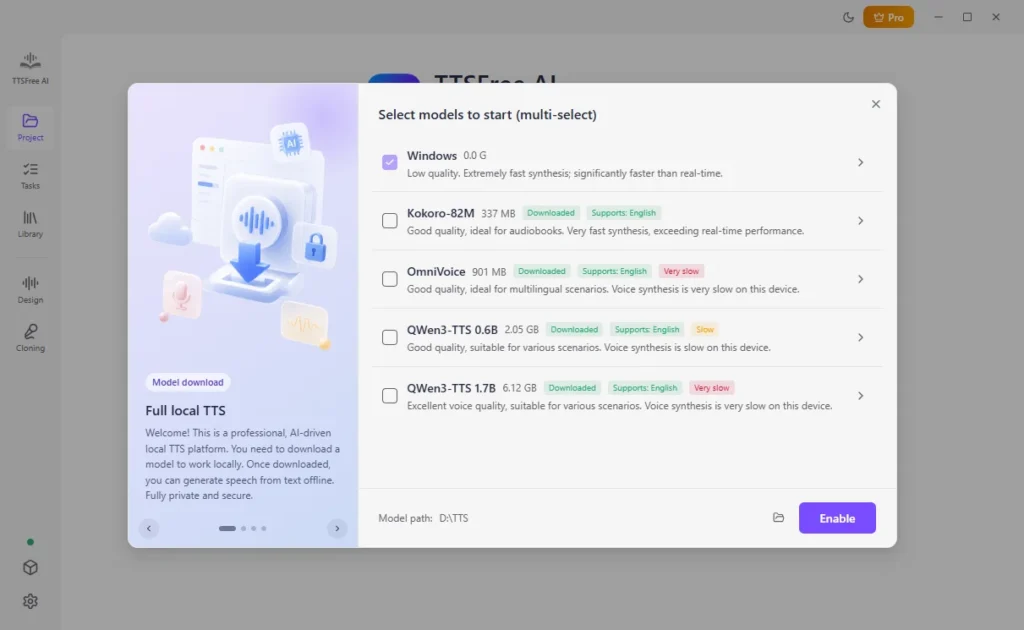
A model has to be downloaded and enabled in Model Manager before it can speak. In Settings, choose MP3, WAV, or M4A/M4B as the format you prefer.
| Model | Size | Languages | Built-in voices |
|---|---|---|---|
| QWen3-TTS 0.6B | 2.05 GB | Chinese, English, Japanese, Korean, German, French, Russian, Portuguese, Spanish, Italian | 214 |
| QWen3-TTS 1.7B | 6.12 GB | Same as QWen3-TTS 0.6B | 214 |
| OmniVoice | 901 MB | English, French, German, Portuguese, Spanish, Italian, Dutch, Russian, Simplified and Traditional Chinese, Japanese, Korean, Hindi, Polish, Swedish, Danish, Norwegian, Turkish, Indonesian | 159 |
| Kokoro-82M | 337 MB | English, Chinese, Japanese, French, Spanish, Hindi, Italian, Portuguese | 54 |
| Windows or macOS speech | Already on your computer | Whatever voices your system has installed | Depends on your computer |
QWen3-TTS 1.7B is the larger QWen3 download. Kokoro-82M is the smallest AI model. A designed or cloned voice can also speak the other languages that its model supports.
Audio from QWen3-TTS 0.6B, QWen3-TTS 1.7B, and Kokoro-82M can be used commercially. Check the license before you publish audio from another model.
Where the Main Tools Are
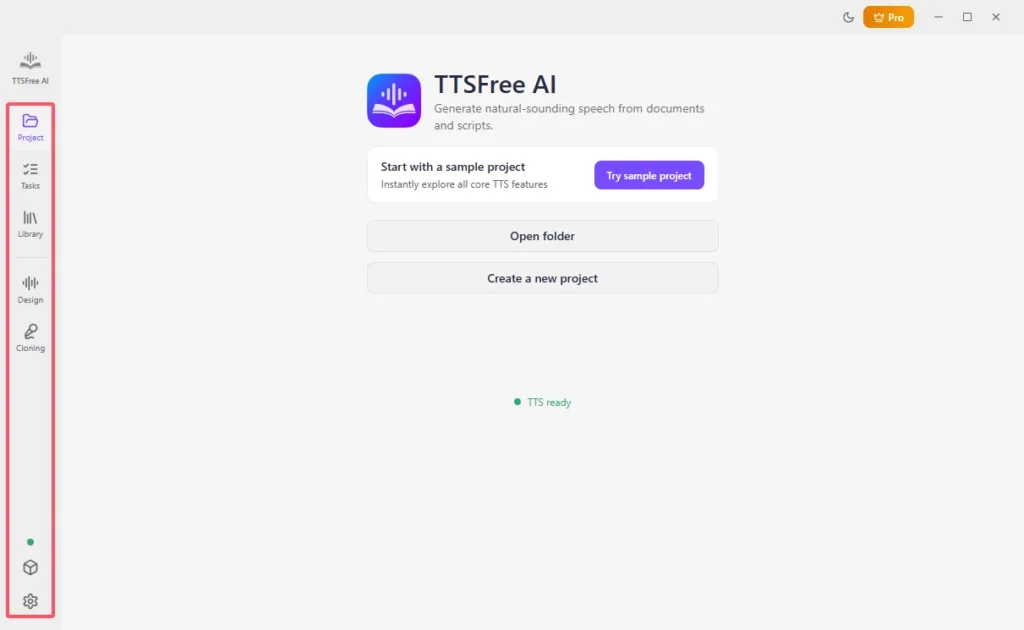
The left menu is the whole app:
- Project starts a project. Open folder uses a folder you already have. Create a new project makes a new folder. Recent projects reopens an earlier one.
- Tasks converts many files after each file has a voice.
- Library holds built-in voices, designed voices, clones, and voices you use often.
- Design creates a new voice or fine-tunes one of nine existing voices.
- Cloning records a sample and clones your voice.
- Model manager downloads, enables, or disables models.
- Settings covers the interface, shortcuts, and About.
Convert Text or a Document to Speech
Whether you want to convert PDF to audio or EPUB to audiobook, you can follow the steps below.
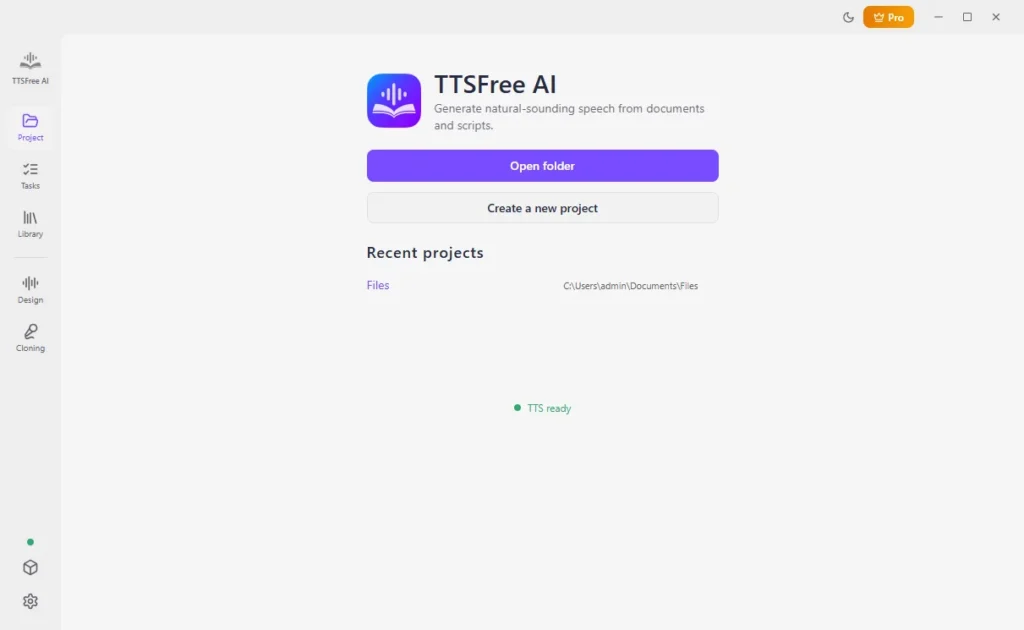
- In Project, open a folder, create a project, or pick a recent project.
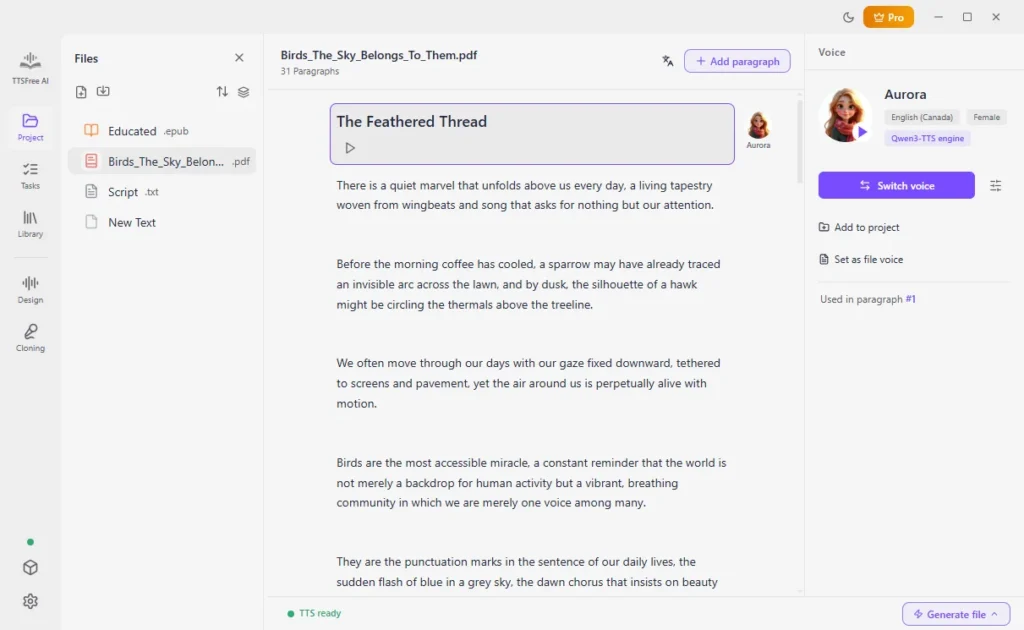
2. Click New text and paste your text, or click Import document and choose a file. You can also select a file that is already in the project.
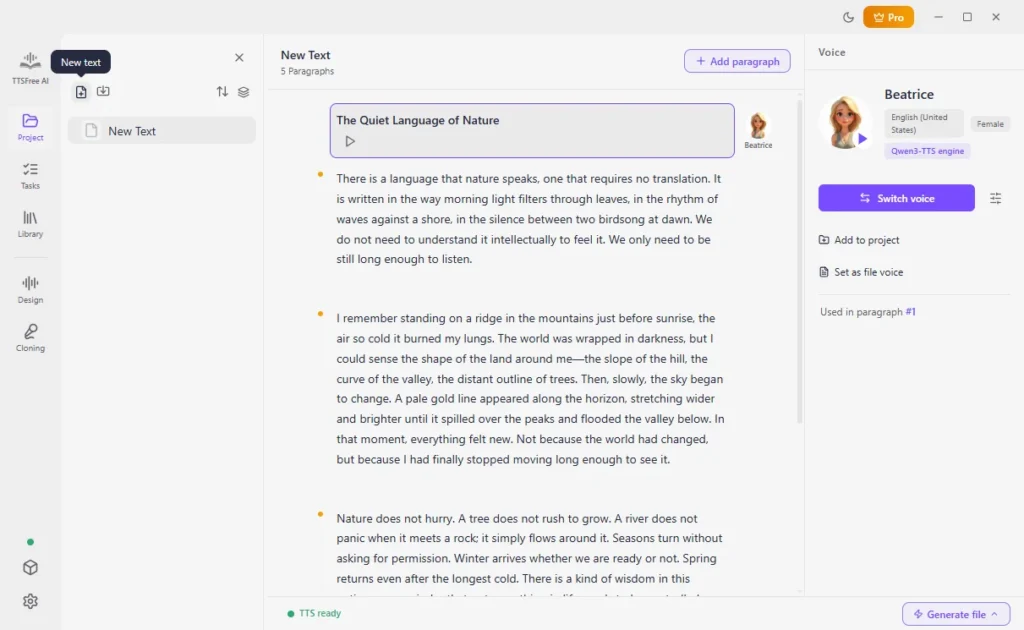
3. Select a paragraph and click Switch voice. Preview a voice with the play icon. Click Set as file voice to use one voice for the whole file. To mix voices, select another paragraph and switch its voice.
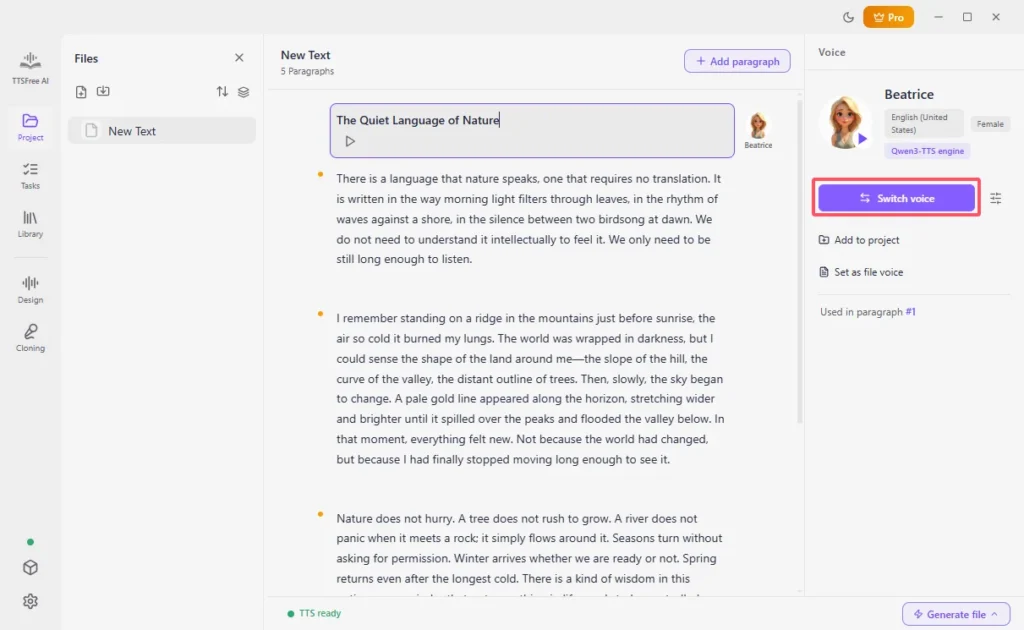
4. Click Generate and play under one paragraph, or click Generate file and then Generate all for the whole document.
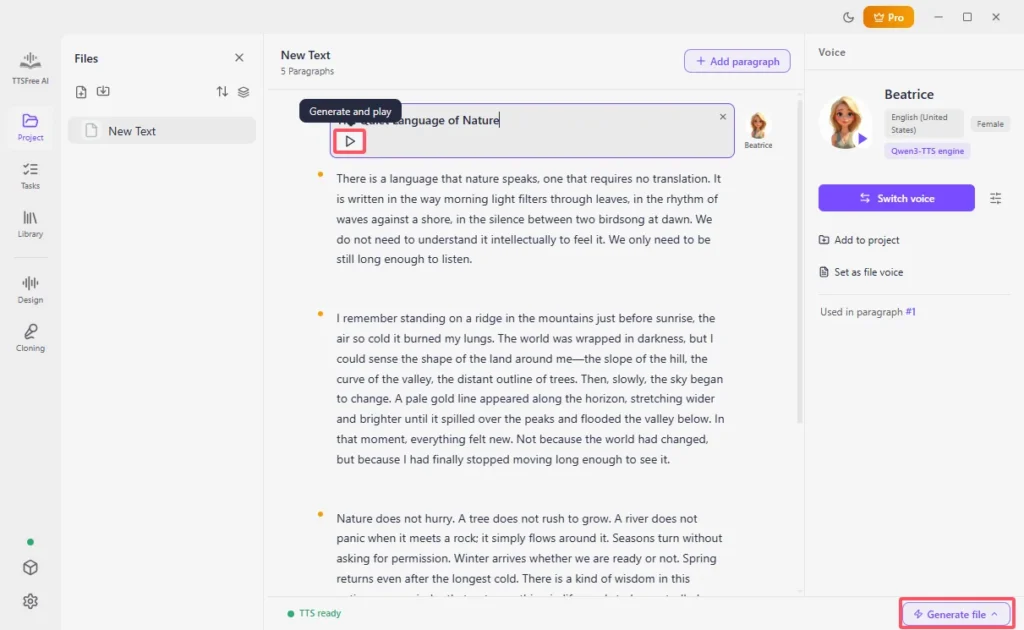
5. Play the result in the app, or click Open audio folder.
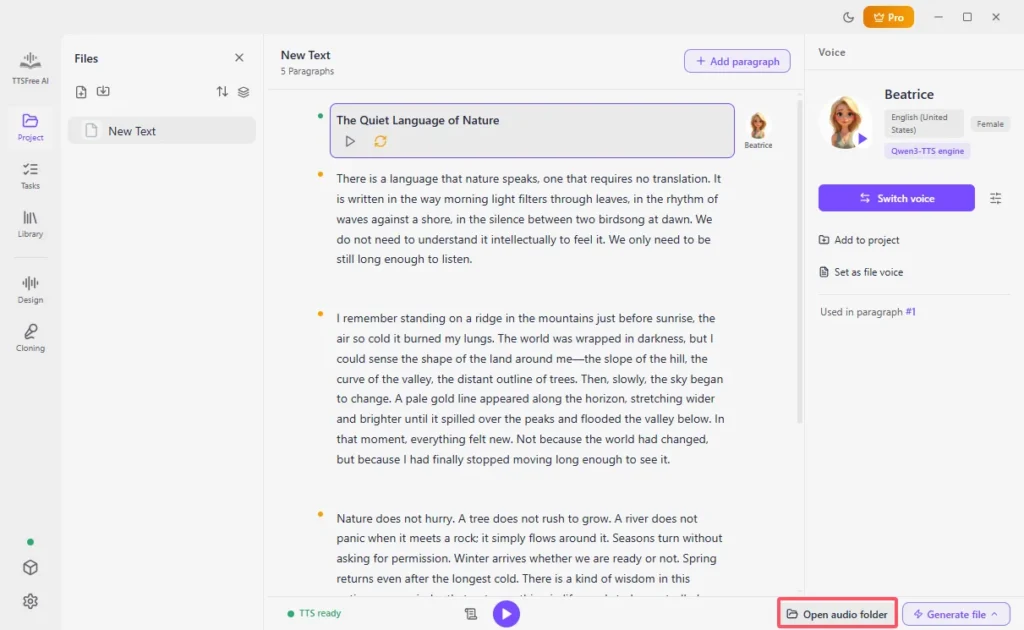
The same steps cover a pasted paragraph, a PDF, or an EPUB. Only the file you import changes.
Convert a Script to Speech
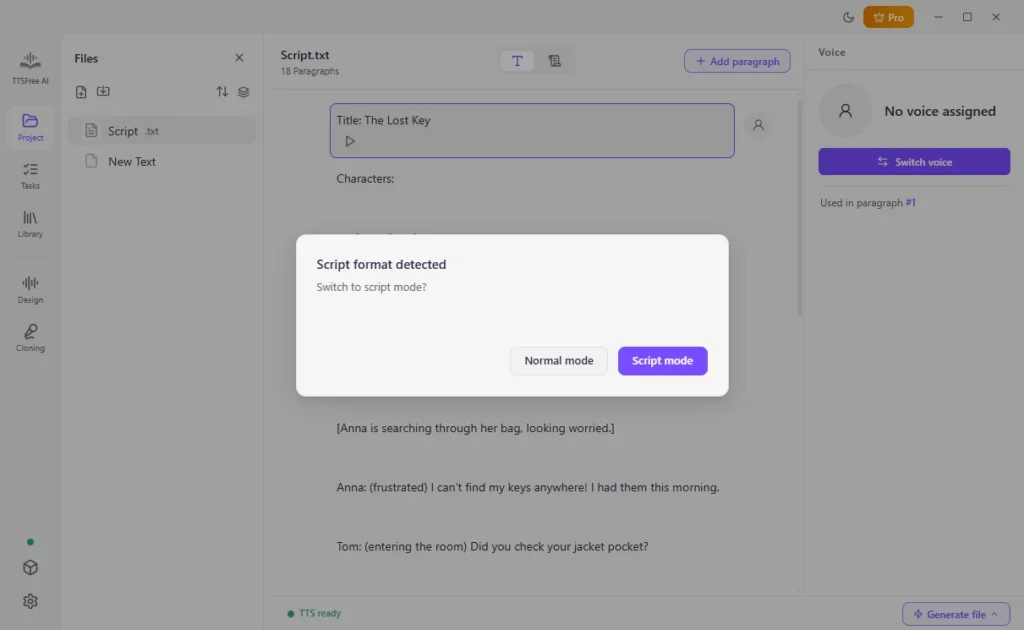
When you import a script for script to audio conversion, TTSFree AI can detect the characters and the narration. Assign a voice to each character once, and that voice is used for every line that character speaks.
1. Open or import the script. When the app detects a script, choose Script mode. You can stay in Normal mode if you would rather assign voices by paragraph.
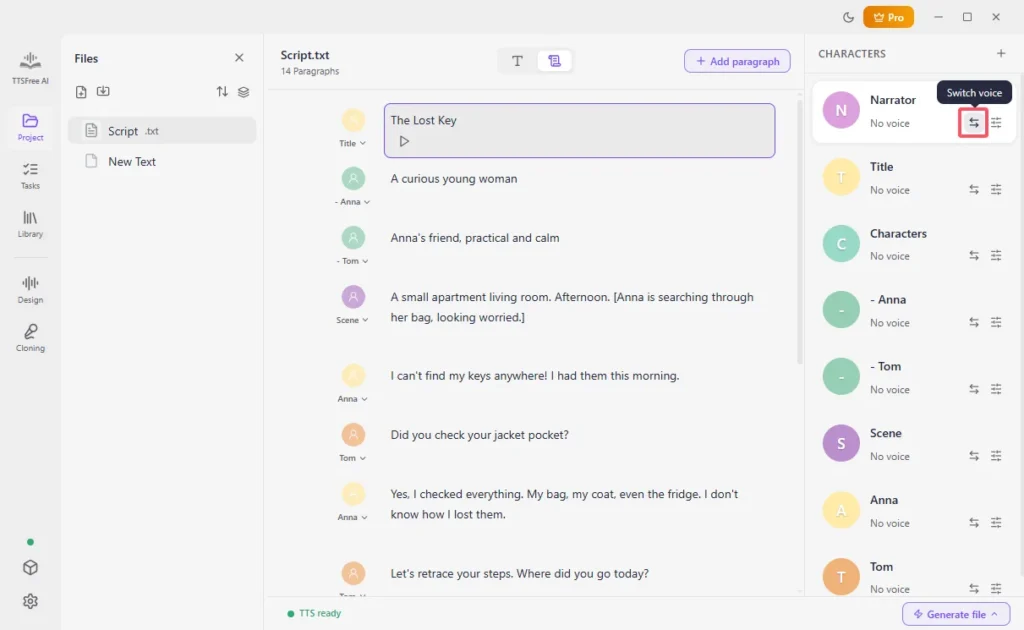
2. Click the profile image or Switch voice next to each character and choose a voice.
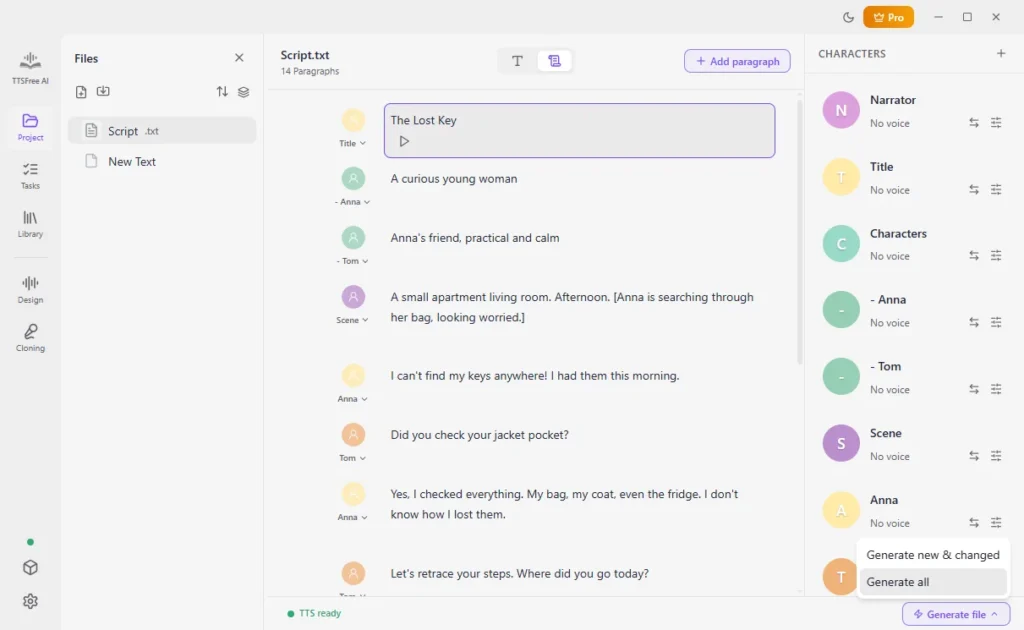
3. Click Generate file, then Generate all.
Convert Multiple Files at Once
When you have multiple files to process, follow the steps below to batch convert text to audio.
1. In Project, import or select the documents and assign a voice to each one.
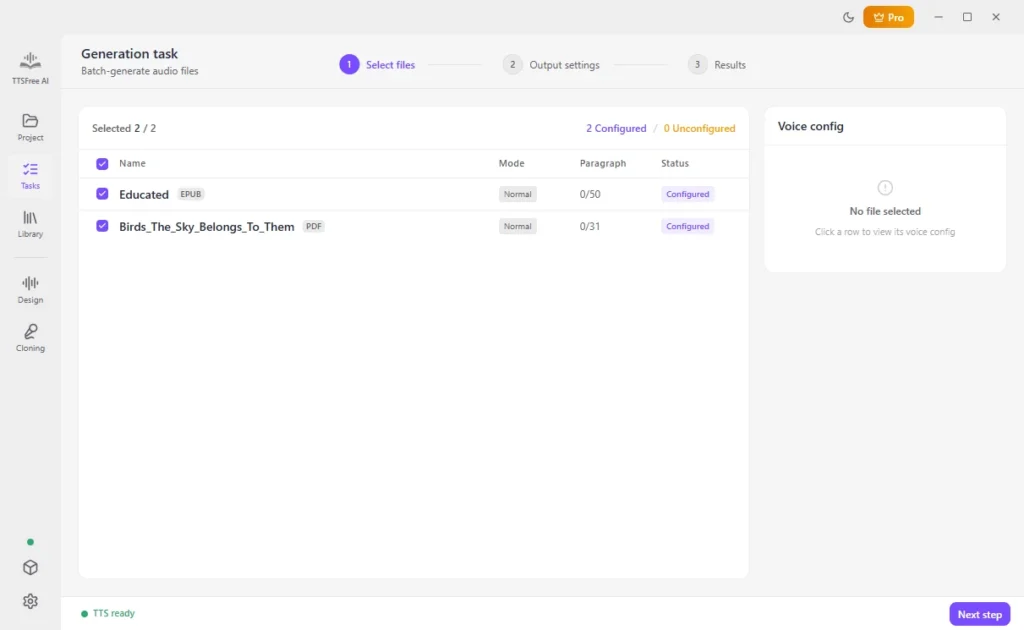
2. Go to Tasks. It lists files that already have a voice. Select the files and click Next step.
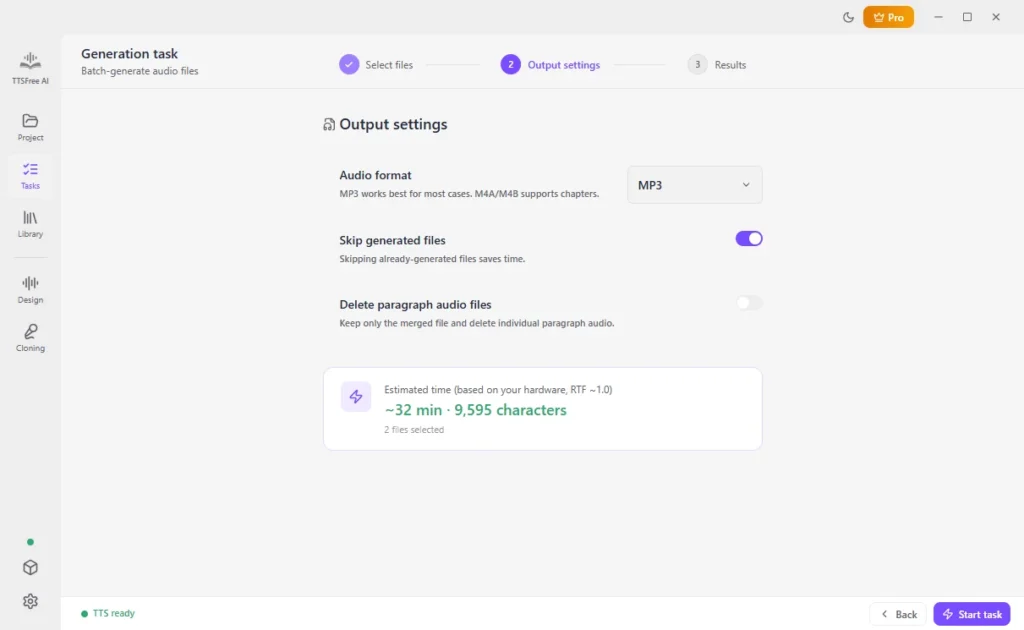
3. Choose the audio format, whether to skip files that were already generated, and whether to delete the separate paragraph files and keep only the merged file. Click Start task.
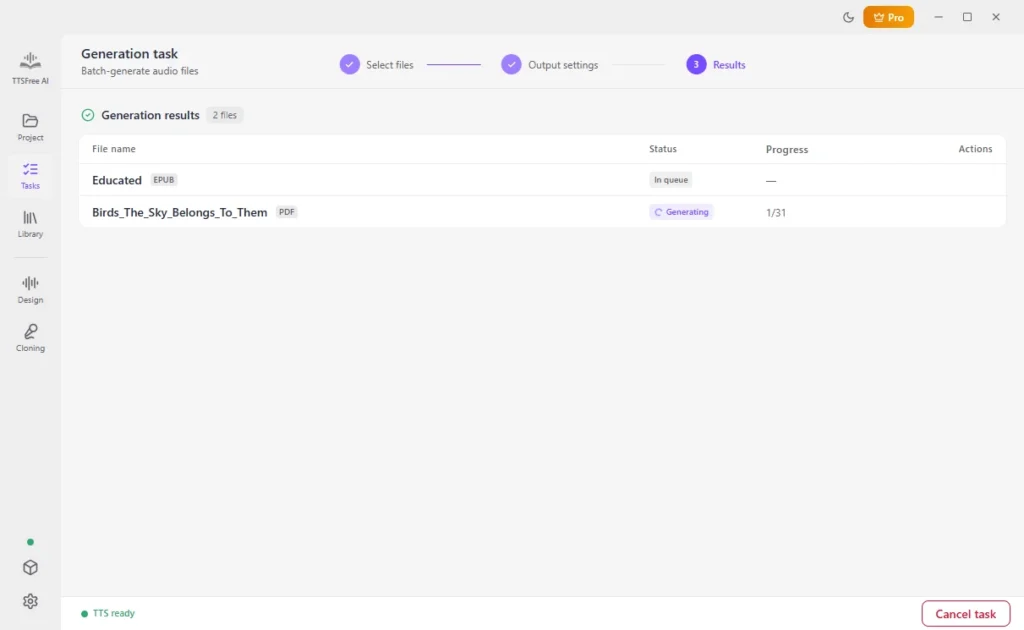
4. Watch the progress on screen. You can stop the task before it finishes.
Design or Fine-Tune a Voice
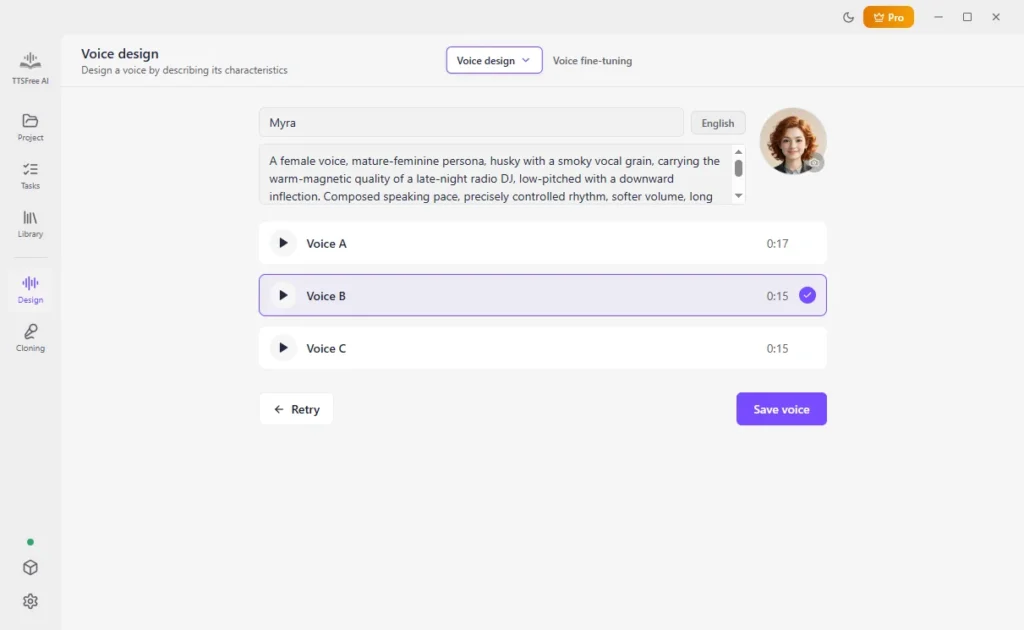
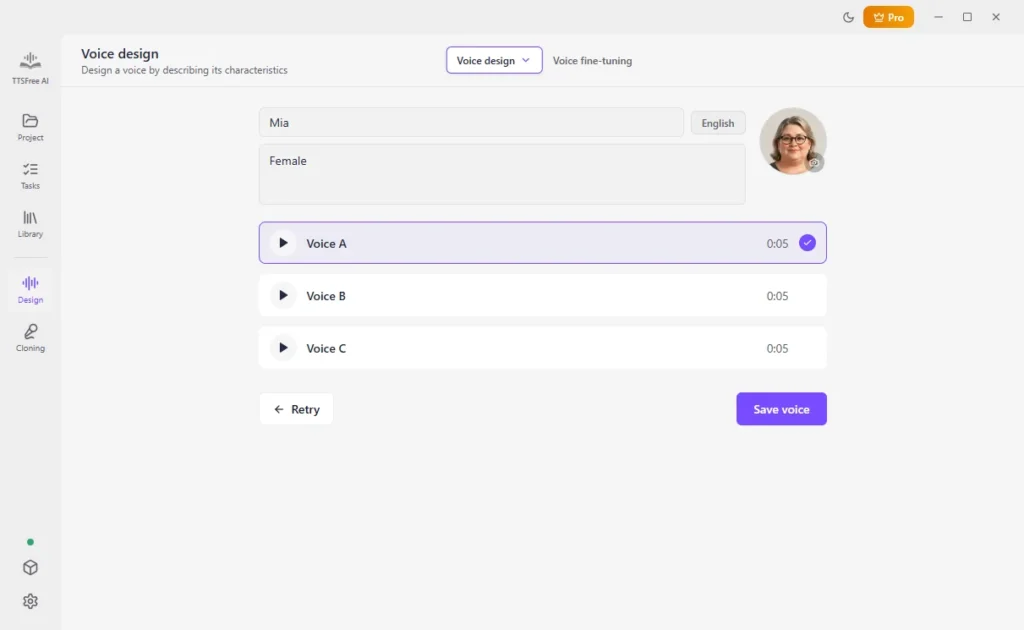
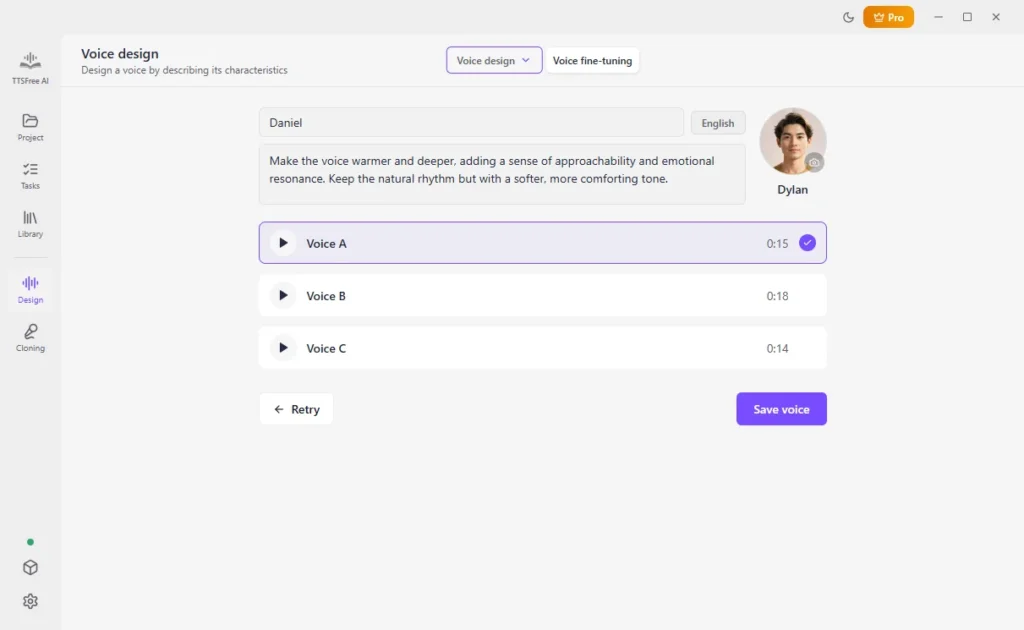
Designing a new voice needs QWen3-TTS or OmniVoice enabled. Fine-tuning needs QWen3-TTS enabled. Each generation gives you three voices. Preview them, keep one, name it, choose an avatar, and save it to the Voice library.
Design with QWen3-TTS
1. Go to Design, then Voice design, and choose QWen3 Voice Design.
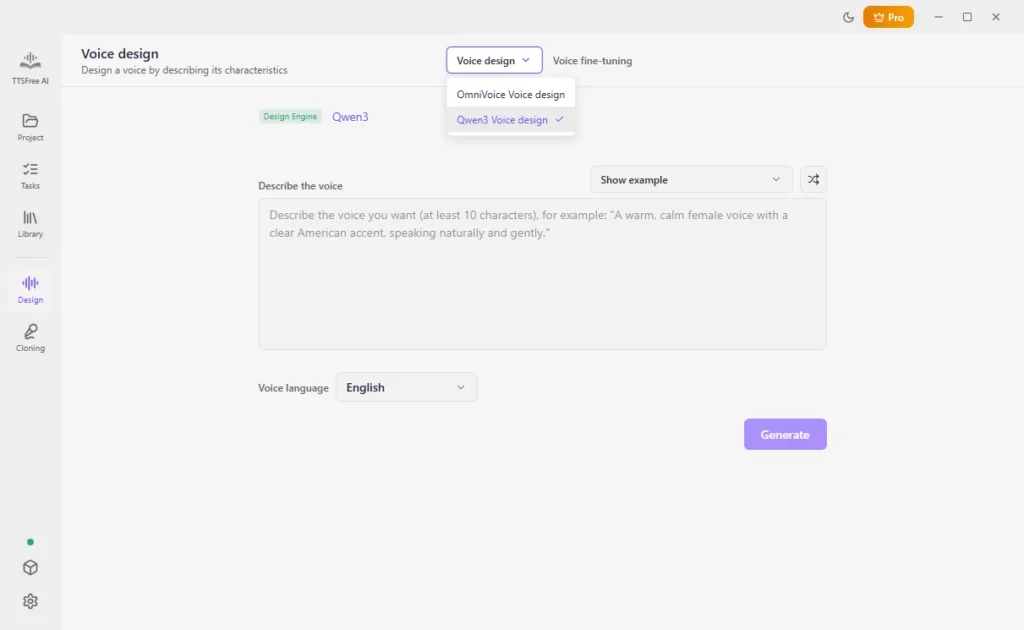
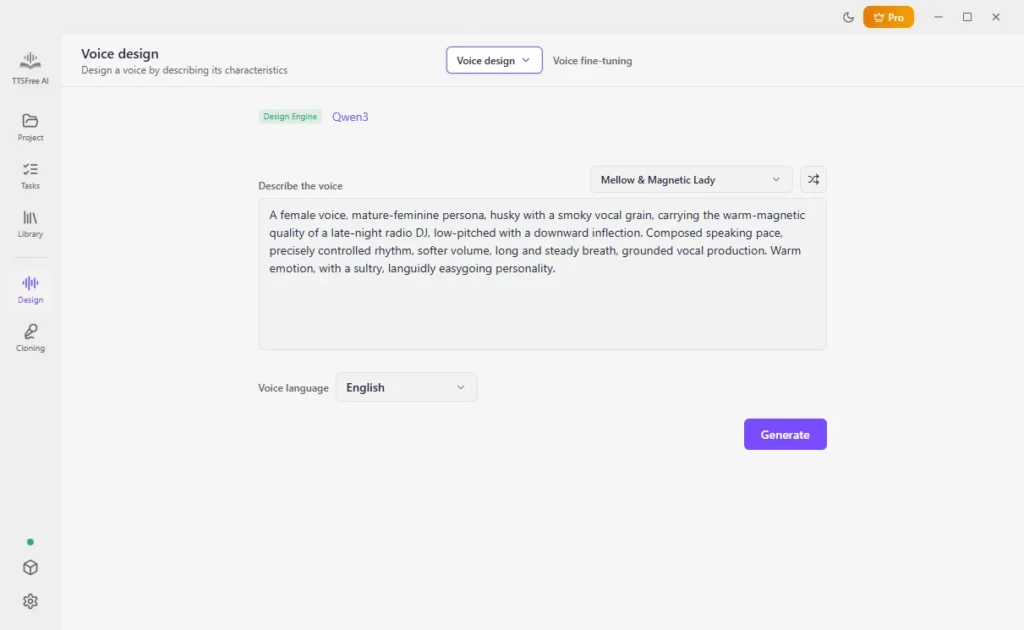
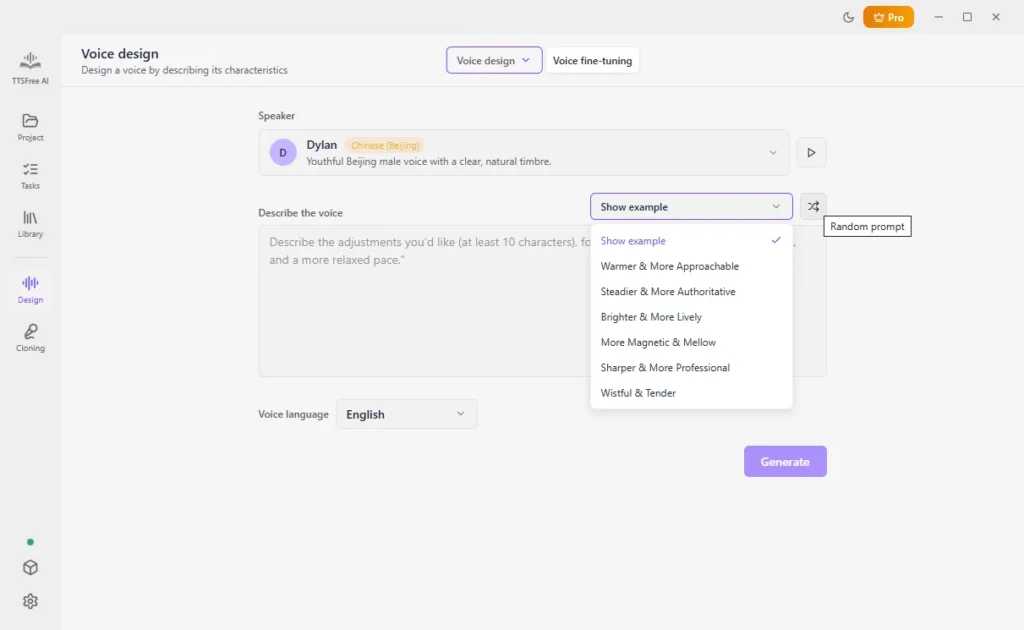
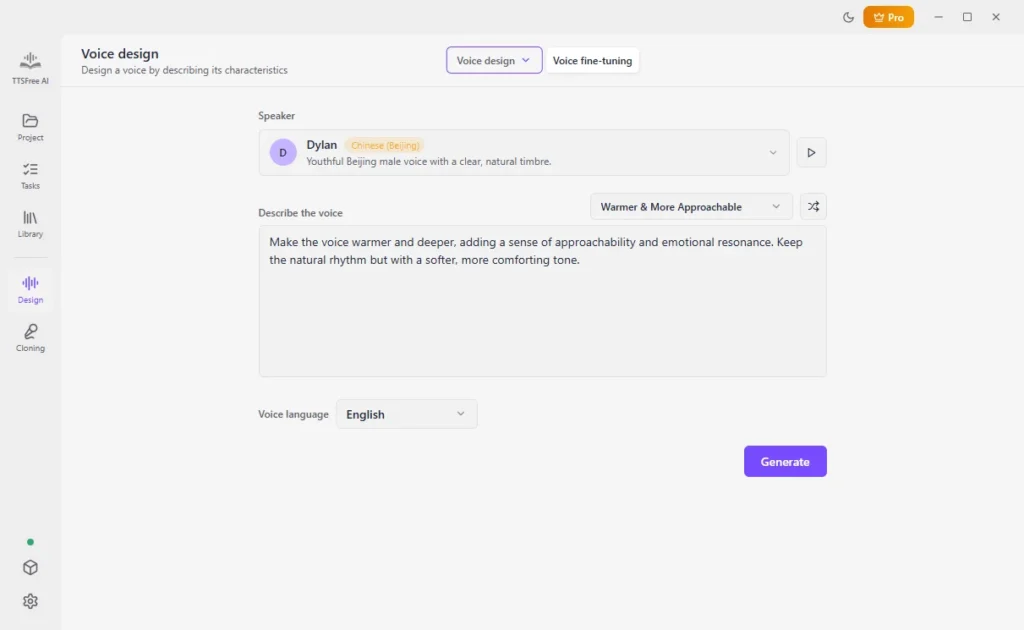
2. Describe the voice in a prompt, use an example, or click Random prompt.
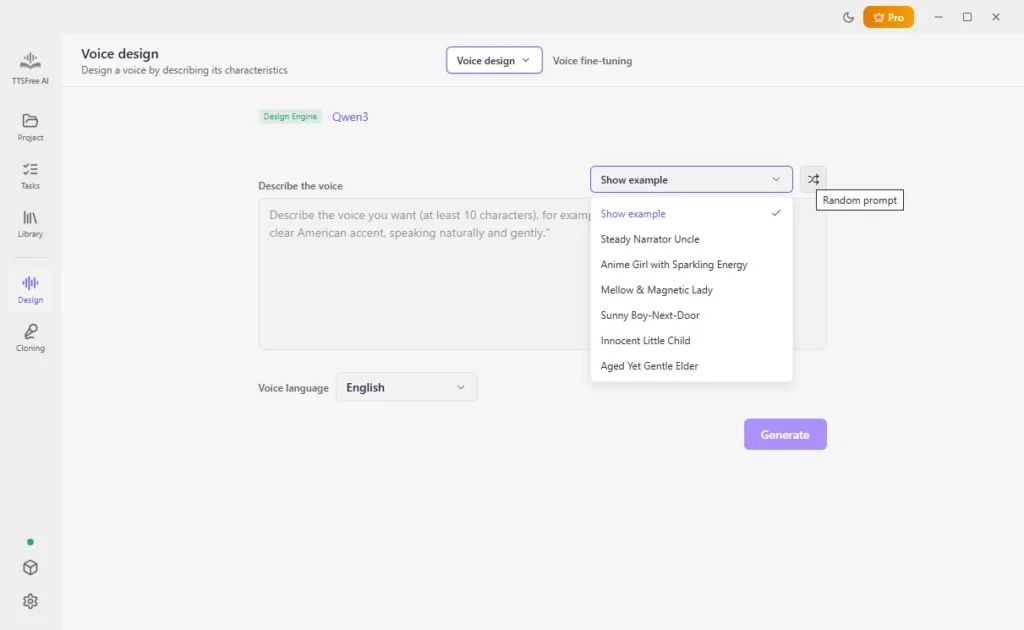
3. Choose the language and click Generate.
4. Save the voice you prefer.
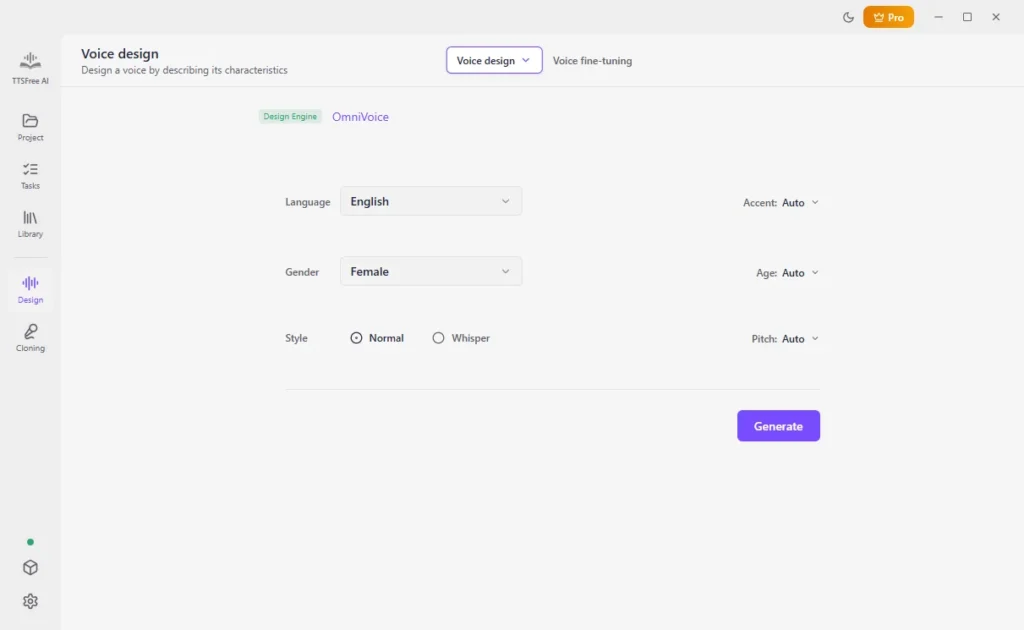
Design with OmniVoice
1. Open Design, then Voice design, and choose OmniVoice Voice Design.
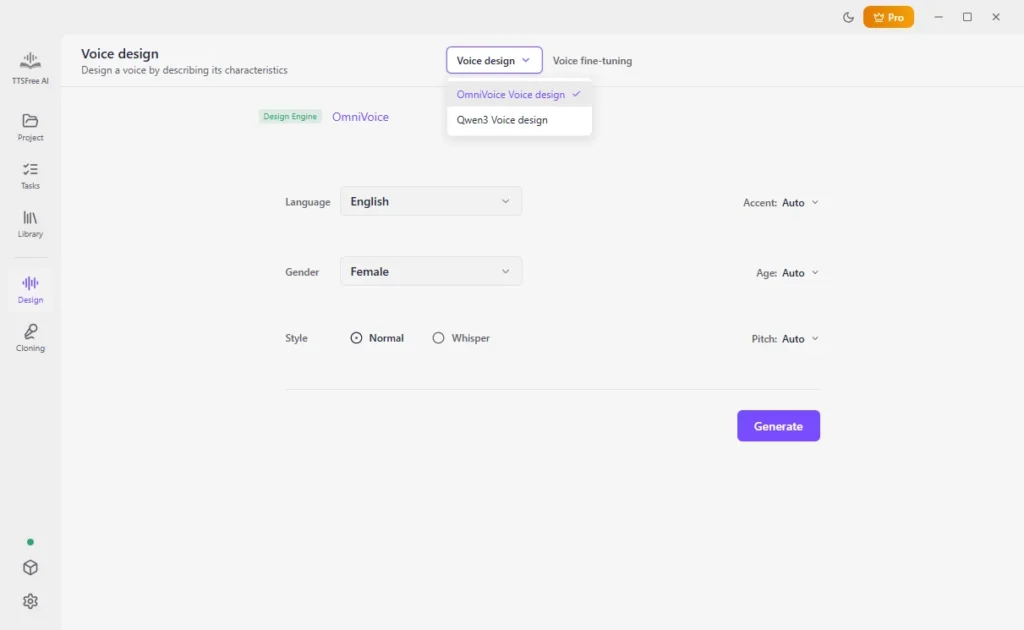
2. Set language, gender, style, accent, age, and pitch, then click Generate.
3. Save the voice you prefer.
Fine-tune one of nine QWen3-TTS voices
1. Open Design and click Voice fine-tuning.
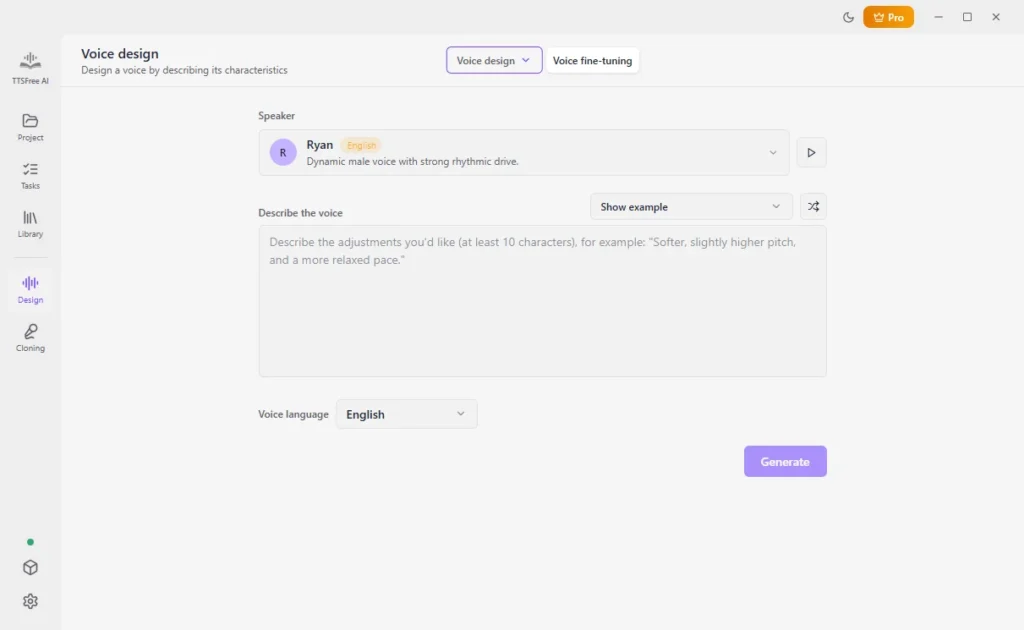
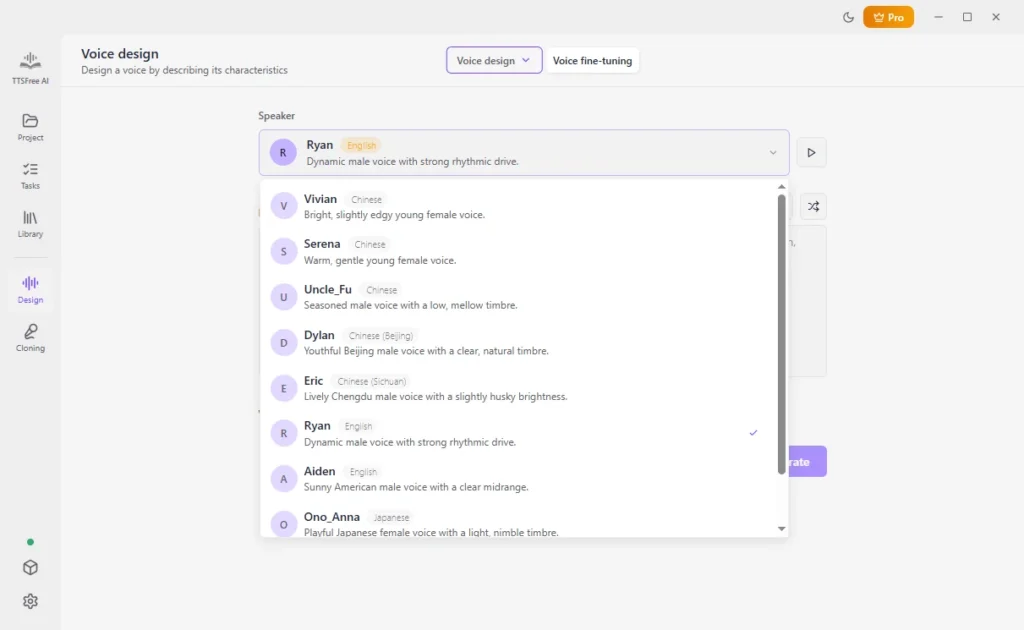
2. Choose one of the nine voices.
3. Enter a prompt, use an existing prompt, or click Random prompt.
4. Set the language and click Generate.
5. Save the result you want.
Clone Your Voice
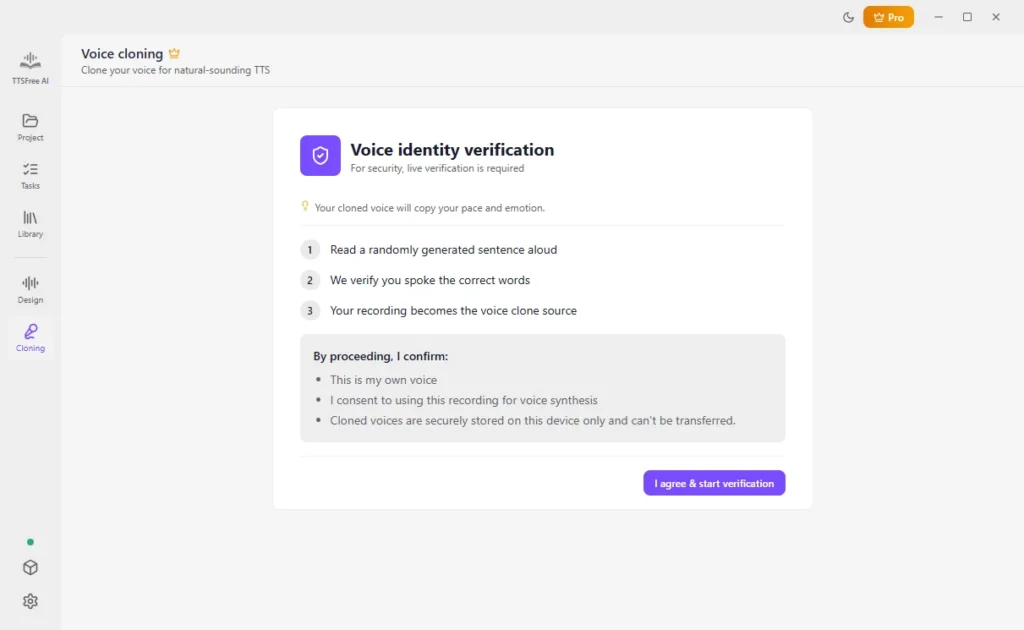
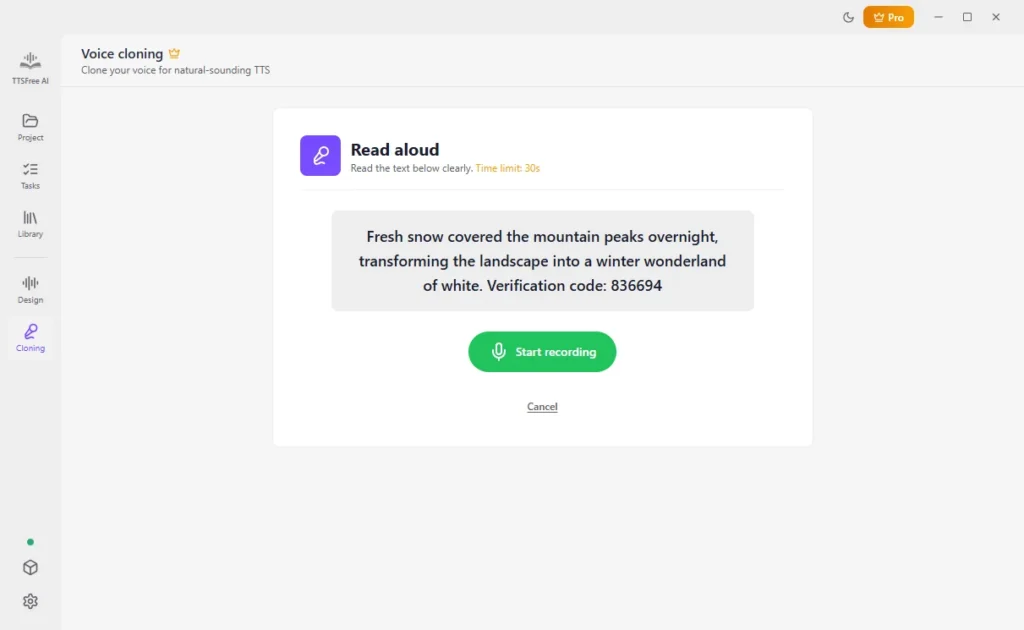
Voice cloning copies your pace and emotion. The app shows a random sentence and a verification code. You have to read that text accurately.
1. Open Cloning, read the notice, and click I agree & start verification.
2. Click Start recording, read the text in the box, then click Stop recording.
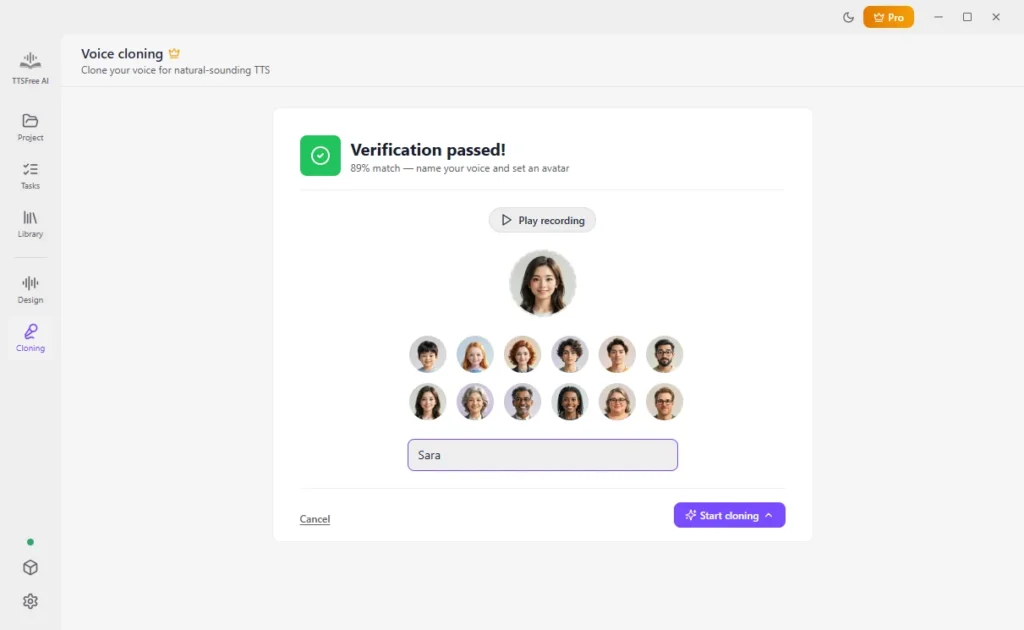
3. After verification passes, choose an avatar, name the voice, and click Start cloning.
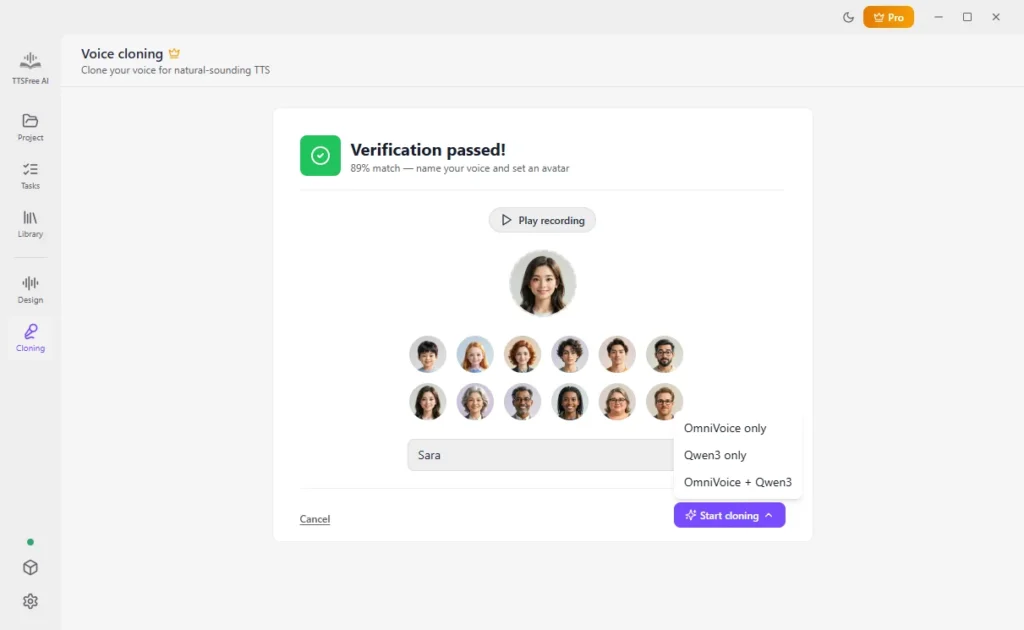
4. Choose OmniVoice, QWen3-TTS, or OmniVoice + QWen3-TTS. The combined option creates one clone for each model.
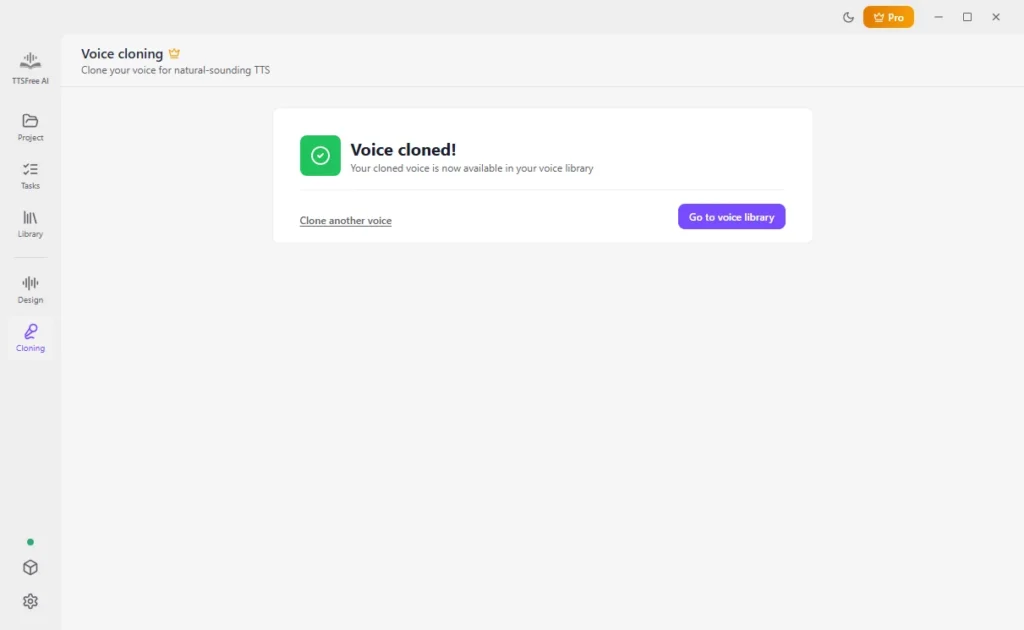
5. When cloning finishes, the voice is stored in the Voice library under Voice design. Select it like any other voice.
Change Speed, Pitch, and Volume
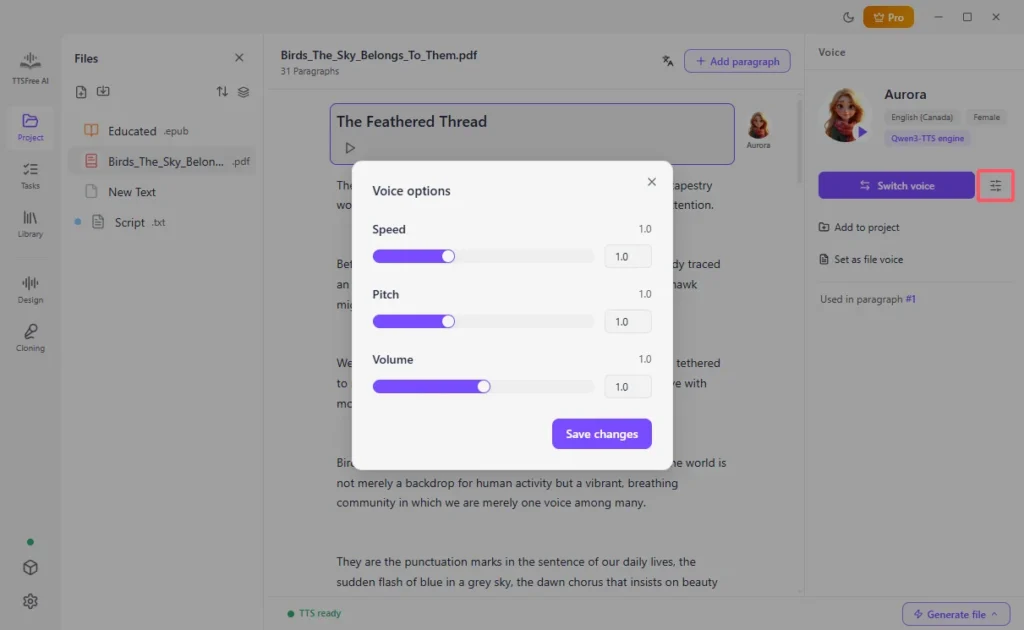
Open a voice’s profile, click the Voice options icon, and change speed, pitch, or volume. The change applies when you generate with that voice.
FAQ
No. Imports stay unchanged. Edits you make inside a project do not overwrite the source file.
Audio generated with QWen3-TTS 0.6B, QWen3-TTS 1.7B, or Kokoro-82M can be used commercially. Confirm the license for OmniVoice or the system voice before commercial use.
No. There is no limit on characters, conversions, or the number of files.
Choose Kokoro-82M if you want the smallest download and only need its languages. Choose QWen3-TTS if you want the larger built-in voice list or voice design. Choose OmniVoice if you need one of its extra languages.