
How to Convert a Script to Audio with TTSFree AI
Convert a script to audio with TTSFree AI. The app detects a play, screenplay, or multi-character dialogue and can assign a voice to each character in Script mode. You can stay in Normal mode instead.
Overview
TTSFree AI can turn a script into spoken audio, with a different voice for each character. A script here means a play, a screenplay, or another text built from dialogue. When you import one, the app detects the characters and the narration, then asks whether to open it in Script mode. You can stay in Normal mode instead.
The audio is saved in the project folder when generation finishes. Choose MP3, WAV, or M4A/M4B in Settings before you generate. There is no separate export step, and there is no character limit.
TTSFree AI runs on Windows 10 or later and macOS 13 or later. The rest of the app is covered in the TTSFree AI Official Guide.
When TTSFree AI Detects a Script
Import the file, or open a text file already in the project. If the layout looks like a script, TTSFree AI tells you that a script format was detected. You then choose:
- Script mode. You assign a voice to each character once. Every line that character speaks uses that voice, including lines later in the file. Narration gets its own voice.
- Normal mode. The text stays a normal document. You select paragraphs yourself and use Switch voice on each one.
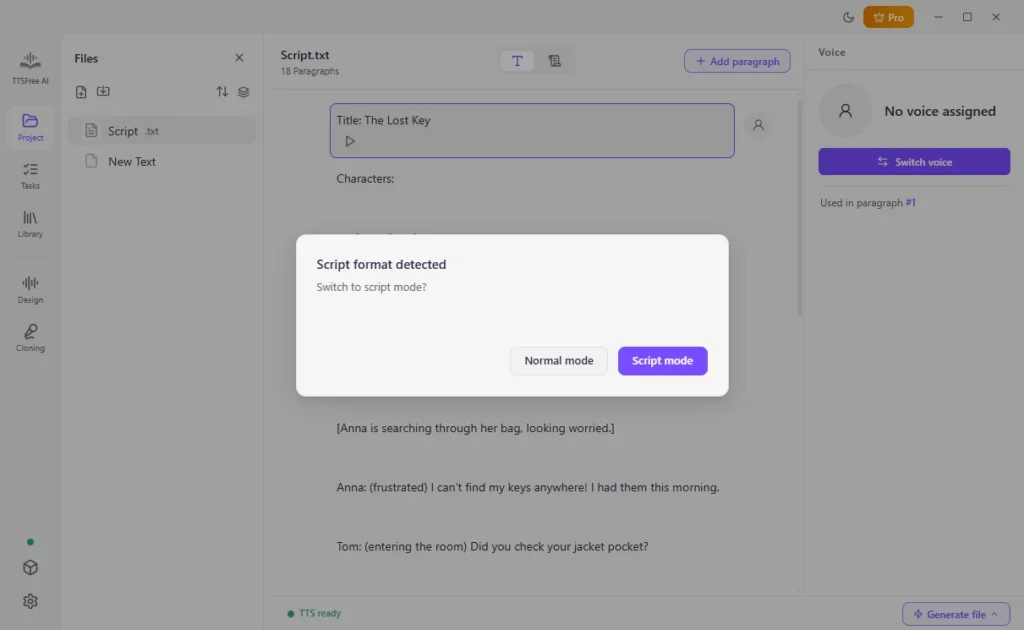
Script mode is the better fit for a play, a screenplay, or a story written as character names followed by their lines. Normal mode is the better fit when the file is ordinary prose, and you only want to change a few paragraphs.
Convert a Script to Audio
If you’re new to TTSFree AI, start by enabling your preferred TTS models in Model Manager. You can select multiple models to use different AI voices within the same document.
If you need to convert PDF to MP3 or turn EPUB into an audiobook, the steps below for script to audio also apply.
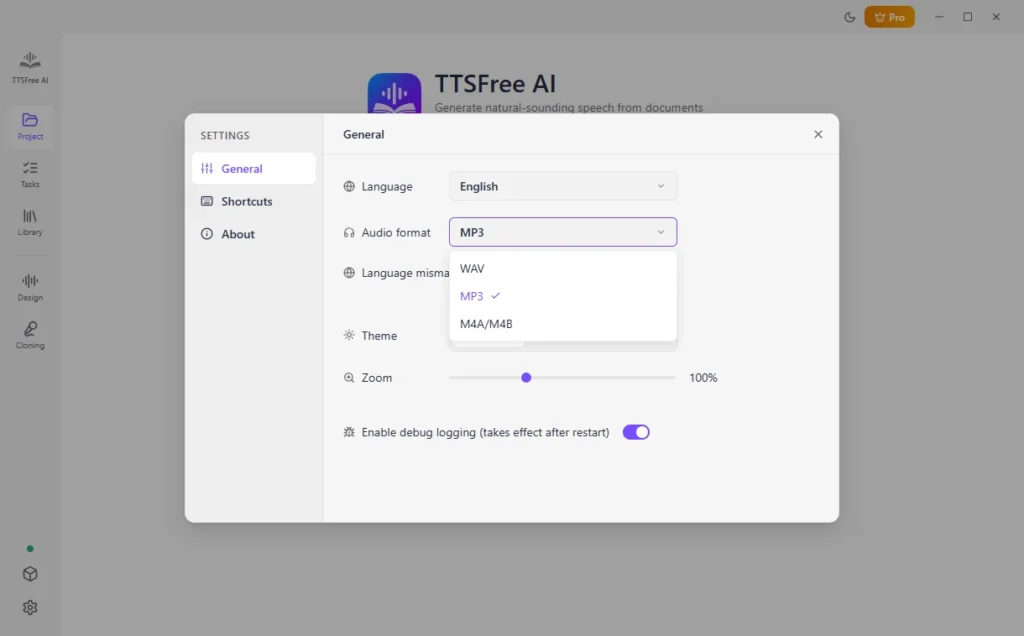
1. Go to Settings, pick an audio format, and choose text to MP3 if you want the widest compatibility.
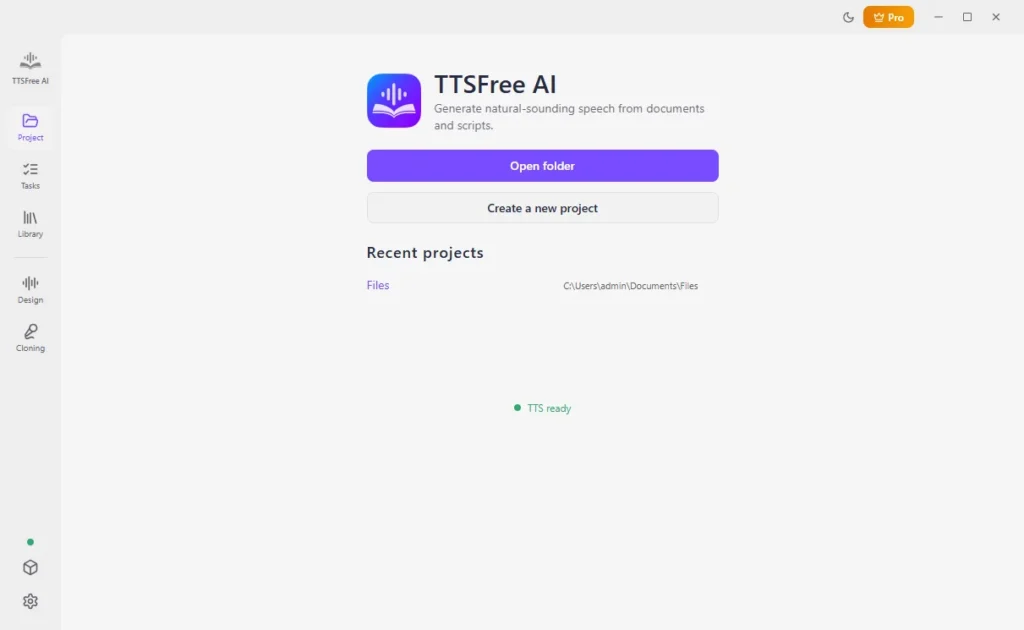
2. In Project, open a folder, create a project, or reopen a recent one. The audio will be saved in that folder.
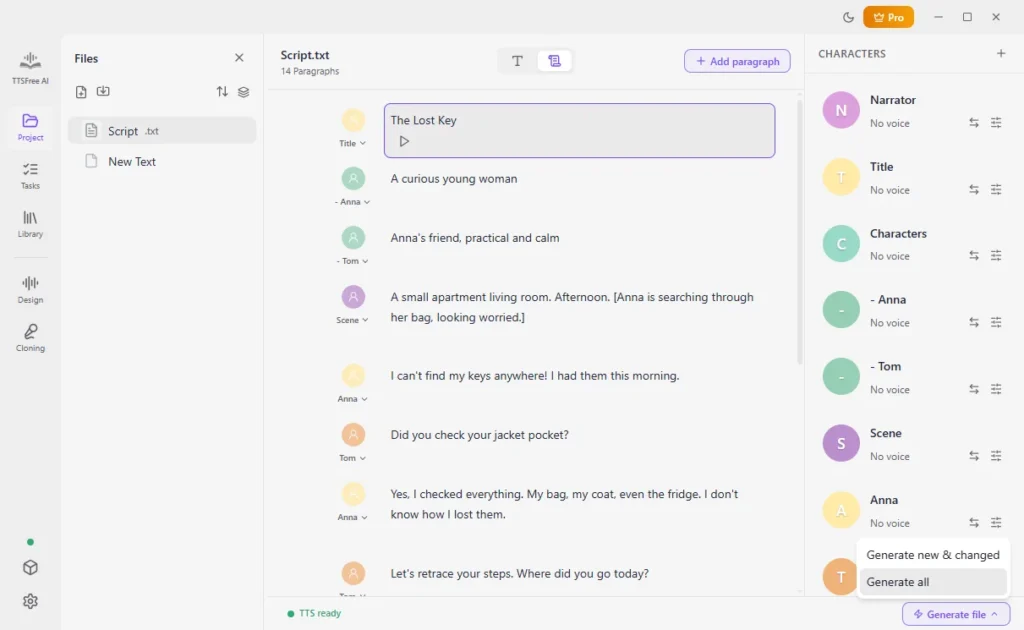
3. Click Import document, or open a text file already in the project. When TTSFree AI detects a script, choose Script mode.
4. Click the profile image or the Switch voice icon next to a character and choose a voice. Preview it with the play icon. Repeat this for every character, and for the narration if it has its own part.
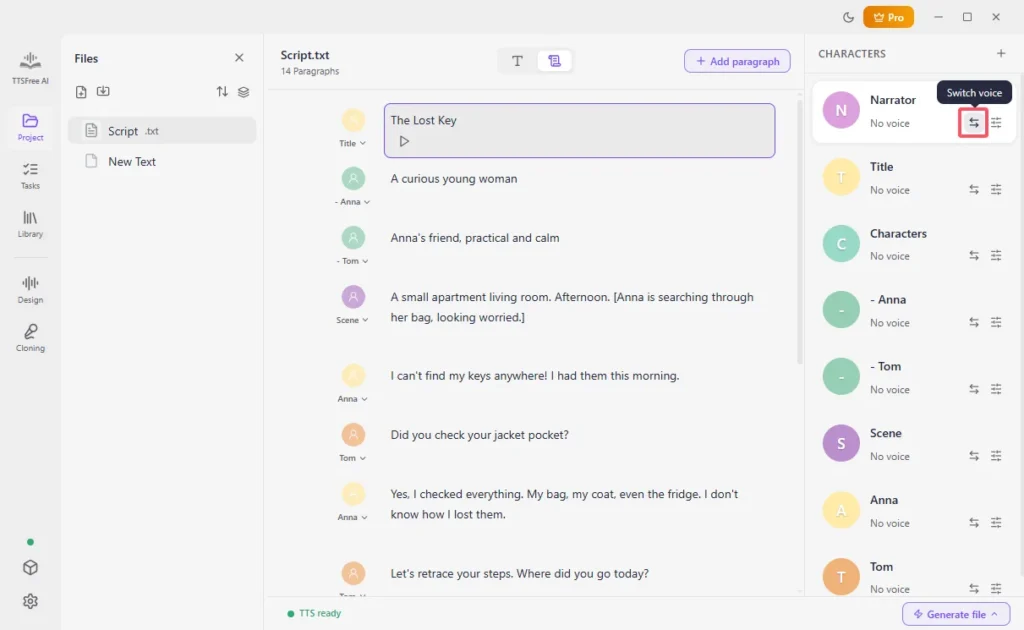
5. Click Generate and play on one line to check the cast. If it sounds right, click Generate file, then Generate all.
6. Click Open audio folder to play the file.
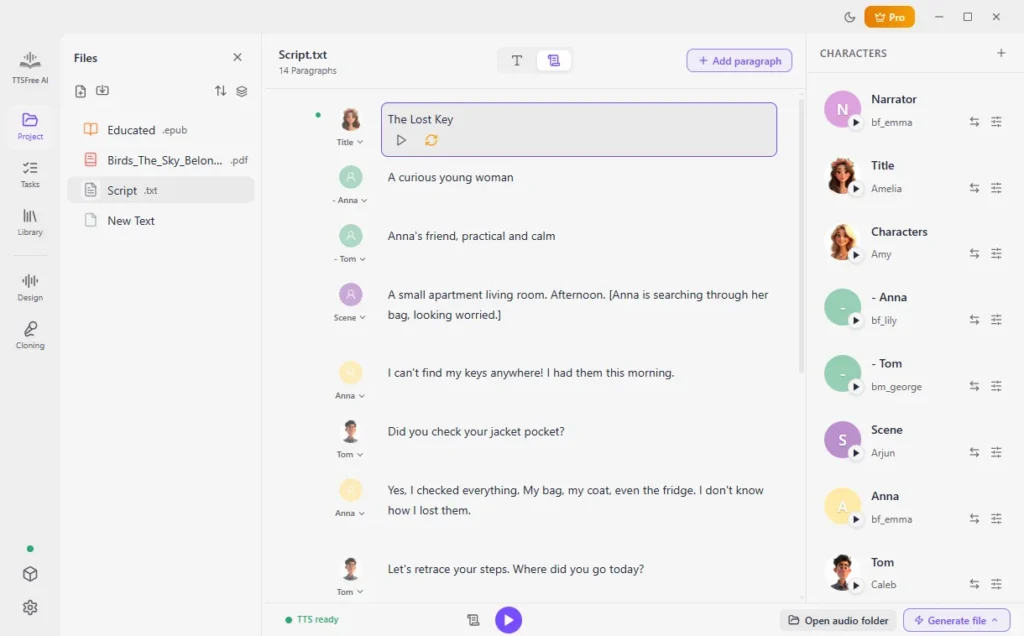
TTSFree AI does not change the original script. Assigning a voice to a character applies it to that character’s lines. You do not need to set the voice again on every speech.
If you need to batch convert text to audio, use the Tasks feature instead.
Stay in Normal Mode
Choose Normal mode when you do not want the app to treat the file as a cast list. You can still give different lines different voices:
1. Select the paragraph.
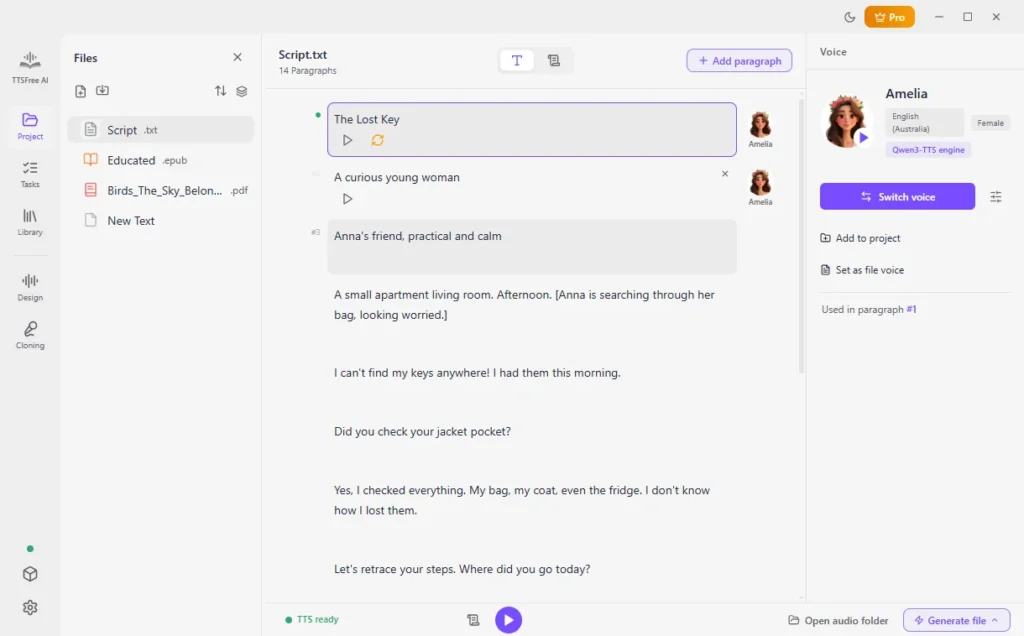
2. Click Switch voice and choose the voice.
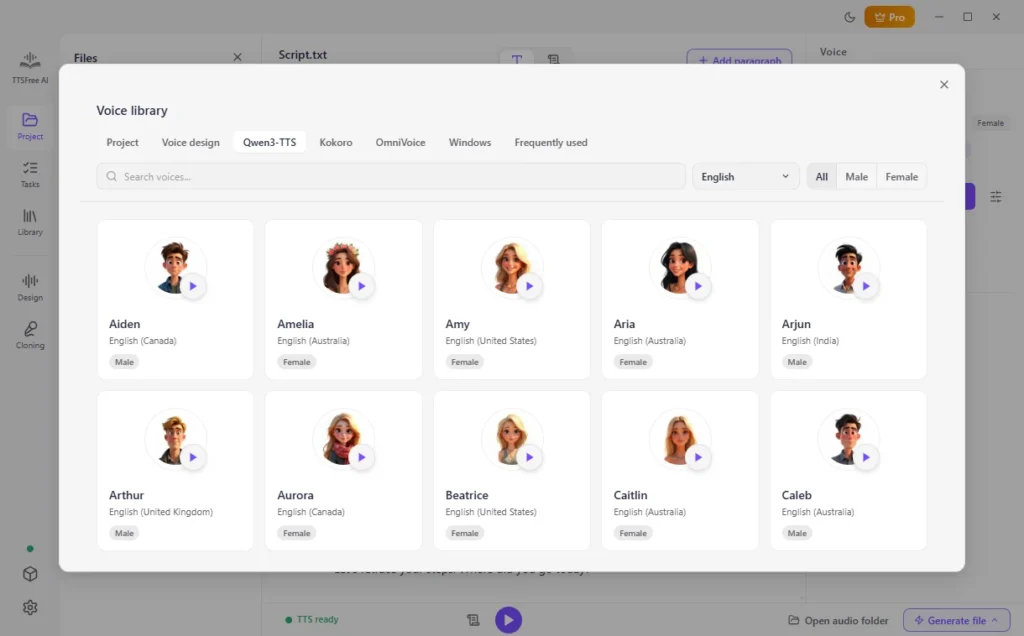
3. Generate that paragraph, or click Generate all after the passages you care about have voices.
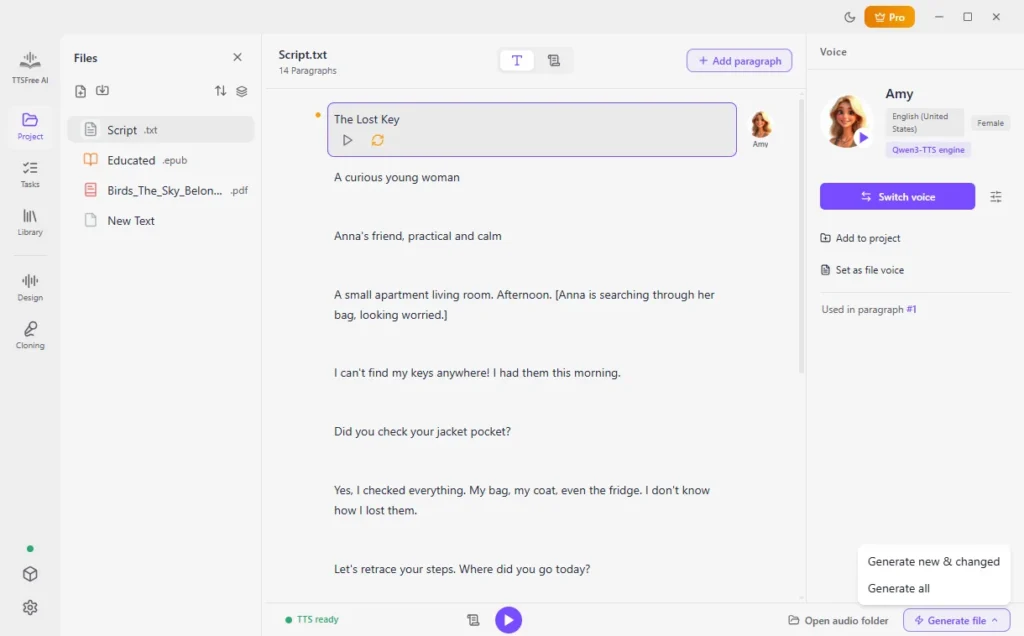
Normal mode does not remember a character name. If the same person speaks again later, you assign the voice on that paragraph yourself. You can also customize AI voices that better fit your needs via the Voice Design or Voice Cloning feature.
Dialogue That Is Not Formatted as a Script
TTSFree AI also looks at other multi-character dialogue, not only files labeled as plays. When it recognizes that kind of text, it asks the same question: enter Script mode, or keep Normal mode.
If the detection is wrong, stay in Normal mode. You can still convert the file. The only difference is who assigns the voices. Script mode maps them by character. Normal mode maps them by paragraph.
Tips
- Name each speaker clearly in the script. Script mode depends on those names.
- Give the narration a calmer voice than the characters, so the spoken lines stand apart.
- Check one scene with Generate and play before you generate a full screenplay.
- Speed, pitch, and volume are on the voice profile, under Voice options. Set them before Generate all.
- A novel written as normal paragraphs is not a script. Import it as a document and use one narrator, unless you want to assign voices paragraph by paragraph.
FAQ
Yes. Import the script, choose Script mode, assign a voice to each character, and click Generate all.
A play, a screenplay, or other dialogue that names its speakers. Other multi-character dialogue can be detected too. You can still choose Normal mode.
No. When a script format is detected, you can enter Script mode or stay in Normal mode.
Yes. In Script mode, set the voice once per character. That voice is used for the rest of that character’s lines.
In the project folder, as soon as generation finishes. The format is the one you chose in Settings.
No. A full script can be generated in one project.