
How to Clone Your Voice with TTSFree AI
Design a custom voice in TTSFree AI on Windows or Mac. Use a QWen3-TTS prompt to set gender, age, style, and emotion, build a voice with OmniVoice, or fine-tune one of nine voices.
Overview
TTSFree AI can design a custom voice on your computer, then use it for text to speech. You do not record yourself. You describe the voice, or you adjust one of nine voices the app already includes.
This is Voice Design in the TTSFree AI desktop app, for Windows 10 or later and macOS 13 or later. It is not voice cloning. Cloning records one sentence and a verification code. Design builds a voice from a prompt or from a set of options. The rest of the app is in the TTSFree AI Official Guide.
There are three ways to design a voice:
- QWen3 Voice Design creates a new voice from a prompt. In that prompt you can set gender, age, style, emotion, and other traits. Enable a QWen3-TTS 1.7B model in Model manager first.
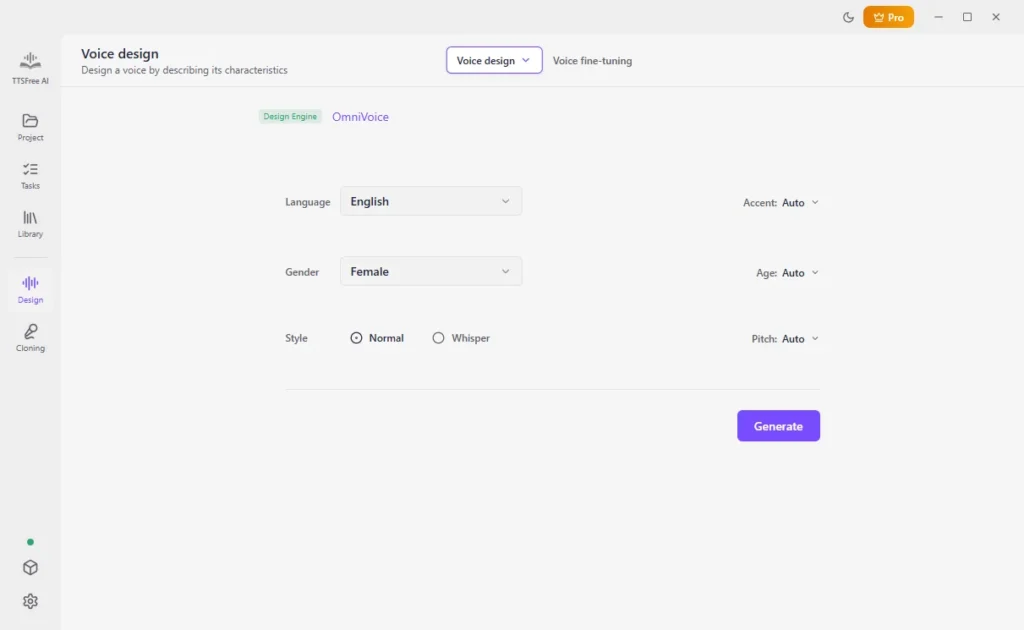
- OmniVoice Voice Design creates a new voice from controls: language, gender, style, accent, age, and pitch. Enable OmniVoice first.
- Voice fine-tuning changes one of nine included voices with a prompt. Enable a QWen3-TTS model first.
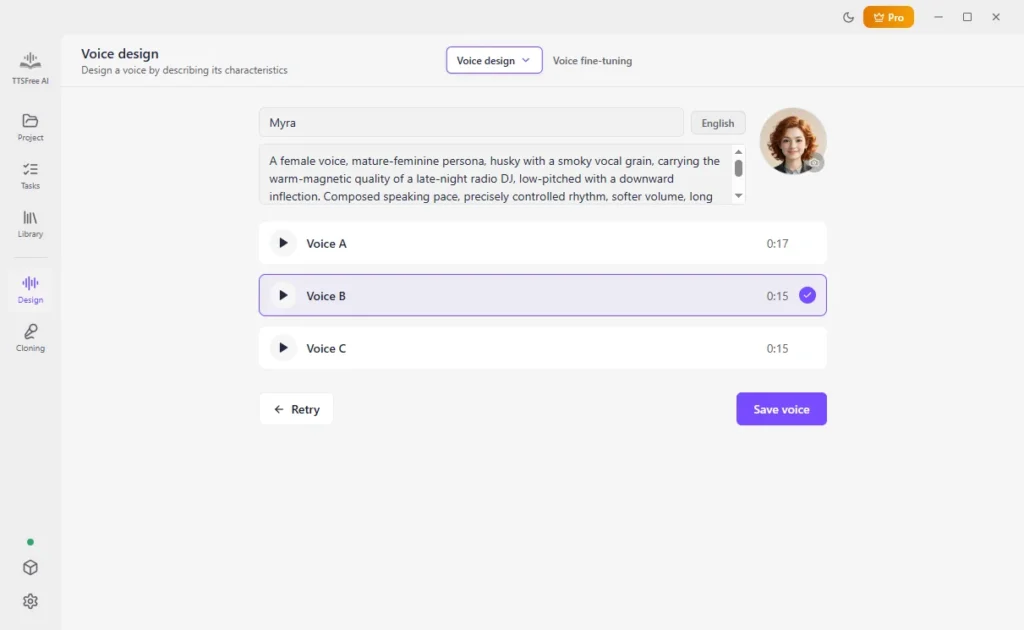
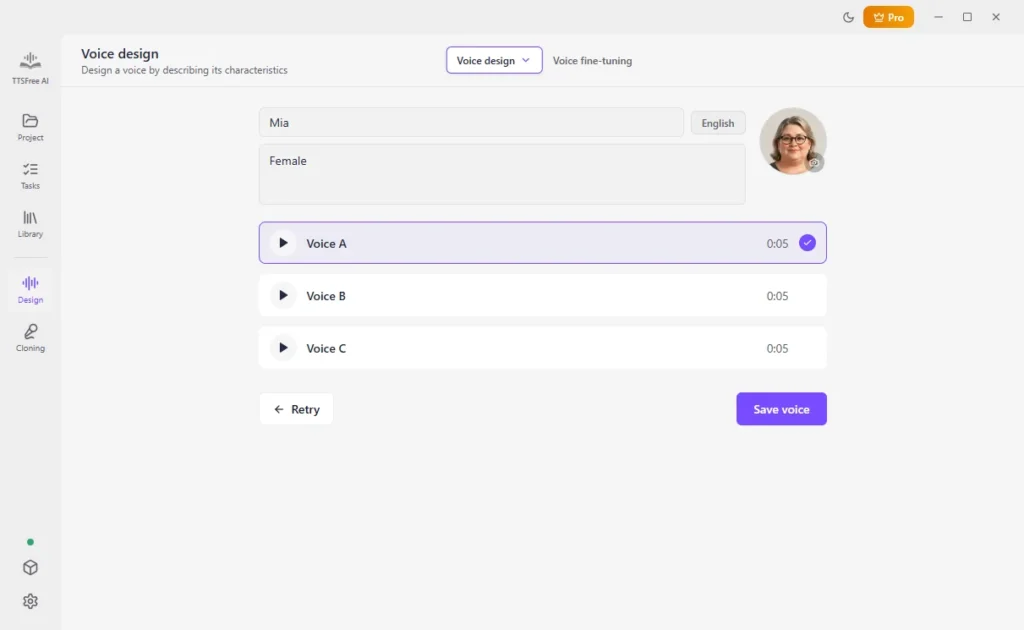
Each time you click Generate, TTSFree AI gives you three voices. Preview them and save one. Name it, choose an avatar, and click Save voice. Only that voice is kept. The other two are discarded. Clicking Generate again makes a new set of three. It does not bring the previous ones back.
A voice you designed in one language can also read the other languages that its model supports. A QWen3 voice is used with QWen3-TTS. An OmniVoice voice is used with OmniVoice.
Design a Voice with QWen3-TTS
1. Open Design, click Voice design, and choose QWen3 Voice Design.
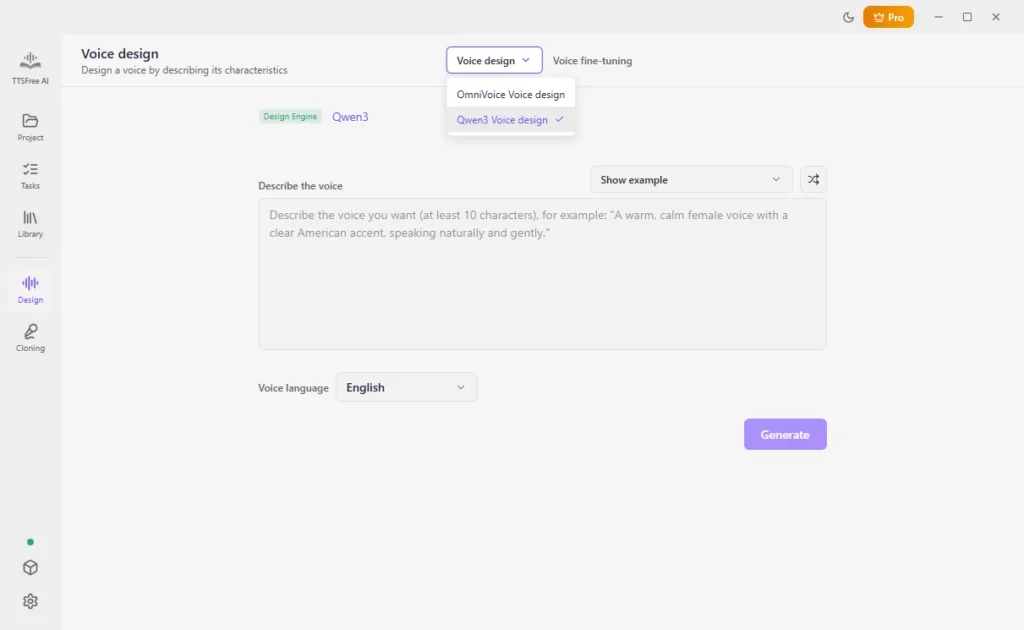
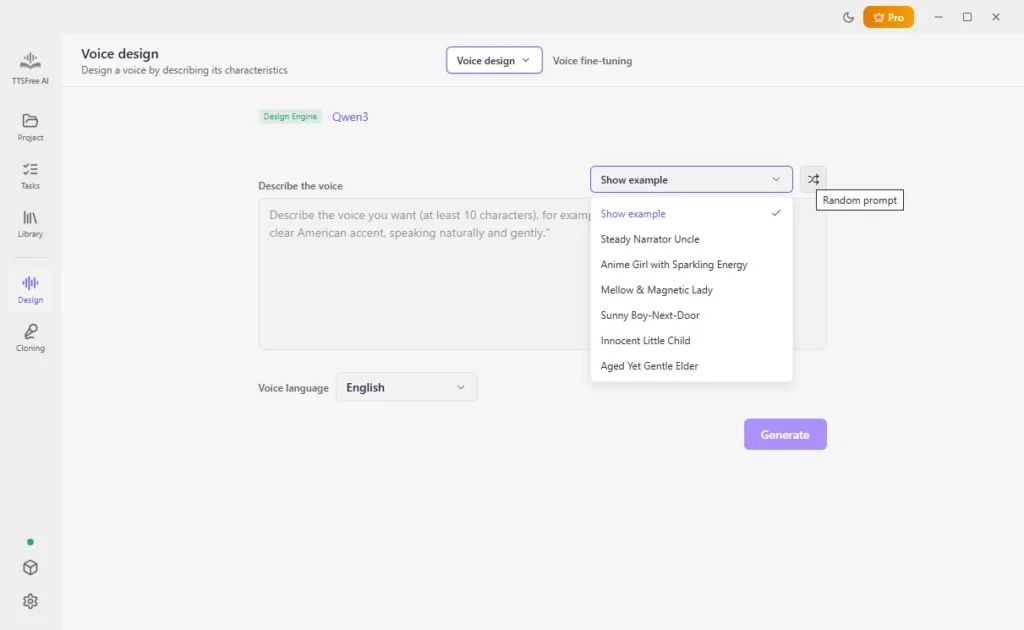
2. Enter a prompt, use a ready-made example, or click Random prompt.
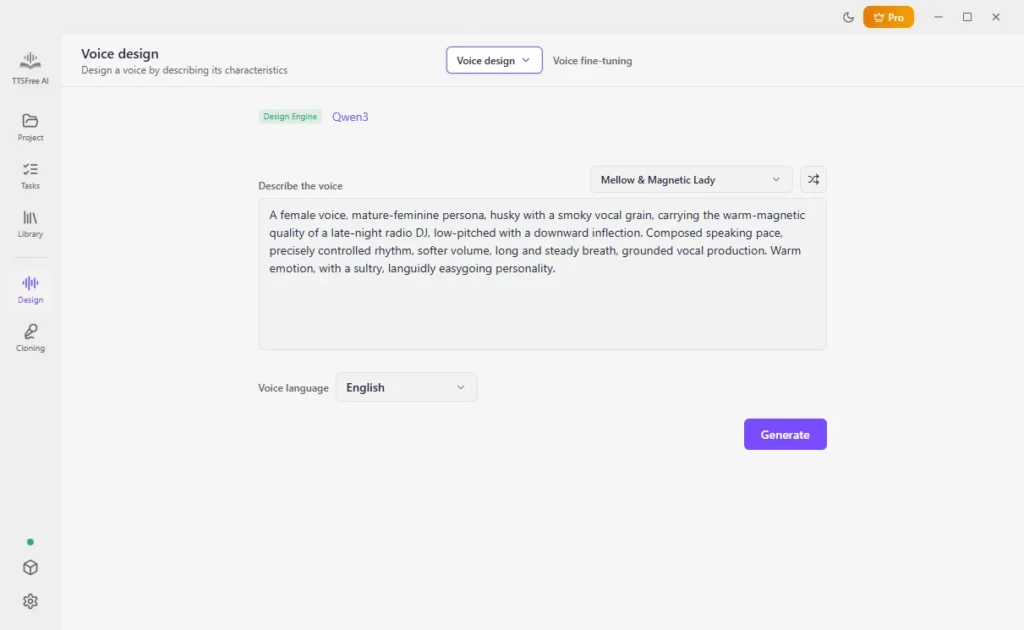
3. Choose the voice language and click Generate.
4. Preview the three voices. Select one, name it, choose an avatar, and click Save voice.
The prompt describes the speaker. It is not the sentence you want spoken later. You can include:
- Gender, such as a woman, a man, or a child
- Age, such as a teenager, a middle-aged adult, or an older speaker
- Style, such as a narrator, a news reader, or a casual storyteller
- Emotion, such as calm, cheerful, serious, or warm
- Other traits, such as pitch, pace, accent, or how clear the diction is
For example: a warm middle-aged woman, calm emotion, medium pitch, clear diction, slight British accent.
Random prompt fills the box when you want a starting point. Edit it before you generate if a trait is wrong.
Design a Voice with OmniVoice
1. Open Design, click Voice design, and choose OmniVoice Voice Design.
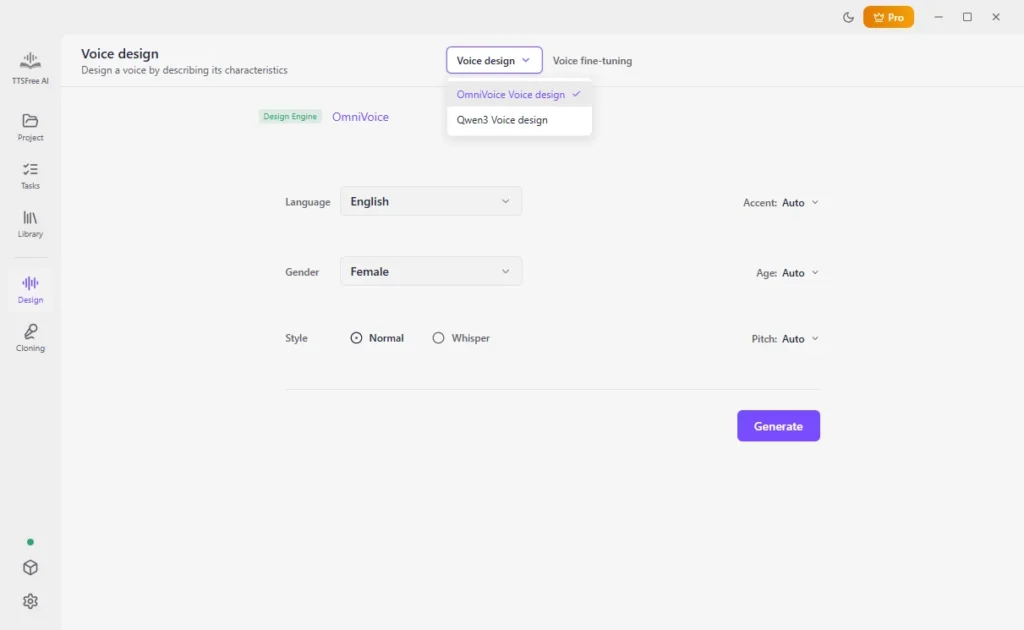
2. Set the language, gender, style, accent, age, and pitch. Click Generate.
3. Preview the three voices. Select one, name it, choose an avatar, and click Save voice.
OmniVoice uses those controls. It does not take a free-text prompt, so you cannot type an emotion into a box here. Use QWen3 Voice Design when the voice has to be described in words, including emotion.
Fine-Tune One of Nine Voices
Fine-tuning starts from one of nine voices in this feature. It does not start from your recording, from a built-in library voice outside those nine, or from a voice you already designed.
1. Open Design and click Voice fine-tuning.
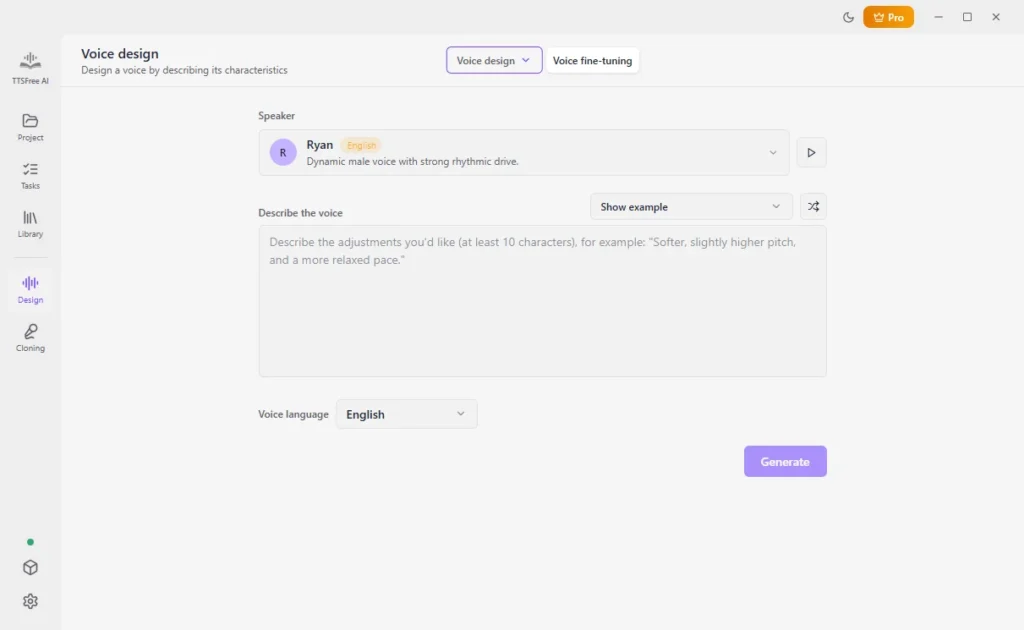
2. Choose one of the nine voices.
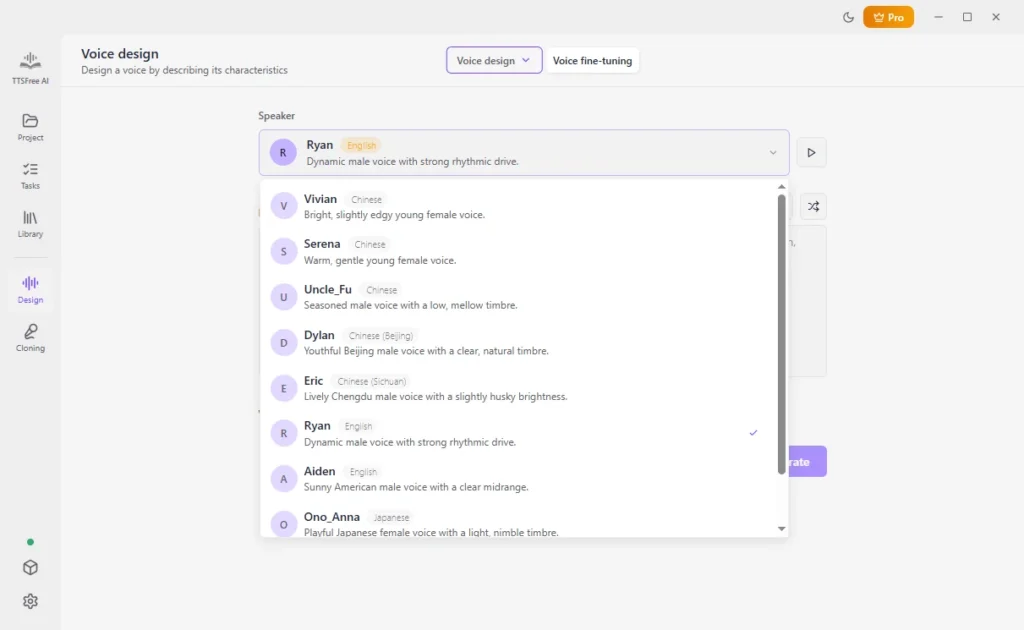
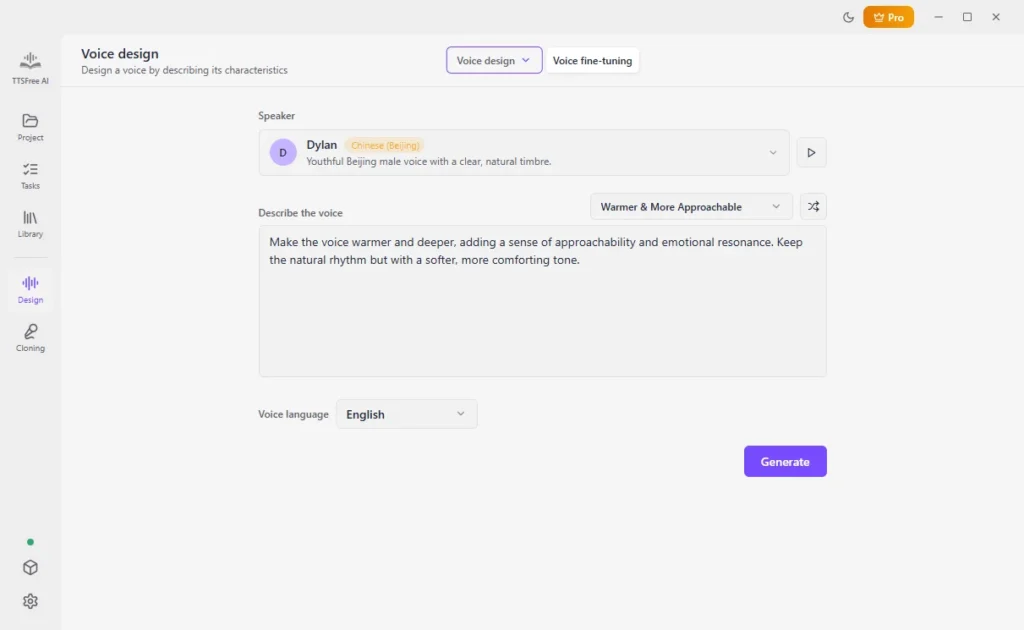
3. Enter a prompt, use an existing prompt, or click Random prompt.
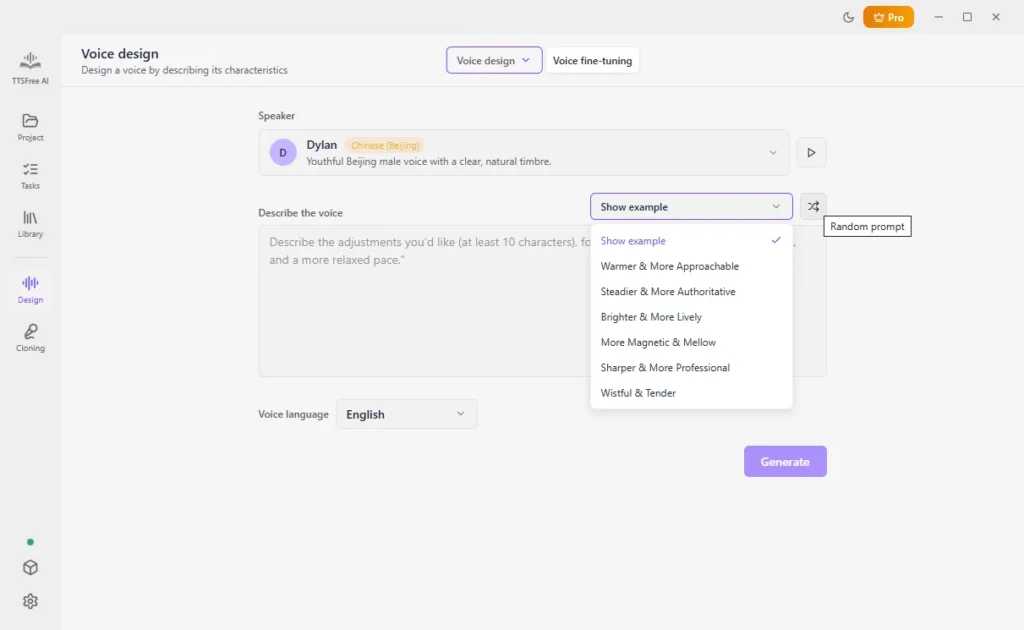
4. Set the voice language and click Generate.
5. Preview the three results and save the one you want.
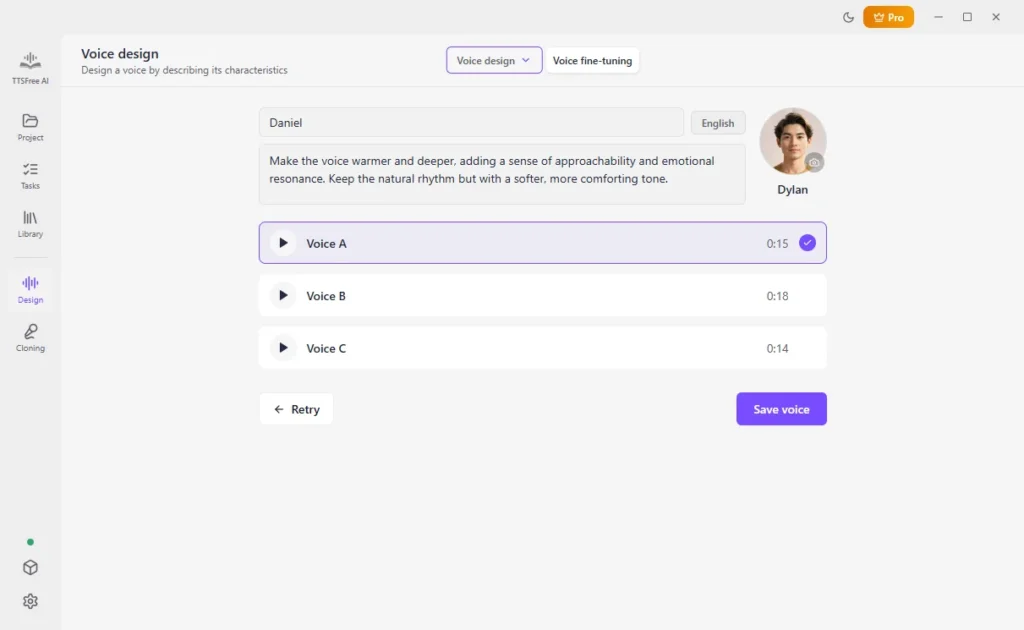
Say what should change, such as older, warmer, slower, more serious. The saved voice is a new entry in the Voice library. The original of the nine is unchanged.
Use the Voice You Designed
You can use the designed voice for text to MP3, EPUB to audio, or PDF to MP3, just like you use other voices.
1. Open a project and select the text or file.
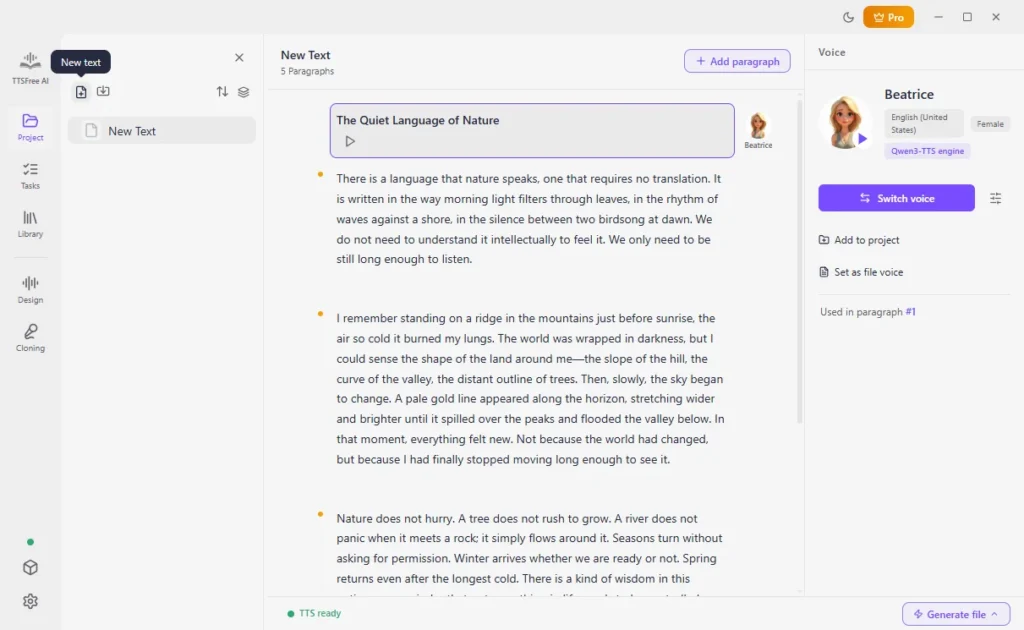
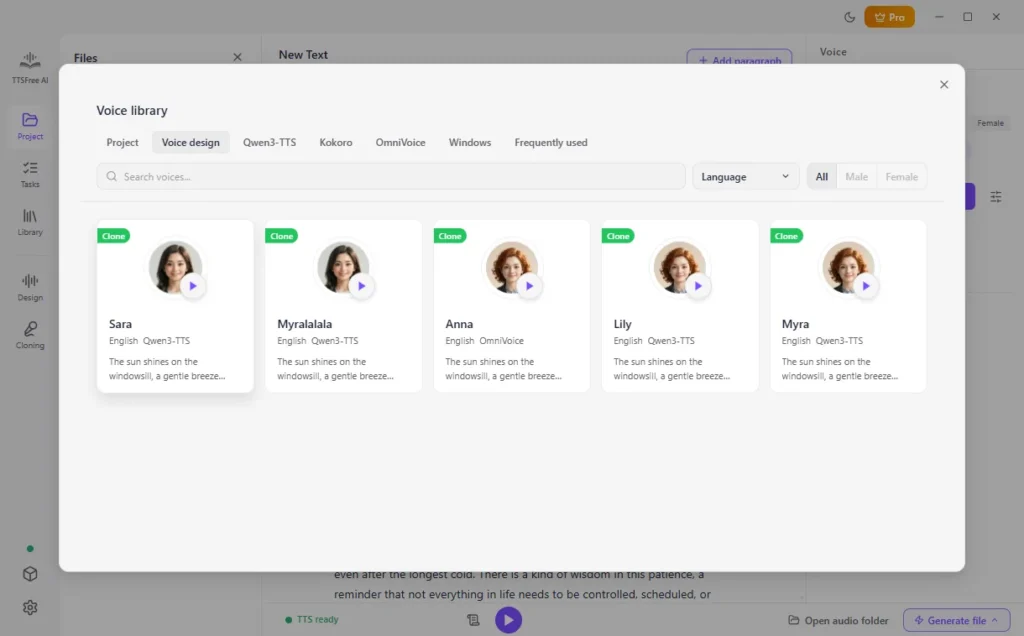
2. Click Switch voice and choose the saved voice. Preview it with the play icon. Click Set as file voice if it should read the whole file.
3. Click Generate and play, or Generate file and then Generate all.
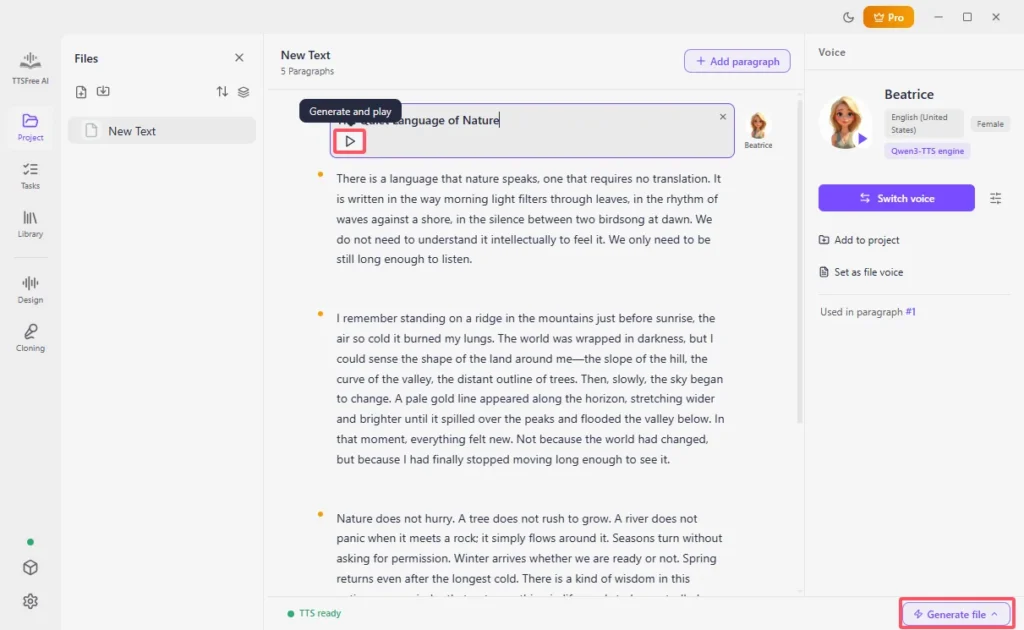
The audio is saved in the project folder. In Settings, choose MP3, WAV, M4A, or M4B before you generate. Speed, pitch, and volume for that reading are under Voice options on the voice’s profile. Those controls are separate from the pitch you chose while designing an OmniVoice.
Which Design Option to Use
- Use QWen3 Voice Design when you want to describe gender, age, style, emotion, or anything else in a prompt.
- Use OmniVoice Voice Design when you would rather set language, gender, style, accent, age, and pitch without writing a prompt.
- Use Voice fine-tuning when one of the nine voices is close and you only want to change it with a prompt.
- Use Voice Cloning when the voice has to be yours. Design does not record you.
Tips
- Enable the matching model before you open Design. QWen3 design and fine-tuning need QWen3-TTS. OmniVoice design needs OmniVoice.
- Listen to all three options before you save. You only keep the one you select.
- Put the model in the voice name, so a QWen3 voice is not mixed up with an OmniVoice voice later.
- If the result is close but wrong, change the prompt or one OmniVoice setting and generate a new set of three.
- Preview the saved voice on one paragraph before you generate a long file.
FAQ
Yes. Open Design. Create one with a prompt on QWen3-TTS 1.7B, create one with OmniVoice’s settings, or fine-tune one of the nine QWen3 voices. Save it to the Voice library.
Yes, on QWen3-TTS 1.7B. Write those traits in the prompt. You can also add pitch, pace, accent, and similar details. QWen3-TTS 0.6B does not support voice design.
Each click on Generate produces three new options. Save the one you want. The other two are not kept.
QWen3-TTS 1.7B is not enabled. The 0.6B model cannot be used for voice design. For OmniVoice design, enable OmniVoice. For fine-tuning, enable QWen3-TTS.
Yes, if that language is supported by the same model. A QWen3 voice stays on QWen3-TTS. An OmniVoice voice stays on OmniVoice.