

We’ve all been there — you’re working on a video, audiobook, or presentation and none of the standard voices in text to speech tools quite fit what you have in mind. They might be too formal, too young, too robotic, or just not match the emotion or personality you want. That’s when creating your own custom text to speech voice becomes a game-changer.
If you’ve been searching for an easy way to design your own AI voice, TTSFree AI from PopPop AI makes the whole process surprisingly straightforward. While a lot of TTS tools exist, not many offer strong voice design features — and even fewer make them this simple and effective.
Why TTSFree AI Stands Out for Voice Design
TTSFree AI includes a powerful built-in Voice Design tool that lets you create exactly the voice you’re imagining. Here’s how it works:
- Create a brand-new voice from a prompt: Describe what you want — age, gender, accent, mood, profession, or personality — and the AI generates natural-sounding options.
- Fine-tune existing voices: Take one of the built-in voices and tweak it with a prompt to better match your needs.
The best part? It supports 9 languages (English, Chinese, Japanese, Korean, German, French, Russian, Portuguese, Spanish, and Italian), so you can create custom voices for multilingual projects. The emotions and tone come through really naturally, and everything is done with simple text prompts — no technical skills required.
Once you create a voice, it gets saved to your personal voice library and can be used across all your TTSFree AI projects.
How to Make a Custom Text to Speech Voice in TTSFree AI
Here’s the step-by-step process:
Step 1: Open TTSFree AI and head to Voice Design
Launch the app and go to the Voice Design section. You’ll see two main options: “Voice Design” (for creating something new) or “Voice Fine-Tune” (for adjusting an existing voice).
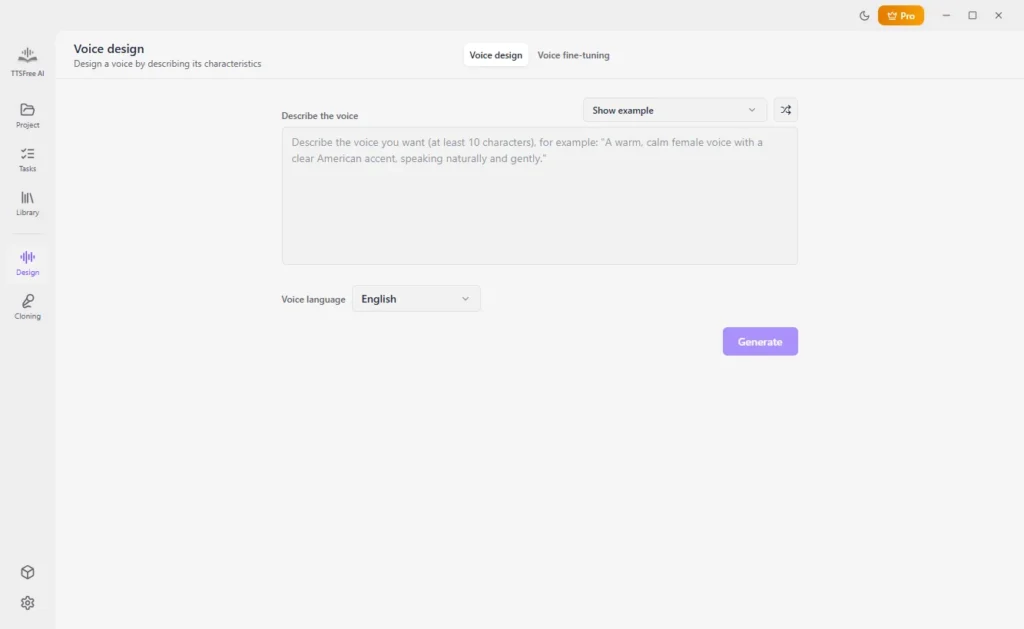
Step 2: Describe the voice you want
In the prompt box, write a clear description like “warm, friendly female narrator in her 30s with a slight British accent, calm and professional tone” or whatever fits your project. Select your target language and click Generate.
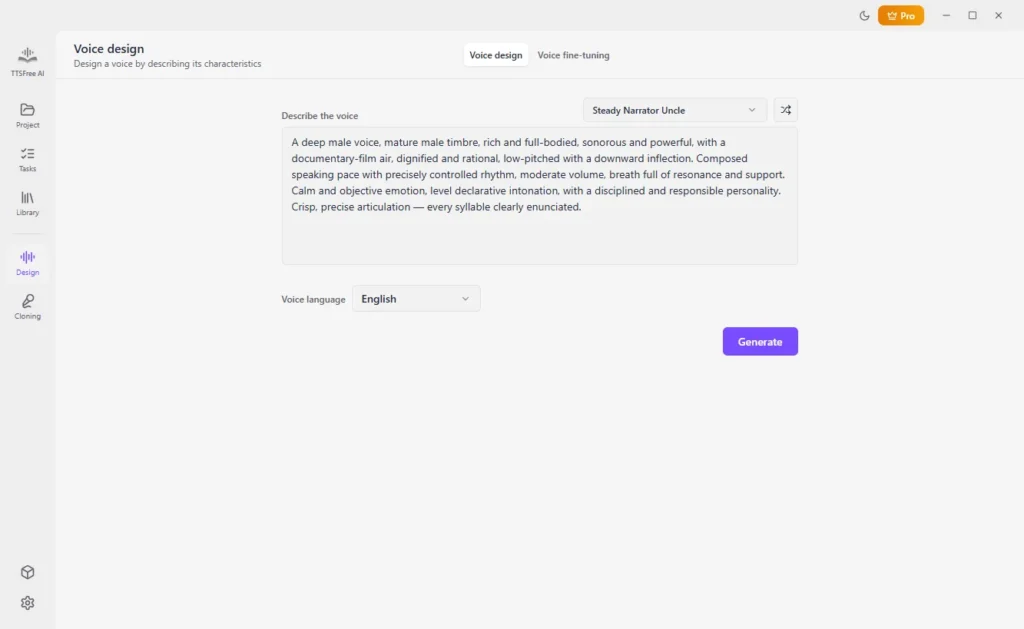
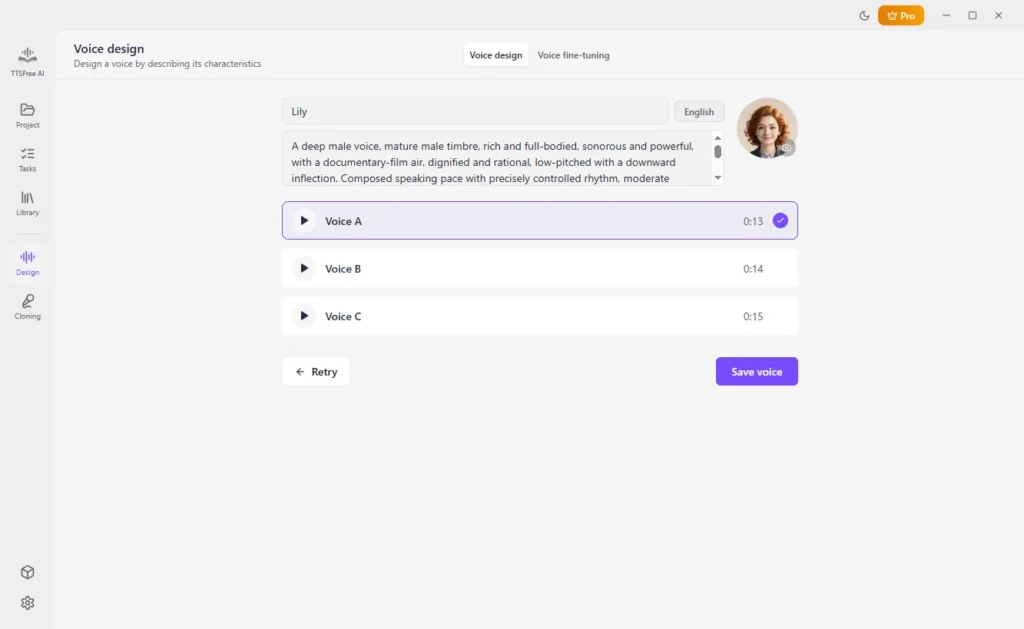
Step 3: Choose and save your new voice
The app will give you three options to preview. Pick the one you like best, give it a name, add an avatar if you want, and save it to your voice library. It’s now ready to use anytime.
How to Use Your Custom AI Voice for Text to Speech
Once your custom voice is saved, using it is super easy:
Step 1: Open a new project or import your text/document.
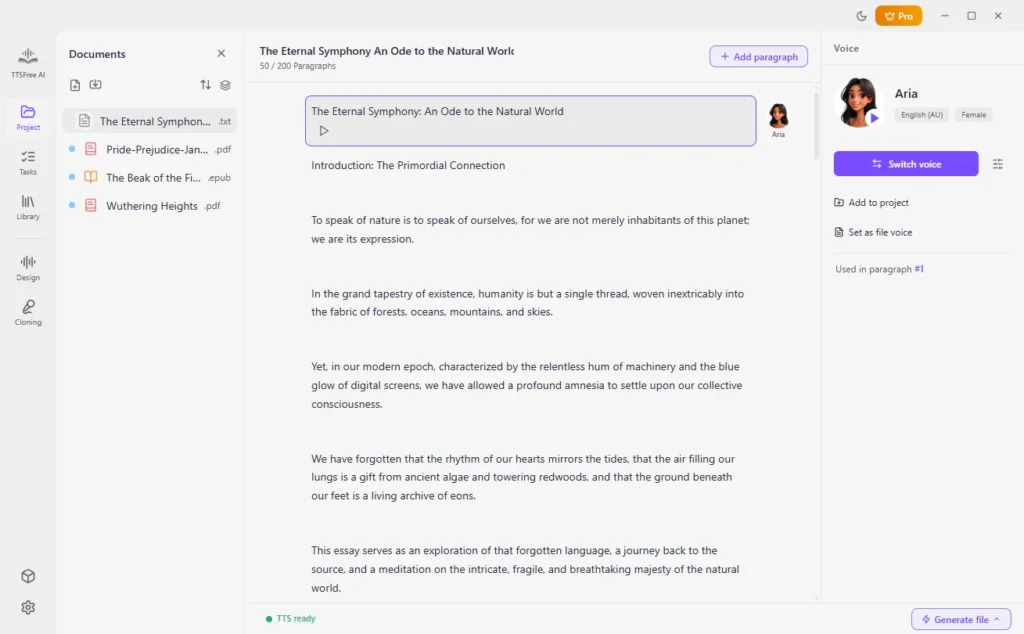
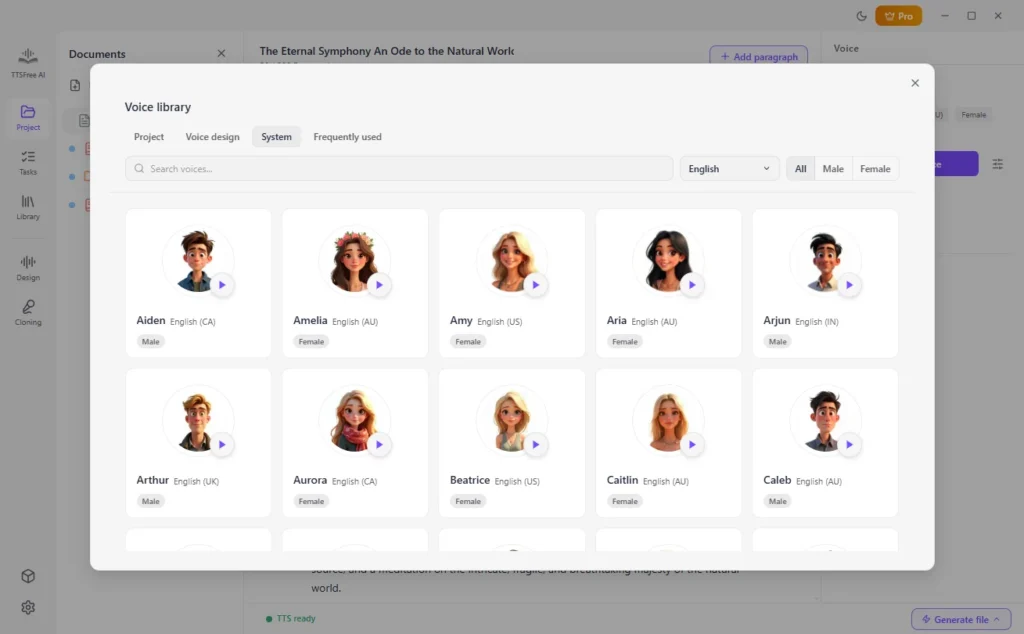
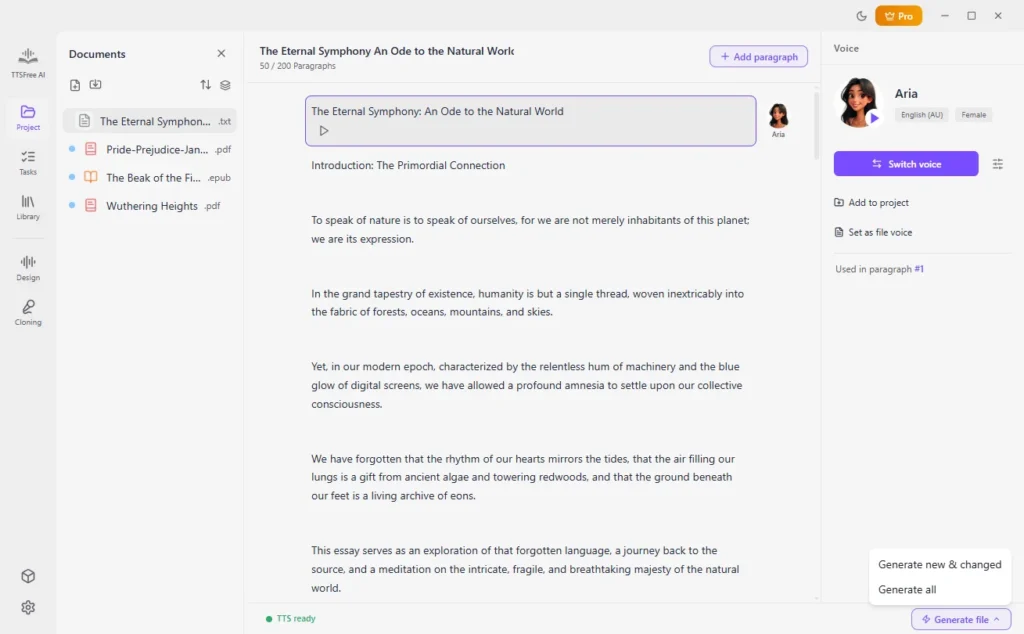
Step 2: Select a paragraph (or the whole file) and click “Switch Voice.” Go to the Voice Design tab and choose your custom voice. (To apply it to the entire document, just click “Set as file voice.”)
Step 3: Hit the Generate button for a specific paragraph or “Generate all” for the full file. You can preview and check the generated audio files right away.
Why You Should Choose TTSFree AI for Custom Voices
Beyond the excellent Voice Design tool, TTSFree AI comes with over 200 natural AI voices to start with, supports bulk conversions, and has no annoying credit limits during your usage. It handles full documents smoothly, works offline on Windows and Mac, and the voices consistently sound human-like rather than artificial. It’s a solid all-around choice for anyone serious about custom text to speech.
Wrapping Up
Making a custom text to speech voice used to feel complicated, but tools like TTSFree AI have made it simple and accessible. Whether you need a unique narrator for your YouTube channel, a character voice for a story, or something tailored for professional work, this approach gives you real control and great results.
Give TTSFree AI a try and start designing your own voices today. Once you create that perfect custom AI voice, you’ll wonder how you ever settled for the standard options. Happy creating!