
How to Convert a PDF to Audio with TTSFree AI
Convert a PDF to audio with TTSFree AI on Windows or Mac. Turn a PDF into an MP3, a WAV file, or an M4A/M4B audiobook with chapter markers. No character limit.
Overview
TTSFree AI converts PDF to audio on your own computer. The same import works for three results: an MP3, a WAV file, or an audiobook in M4A or M4B. You choose the format before you generate. There is no character limit.
The app runs on Windows 10 or later and macOS 13 or later.
The full app workflow is in the TTSFree AI Official Guide. This page is only about PDFs.
When generation finishes, the audio is saved automatically in the folder you chose for the project. There is no separate export step.
Choose the Audio Format First
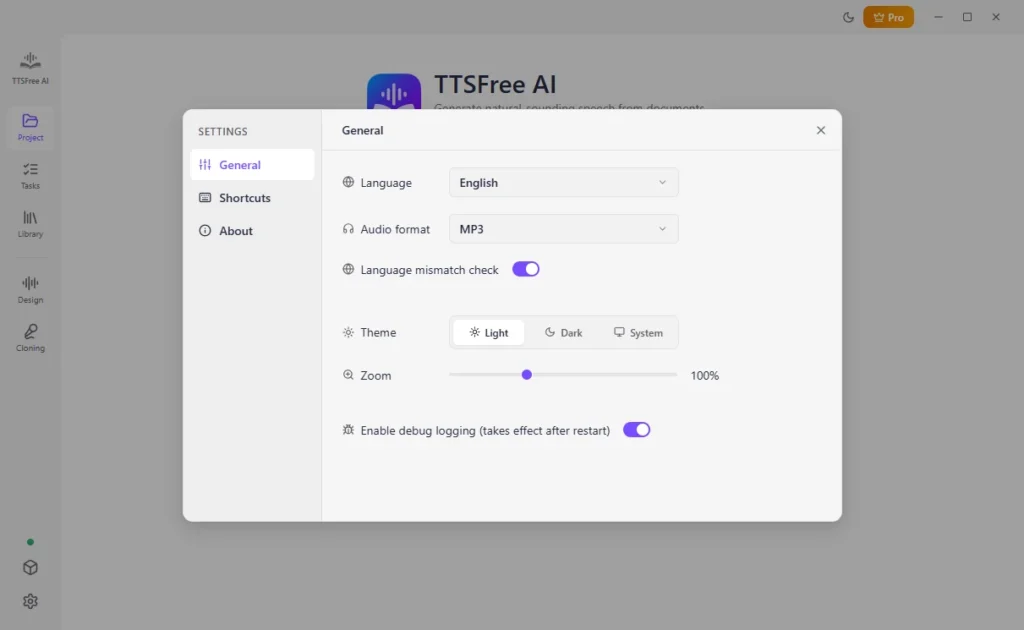
Open Settings and set the format for the file you want:
| You want | Set the format to |
|---|---|
| PDF to MP3 | MP3 |
| PDF to WAV | WAV |
| PDF to audiobook | M4A or M4B |
MP3 is the usual choice for a smaller file, and most users choose to convert text to MP3 for best compatibility. WAV is larger because it keeps the audio uncompressed. M4A and M4B suit an audiobook. With those two formats, TTSFree AI adds a chapter marker for each paragraph.
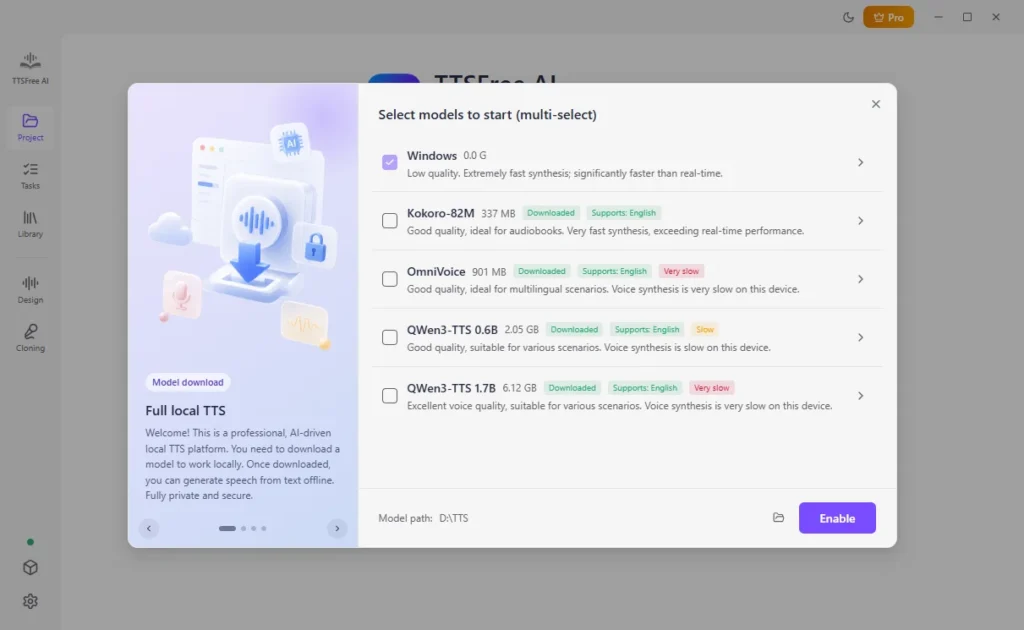
You only need to enable a TTS model once in Model manager. Kokoro-82M is the smallest AI model. QWen3-TTS has the larger built-in voice list. After the trial, use the Windows or macOS voice if you are not on a paid version.
Convert a PDF to Audio
You can follow the same steps to convert EPUB to audio or generate speech from other supported formats. Besides, TTSFree AI offers Script mode for easy script to audio conversions.
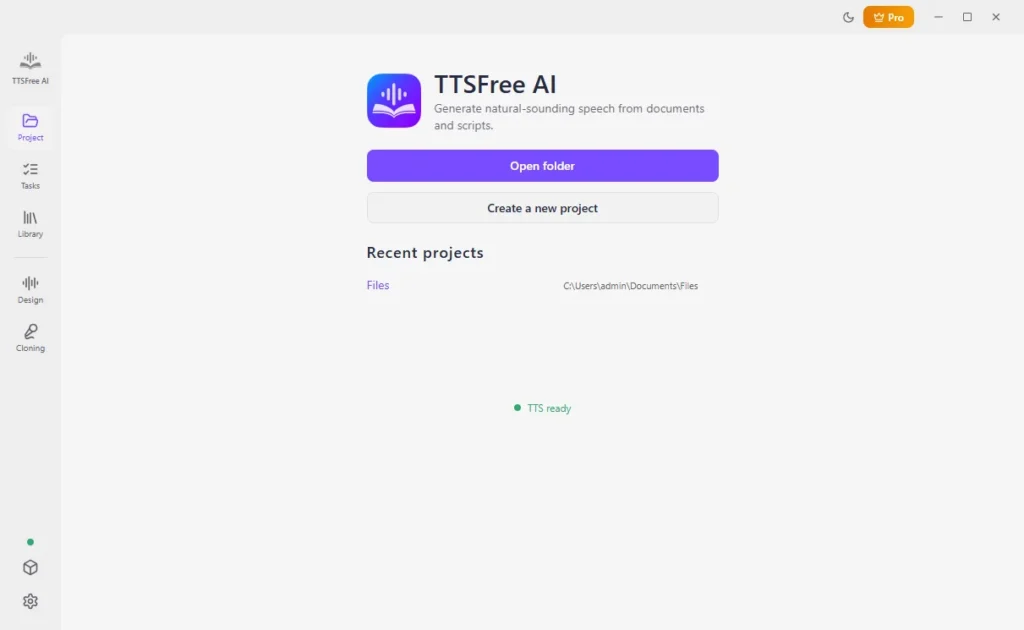
1. In Project, open an existing folder, create a new project, or select a recent project. The audio will be saved in that folder.
2. Click Import document and choose the PDF. You can also select a PDF that is already in the project.
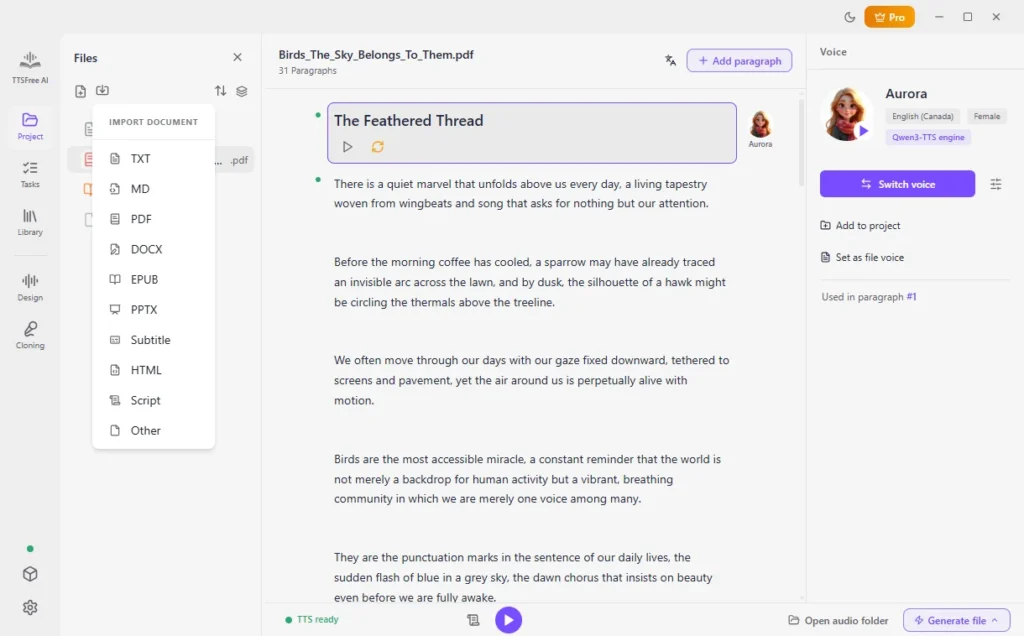
3. Select a paragraph and click Switch voice. Preview a voice with the play icon. Click Set as file voice to use one voice for the whole PDF. To change a section, select that paragraph and switch its voice.
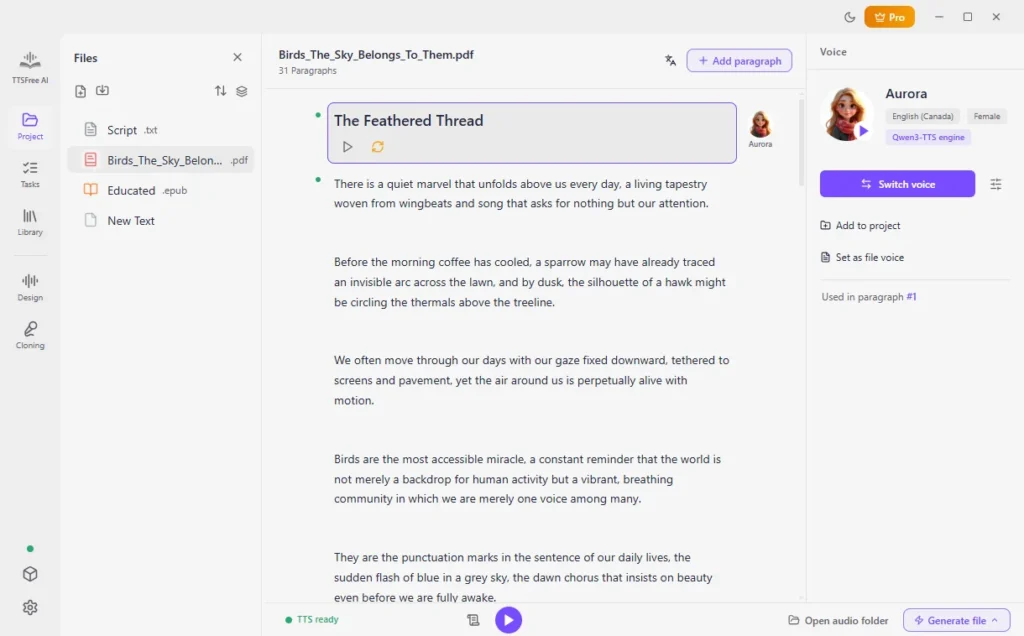
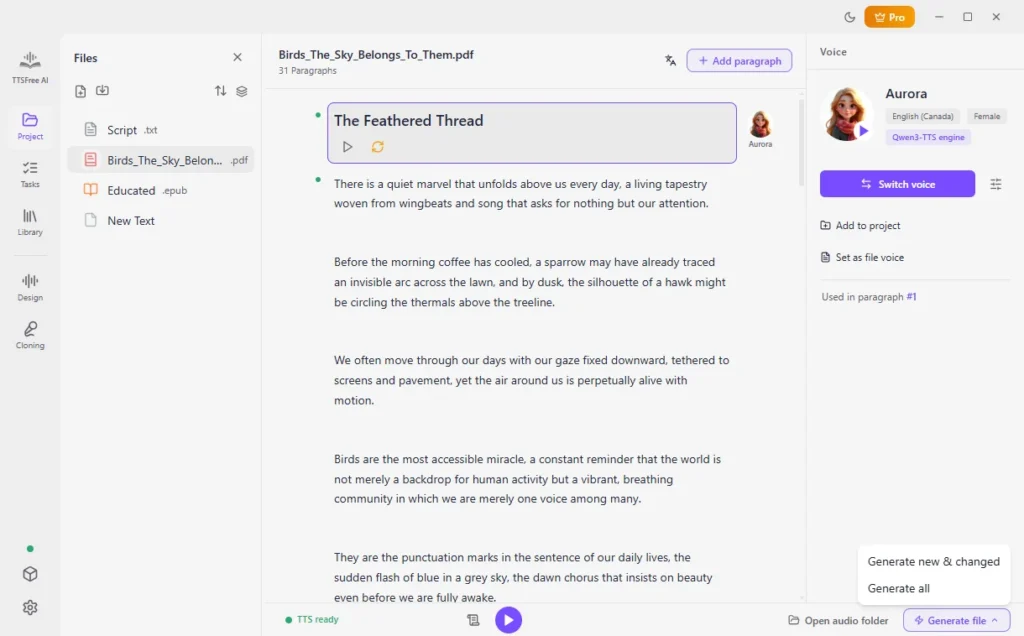
4. Click Generate file, then Generate all. For a single paragraph, click Generate and play under that paragraph.
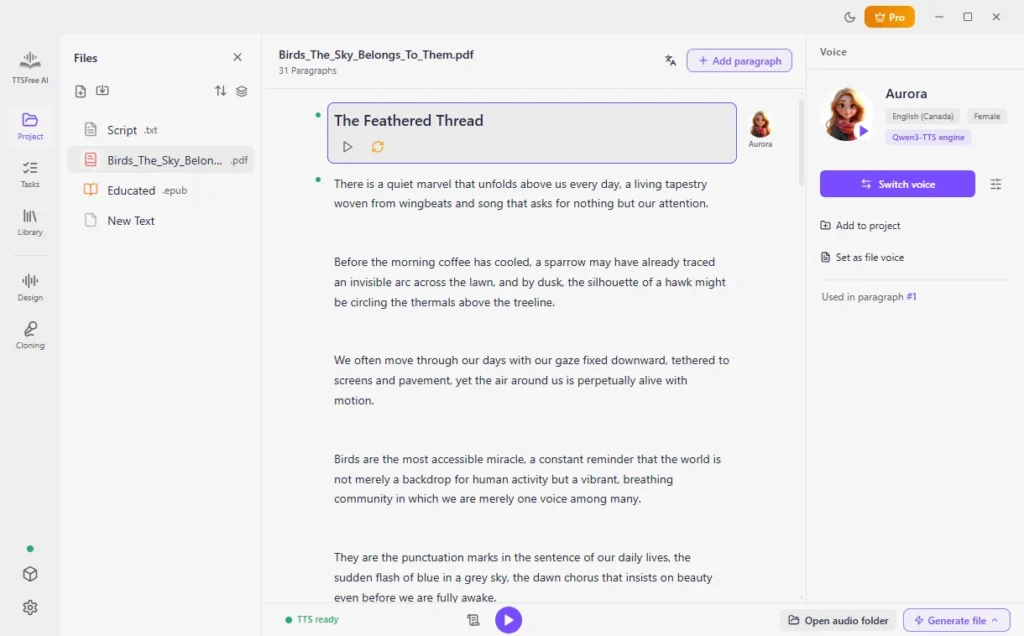
5. Play the audio in the app, or click Open audio folder to open the project folder.
Use the Tasks panel if you want to convert multiple files to audio at once.
If you want to customize AI voices, use Voice Design or Voice Cloning to create custom voices and then you can use them in your TTS project.
TTSFree AI does not modify the PDF. The audio file is saved next to the project, not inside the original document.
Convert a PDF to MP3
Set the format to MP3 before you generate. Use MP3 when you want a file that is easy to add to a video, a slide deck, or a phone. After Generate all, the MP3 is already in the project folder.
If you generated the PDF as WAV and now want MP3, change the format in Settings and generate the file again. The new MP3 is saved in the same folder.
Convert a PDF to WAV
Set the format to WAV, then follow the same import and generate steps. Choose WAV when you need the uncompressed file for editing. It takes more disk space than an MP3 of the same PDF.
Convert a PDF to an Audiobook
Set the format to M4A or M4B, then generate the whole file with Generate all. TTSFree AI writes a chapter marker for every paragraph, so you can skip through the audiobook in a player that supports chapters.
Use one voice for the whole PDF if you want a single narrator. Assign other voices by paragraph if the PDF has more than one speaker. For a fiction script with named characters, Script mode is a better fit than reading the PDF straight through.
A long PDF can take a while. You can listen to one paragraph with Generate and play before you generate the rest.
Which PDFs Work
TTSFree AI can read a normal PDF and a scanned PDF. A normal PDF already contains selectable text, so the app can use that text directly. A scanned PDF is a set of page images. TTSFree AI converts those pages into text first, which takes longer than a normal PDF. Wait until the text appears in the project before you choose a voice and generate the audio.
Tips
- Preview the voice on the first paragraph before you generate a long PDF.
- Break very large paragraphs in the project if you want shorter audiobook chapters. Chapter markers follow the paragraphs.
- Match the voice language to the PDF. An English voice will not read Chinese correctly.
- Audio from QWen3-TTS 0.6B, QWen3-TTS 1.7B, and Kokoro-82M can be used commercially. Check the license for any other model.
- For several PDFs at once, assign a voice to each file, then use Tasks.
FAQ
Yes. Import the PDF, set the format to MP3, choose a voice, and click Generate all. The MP3 is saved in the project folder.
Yes. Set the format to WAV before you generate. The steps are the same as PDF to MP3.
Yes. Set the format to M4A or M4B. The app adds a chapter marker for each paragraph.
No. A long PDF is still one conversion. There is no character cap.
No. Conversion runs on your computer.
Those pages are probably images, not selectable text. TTSFree AI cannot read a scan that has no text layer.