
How to Batch Convert Files to Speech with TTSFree AI
Batch convert files to speech with TTSFree AI. Assign a voice to each document, then turn multiple files into audio in one task. No file limit. The audio is saved in your project folder.
Overview
TTSFree AI can convert multiple documents to speech in one task. You prepare each file and its voice first. Tasks then generates the audio for the files you select. There is no limit on how many files or characters you include.
The app runs on Windows 10 or later and macOS 13 or later. Files can be TXT, MD, PDF, DOC, DOCX, EPUB, PPTX, XLSX, HTML, or subtitles (SRT, VTT, LRC, ASS). The audio is saved in the project folder. The rest of the app is covered in the TTSFree AI Official Guide.
Use Tasks for a stack of separate files. For one article, one PDF, or one EPUB, generate that file from Project instead.
Prepare Each File Before the Batch
Tasks only shows documents that already have a voice assigned. Files without a voice are excluded.
Whether you want to convert text to MP3, PDF to audio, script to audio, or EPUB to audiobook, you can refer to the steps below.
If you want to use custom AI voices in your project, go to Voice Design or Voice Cloning to create new AI voices.
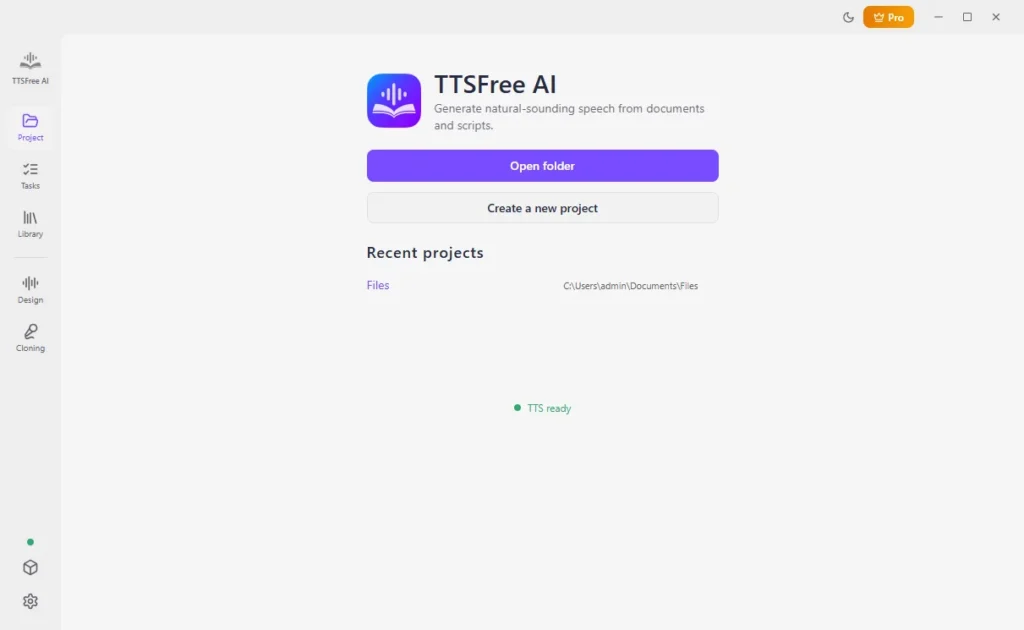
1. In Project, open a folder, create a project, or reopen a recent one. The audio from this batch is saved in that folder.
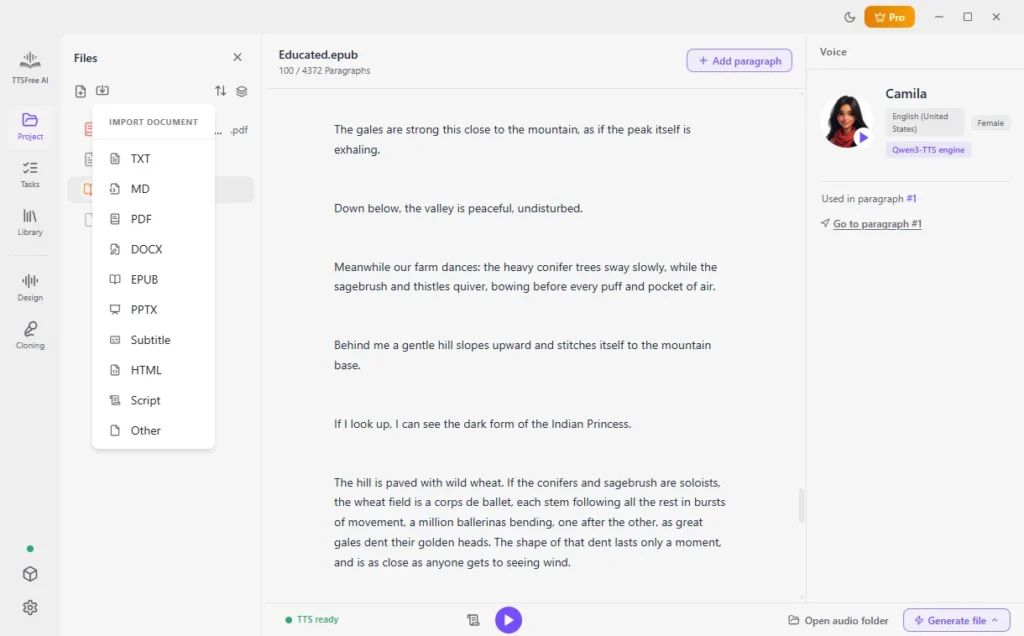
2. Import the documents, or select files that are already in the project.
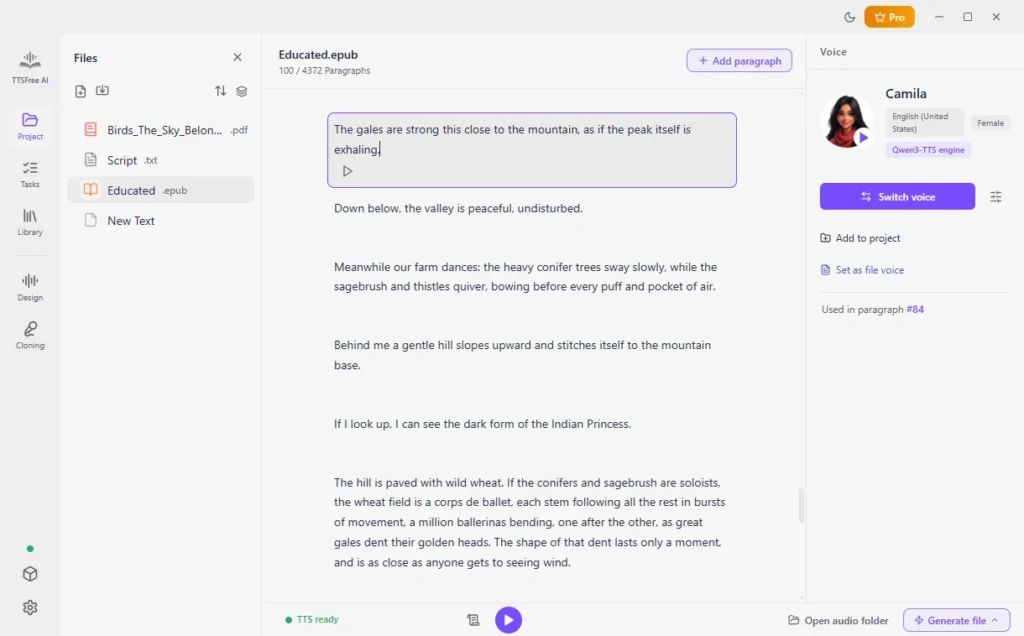
3. Open each document and click Set as file voice. Preview the voice with the play icon before you move on.
You can give every file the same narrator, or use a different voice for each document. Do that in Project. The batch step does not assign voices for you.
Start a Batch Conversion
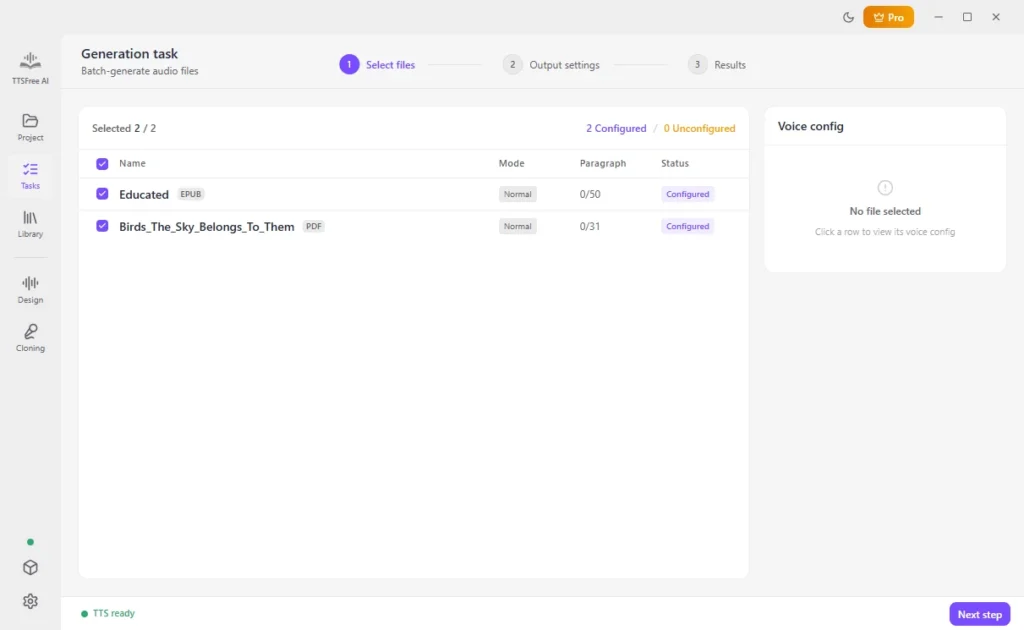
1. Open the Tasks tab. It lists the documents you have already given a voice. Select the files you want in this run. You do not have to convert every file in the project. Then click Next step.
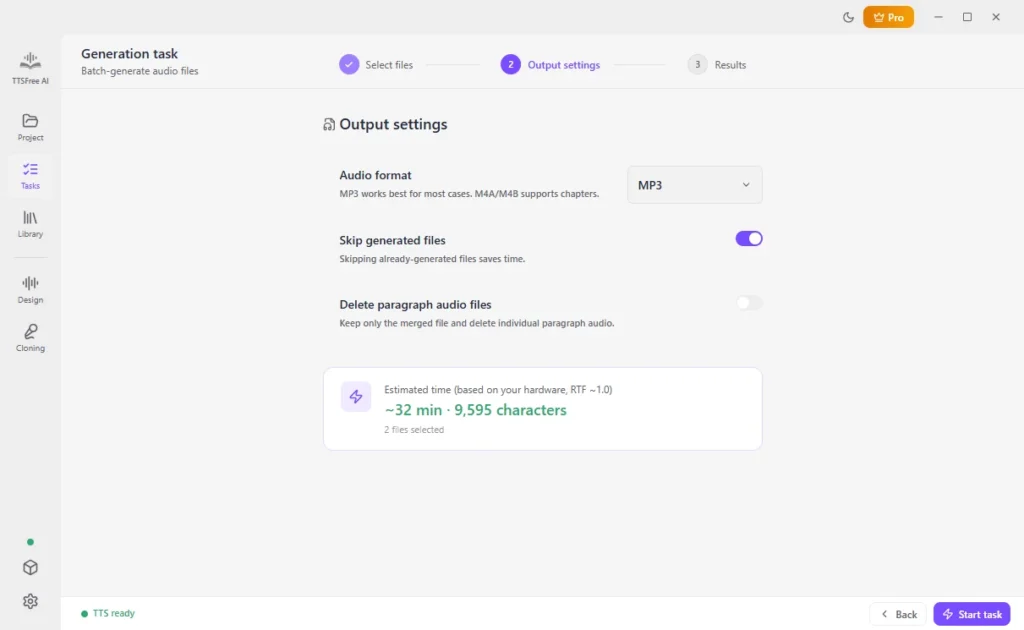
2. Set the audio format. Choose whether to skip files that already have audio. Choose whether to delete the separate paragraph files and keep only the merged file. Then click Start task.
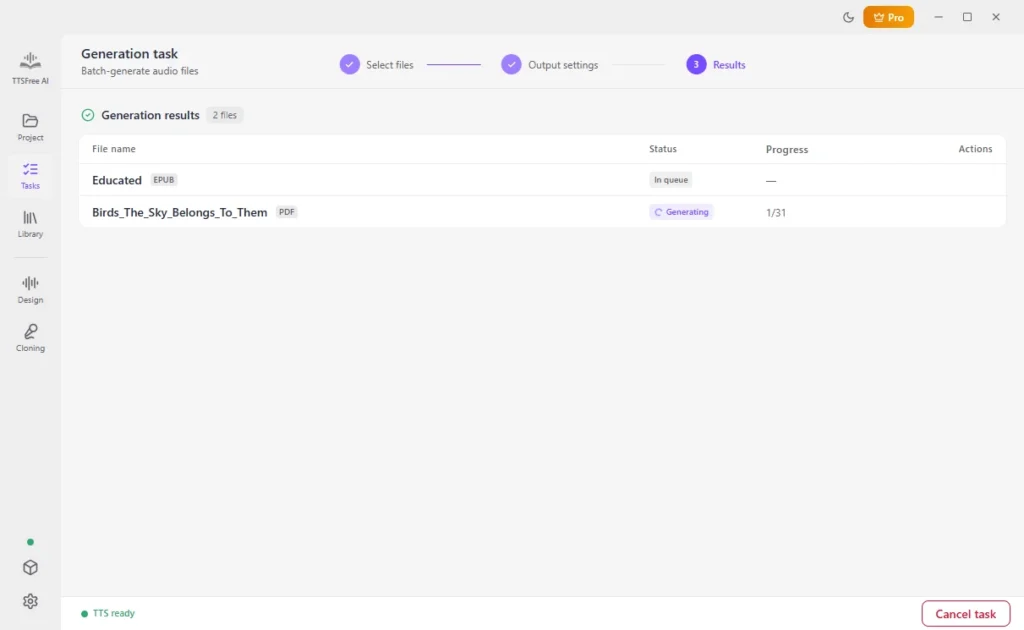
3. Progress stays on the screen. You can stop the task before it finishes. Files that have not been generated yet stay unconverted. Audio that was already saved remains in the project folder.
What the Batch Settings Change
- Audio format. This is the format for the files in this task, such as MP3, WAV, M4A, or M4B. Set it on this screen before you click Start task.
- Skip generated files. Turn this on when you are running the task again and you want to leave finished files alone.
- Paragraph files. TTSFree AI can keep one audio file per paragraph, or delete those files and leave only the merged file for each document. Keep the merged file when you want one audio file per document.
Stopping a task does not remove audio that has already been written to the folder.
Tips
- Check one file with Generate and play before you put a large set into Tasks.
- A scanned PDF takes longer to turn into text than a normal PDF. Wait until its text is in the project and it has a voice, or Tasks will not include it.
- For an EPUB you want as an audiobook, set M4A or M4B for the batch. Chapter markers still follow the paragraphs.
- A script you want read by character should be set up in Script mode before you add it to the batch. Tasks uses the voices already on the file.
- Speed, pitch, and volume belong to the voice, under Voice options. Set them before Start task.
FAQ
Yes. Give each document a voice in Project, open Tasks, select the files, and click Start task.
It does not have a voice yet. Open it in Project, click Set as file voice, then return to Tasks.
Yes. Select the ones you want. Leave the others unselected.
Yes. Stop the task on the progress screen. Audio already saved stays in the project folder.
No. There is no cap on the number of files or characters in a task.
In the folder for that project. Each finished document is saved there automatically.