
How to Convert Text to MP3 with TTSFree AI
Convert text to MP3 with TTSFree AI on Windows or Mac. Paste your text, choose a voice, and the MP3 is saved in your project folder. No character limit. WAV is available too.
Overview
TTSFree AI converts text to MP3 on your own computer. Paste a paragraph, a script, or a whole article, choose a voice, and generate the audio. There is no character limit and no daily cap.
The app runs on Windows 10 or later and macOS 13 or later. It can also save WAV, M4A, and M4B. This page covers pasted or typed text. For a PDF or an EPUB, import the file first, then use the same generation steps. The full workflow is in the TTSFree AI Official Guide.
When generation finishes, TTSFree AI saves the audio automatically in the folder you chose for the project. There is no separate export step.
Before You Convert Text to MP3
1. Install TTSFree AI and open Model manager.
2. Download and enable one TTS model. Kokoro-82M is the smallest. QWen3-TTS has the larger built-in voice list.
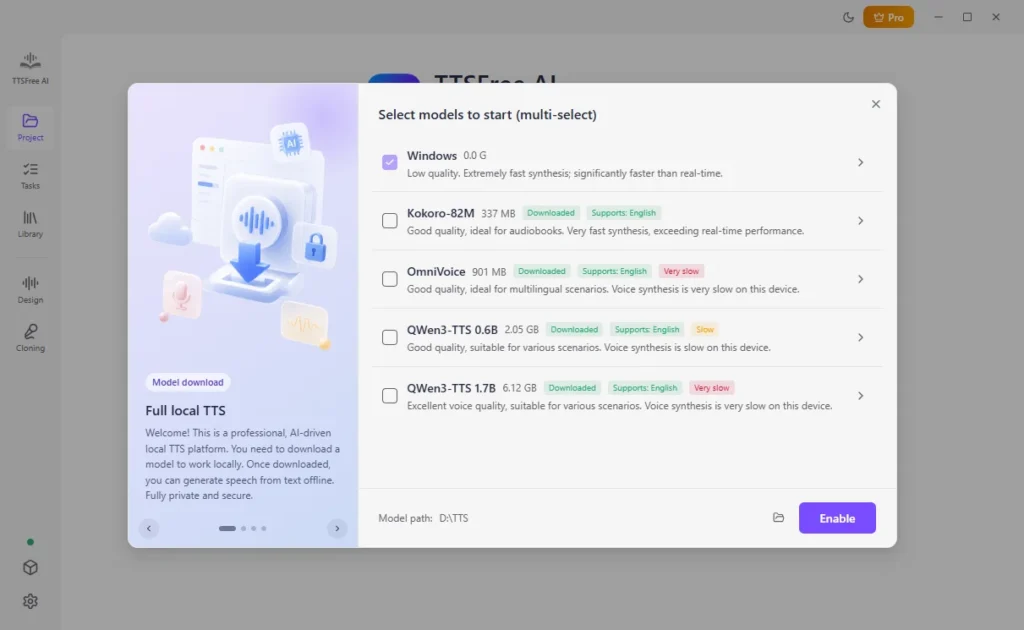
3. Open Settings and set the audio format to MP3.
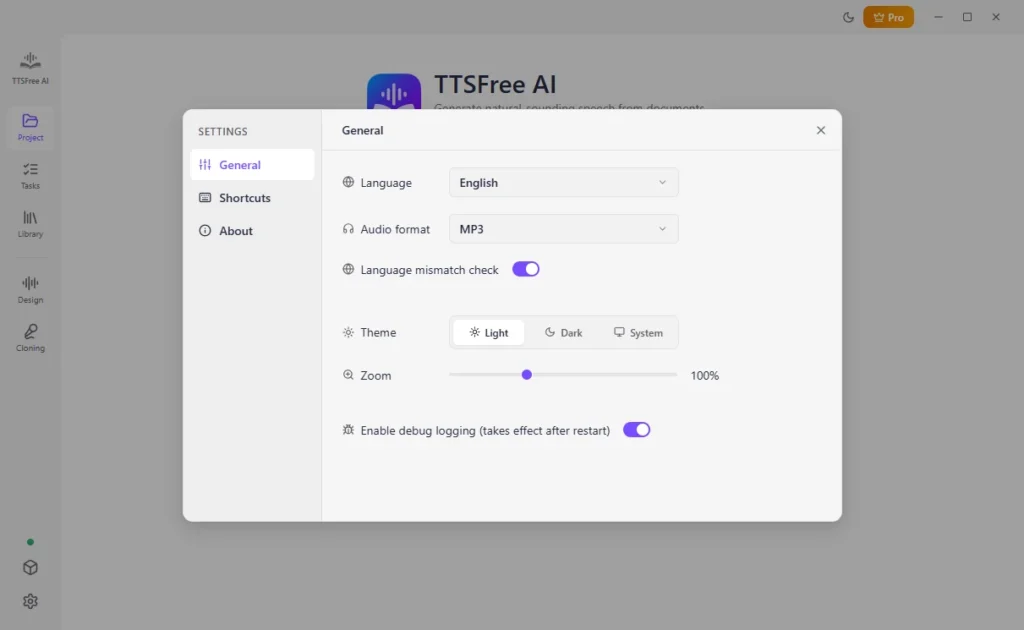
You only need to choose the model and the format once. Later conversions reuse those settings until you change them.
Convert Text to an MP3 File
When you need to convert PDF to audio or EPUB to audiobook, you can also follow the steps below.
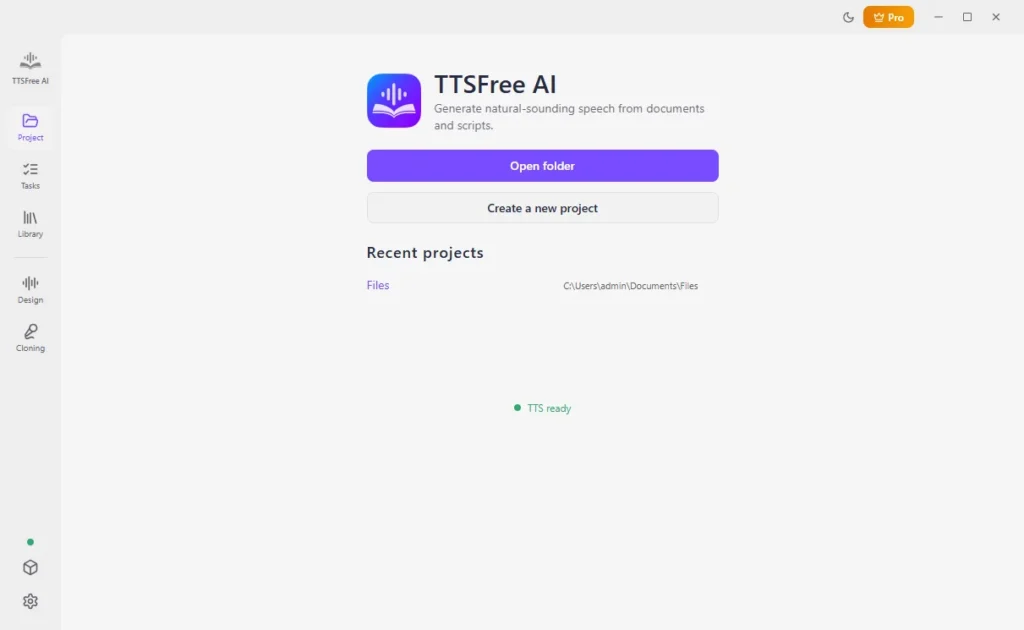
1. In Project, open an existing folder, create a new project, or select a recent project. The audio will be saved in that folder.
2. Click New text. Type or paste the text you want to hear.
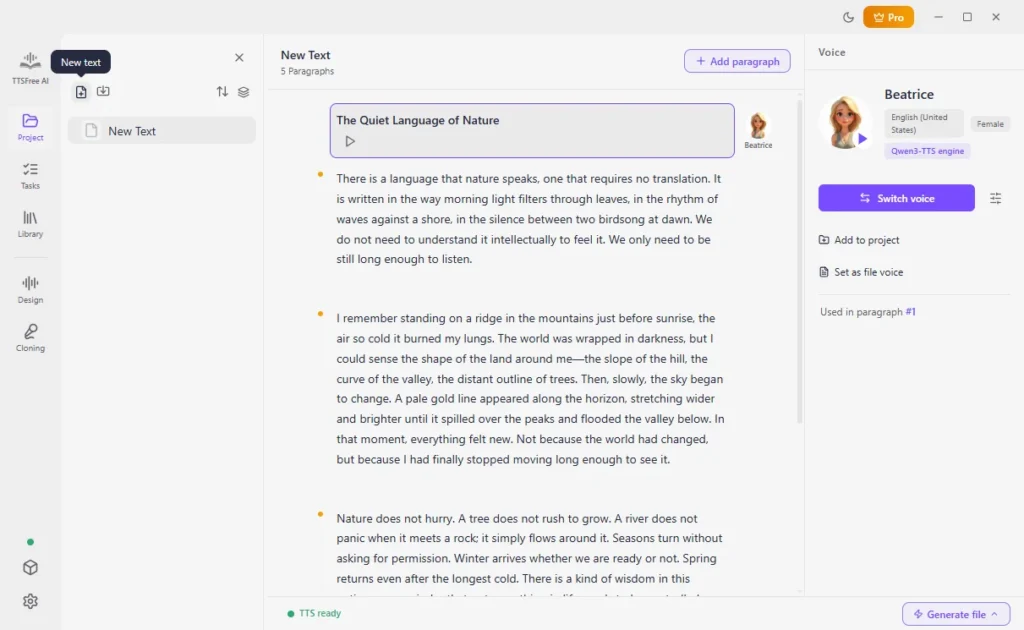
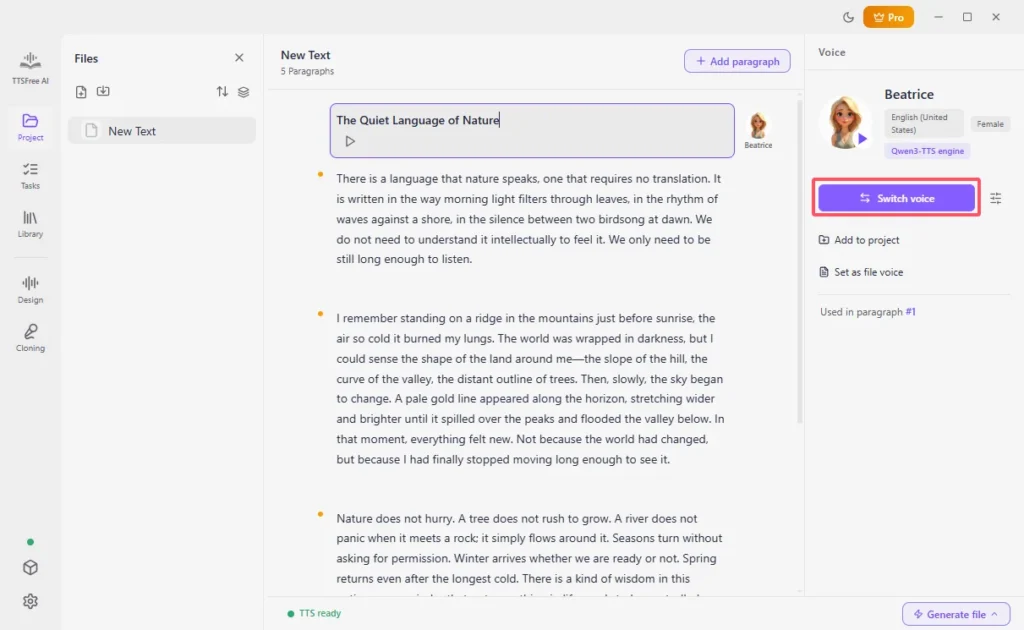
3. Select a paragraph and click Switch voice. Preview a voice with the play icon. Click Set as file voice if that voice should read the whole text. To use more than one voice, select another paragraph and switch its voice.
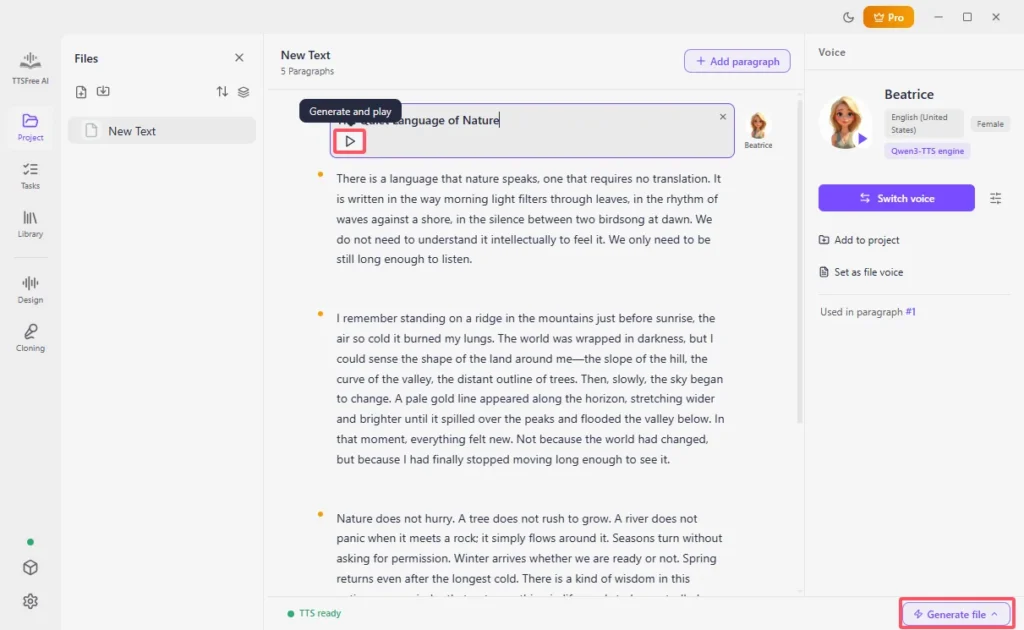
4. Click Generate and play under one paragraph, or click Generate file and then Generate all for the whole file.
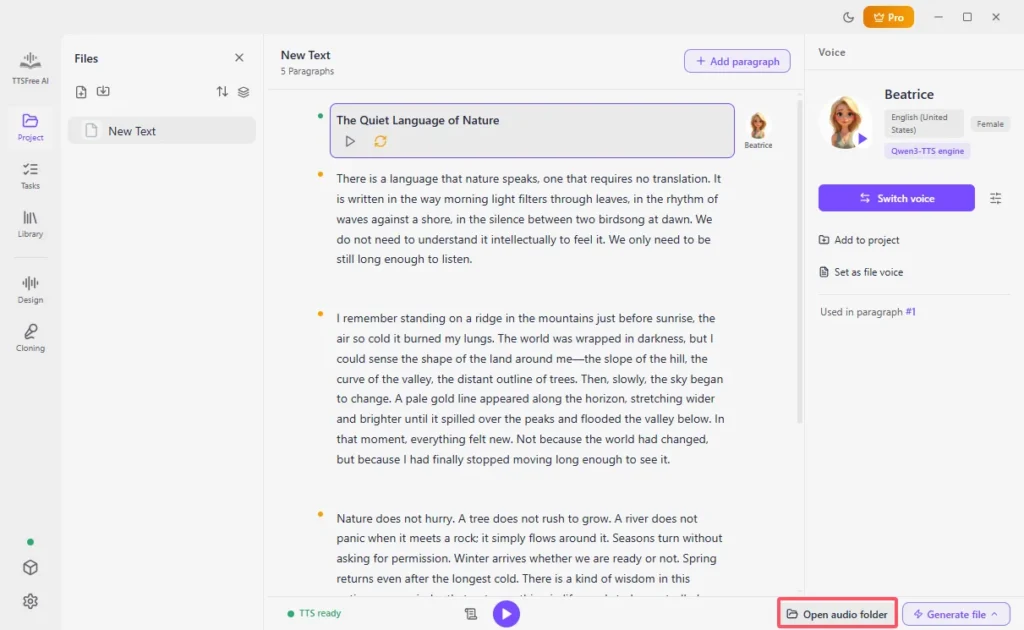
6. Play the MP3 in the app, or click Open audio folder to open the project folder in your file manager.
If you need to batch convert text to speech, use the Tasks feature instead. For script to audio conversion, switch to the Script mode for smart character detection. (TTSFree AI does not change your source text. The MP3 is a separate file in the project folder. )
Save the Same Text as WAV or Another Format
Text to WAV uses the same steps. Before you generate, open Settings and choose WAV instead of MP3. Choose M4A/M4B if you want an audiobook-style file.
Generate again after you change the format. The new file is saved in the same project folder. WAV is larger than MP3 and keeps the audio uncompressed. MP3 is the better default when you want a smaller file for a video, a slide deck, or a phone.
Convert One Paragraph or the Whole Text
- One paragraph: click Generate and play under that paragraph.
- The whole file: click Generate file, then Generate all.
- A different voice in the middle: select that paragraph, click Switch voice, then generate again.
You can change speed, pitch, and volume from the voice’s profile. Open it and click the Voice options icon before you generate.
Which Voice Can You Use?
The voice list depends on the model you enabled:
- QWen3-TTS 0.6B or 1.7B: 214 built-in voices, including Chinese, English, Japanese, Korean, and several European languages
- Kokoro-82M: 54 voices, including English, Chinese, Japanese, French, Spanish, Hindi, Italian, and Portuguese
- OmniVoice: 159 voices, with a wider language list
- Windows or macOS speech: the voices already installed on your computer
You can also use the voice design feature or voice cloning feature to create custom AI voices for TTS conversions.
Audio from QWen3-TTS and Kokoro-82M can be used commercially. Check the license before you publish audio from another model.
Tips
- Short sentences sound clearer. Break a long block into paragraphs before you generate the whole file.
- Preview the voice on one paragraph before you convert a long article.
- If a name is pronounced wrong, change the spelling and generate that paragraph again.
- Match the voice language to the text. An English voice reading Chinese will not pronounce it correctly.
- For many separate documents, use batch conversion instead of generating them one by one.
FAQ
You can try every model free for 7 days. After that, text to MP3 still works with the Windows or macOS voice. QWen3-TTS, Kokoro-82M, and OmniVoice require the paid version.
No. TTSFree AI does not limit how many characters you convert or how many audio files you generate.
Yes. Set the format to WAV in Settings, then generate the file again. It is saved in the project folder.
In the folder you selected for the project. Generation saves it there automatically. Click Open audio folder to find it.
No. TTSFree AI runs on your computer. You paste or type the text locally.
Yes, when the audio comes from QWen3-TTS 0.6B, QWen3-TTS 1.7B, or Kokoro-82M. Confirm the license for any other model.