
How to Convert an EPUB to Audio with TTSFree AI
Convert an EPUB to audio with TTSFree AI. In Settings, choose M4A or M4B for an audiobook with chapter markers, or MP3 or WAV for the same ebook. The file stays on your Windows PC or Mac.
Overview
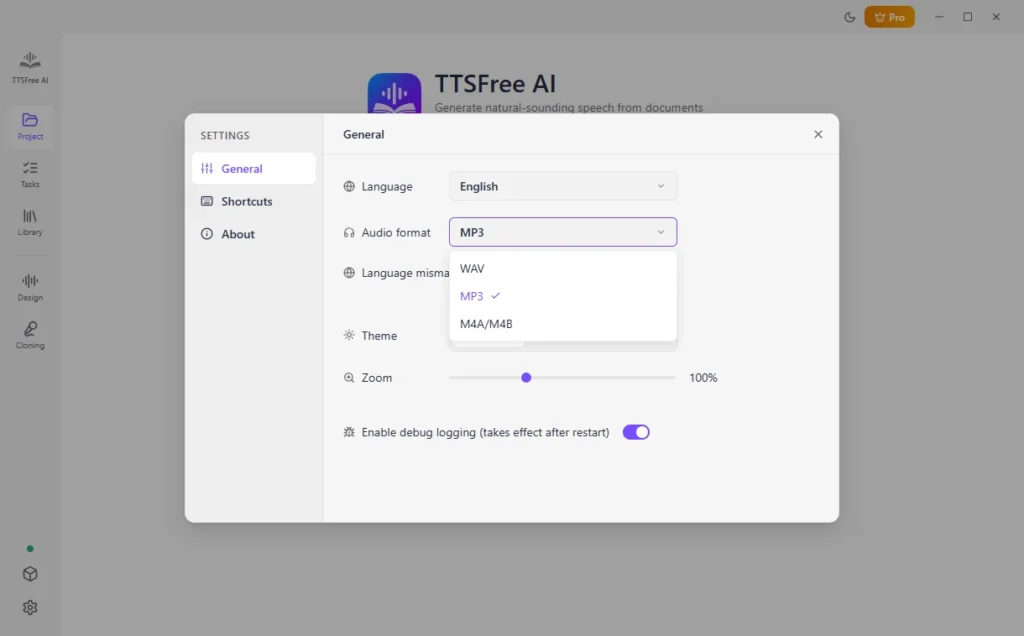
TTSFree AI reads an EPUB on your computer and saves it as audio you can listen to like a book. Open Settings and choose the format before you generate:
- M4A or M4B for an audiobook. TTSFree AI adds a chapter marker at each paragraph.
- MP3 for a smaller file on a phone or tablet. Convert text to MP3 if you prefer universal compatibility.
- WAV for an uncompressed file you want to edit. A full book in WAV is much larger than the same book in MP3.
There is no character limit, so a whole novel can stay in one project. The app runs on Windows 10 or later and macOS 13 or later. For the rest of the app, see the TTSFree AI Official Guide.
The finished file is saved in the project folder. There is no separate export step.
Turn an EPUB into an Audiobook
These steps also apply to converting PDF to audio. If you want to convert multiple files to speech, use the Tasks feature instead.
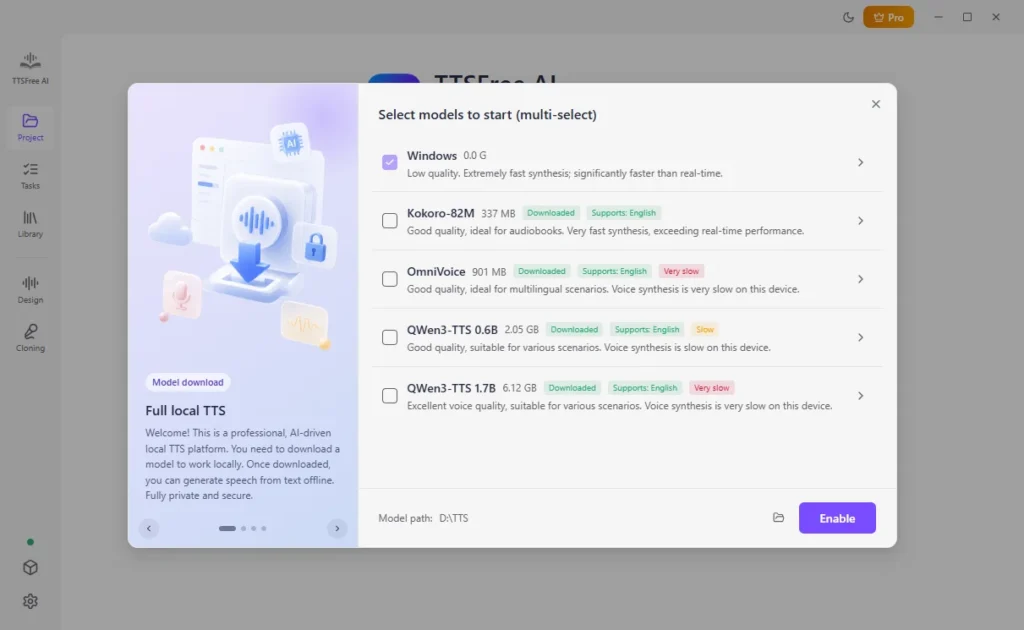
1. Enable a TTS model in Model Manager. Kokoro-82M is the smallest download. QWen3-TTS has more built-in voices. You can also use the Windows or macOS voice already on your computer.
2. Open Settings and choose M4A/M4B.
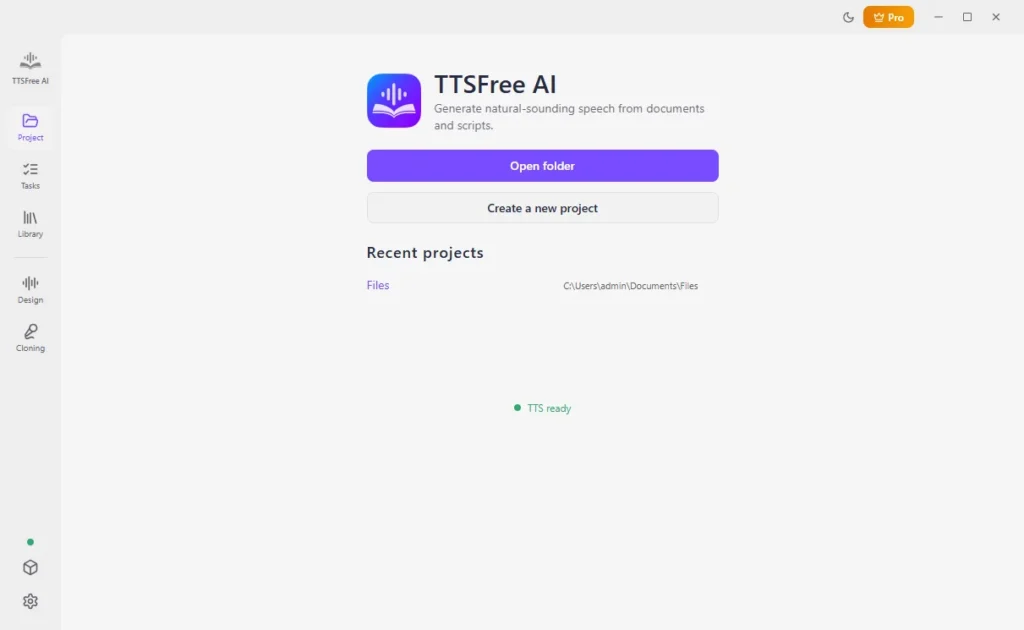
3. In Project, open a folder, create a project, or reopen a recent one. That folder is where the audiobook will be saved.
4. Click Import document and select the EPUB. Or select the EPUB file from the list.
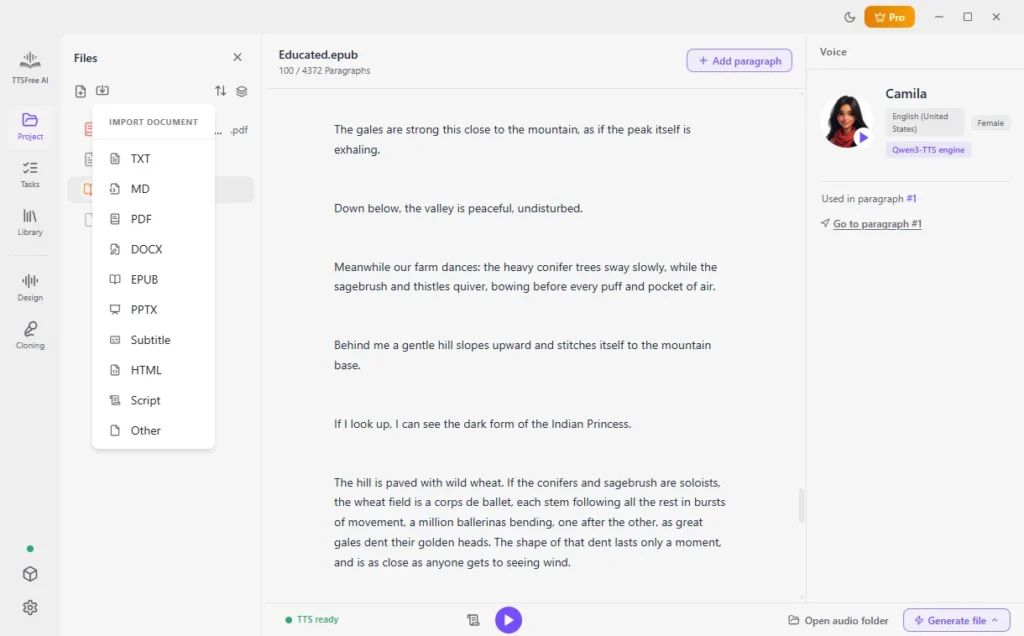
5. Click a paragraph, then Switch voice, and preview it. Click Set as file voice to keep one narrator for the whole book.
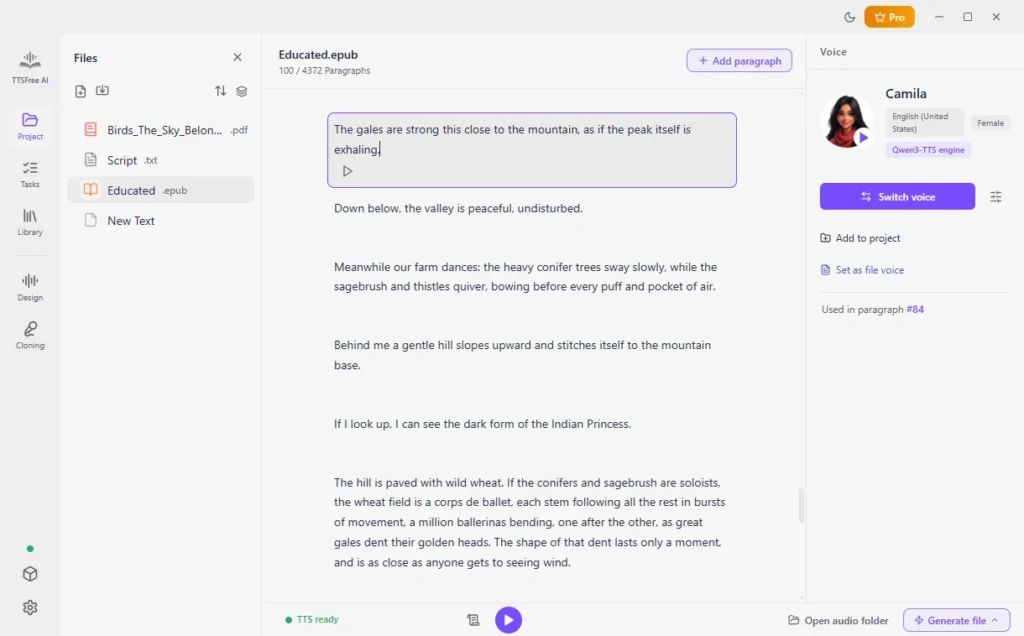
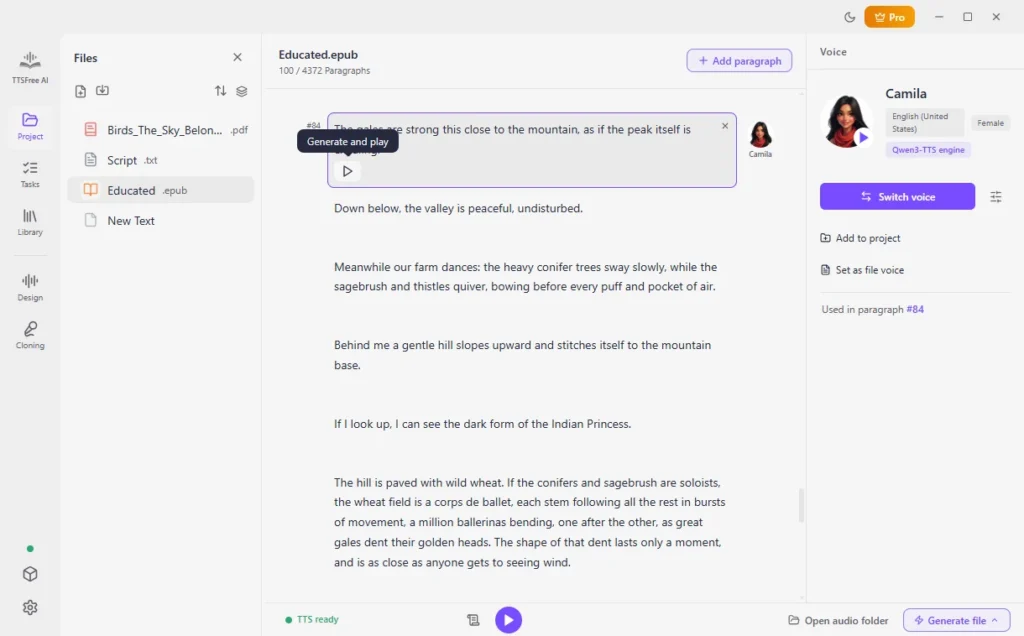
6. Click Generate and play on the opening paragraph. If the voice fits, click Generate file, then Generate all.
7. Click Open audio folder and open the audiobook in a player that supports chapters.
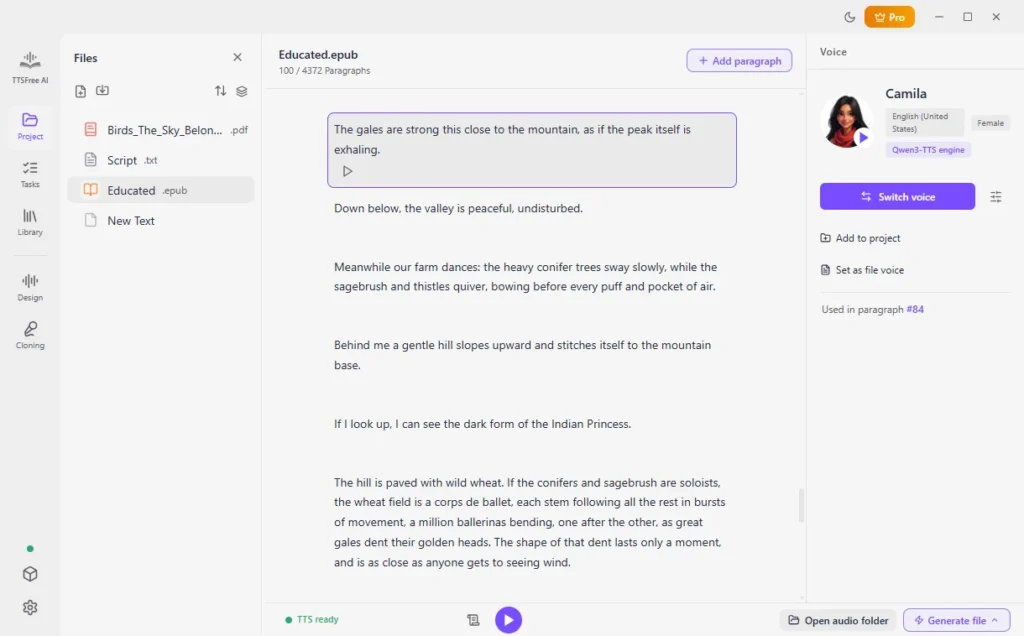
TTSFree AI does not change the EPUB. Chapter markers follow the paragraphs in the project, not a separate chapter list you build by hand. If a paragraph is very long, split it before you generate. That split becomes a shorter chapter.
Use a second voice only where the book changes speaker. Select that paragraph and switch its voice. A playscript with named characters is easier in Script mode than as one continuous narration. (Get more details about script to audio conversion.)
Save the Book as MP3 or WAV Instead
You do not import the EPUB again. Open Settings, change the format, then generate again.
- For EPUB to MP3, set the format to MP3 in Settings and click Generate all. Use this when you want the smaller file.
- For EPUB to WAV, set the format to WAV in Settings and click Generate all. Use this when another editor needs uncompressed audio.
The new file is saved in the same project folder. Generating a second format does not delete the audiobook you already made.
Before You Generate the Whole Book
Listen to the first page before you leave a long book running. Check three things:
- The voice language matches the book. (You can also use Voice Design or Voice Cloning to create custom AI voices.)
- Names that sound wrong can be respelled in the project, then generated again for that paragraph.
- Speed, pitch, and volume sit on the voice profile, under Voice options. Set them in the profile before Generate all, not after the file is saved.
Several EPUBs at once belong in Tasks, after each book has a voice. This page is for one book.
FAQ
Yes. Import the EPUB, set the format to M4A/M4B in Settings, choose a narrator, and click Generate all. Each paragraph gets a chapter marker.
Yes. Open Settings, switch the format to MP3 or WAV, and generate again. MP3 is the smaller listening file. WAV is the uncompressed one.
No. There is no character cap. Preview the opening first, because a long book takes time to generate.
No. The book stays on your computer.
Yes. Keep one voice for the narration, then switch the voice on the paragraphs where someone else speaks.